



Welcome to the world of cryptocurrency! KuCoin Lite Version is the ideal starting point for your crypto investment journey. It strips away complexity, allowing you to easily and securely complete the core operations of buying, selling, and converting cryptocurrency.

I. KuCoin Lite Version Overview and Switching
-
What is KuCoin Lite Version?
KuCoin Lite Version is designed to lower the barrier to entry for new users in the cryptocurrency market. It offers a cleaner, more intuitive interface, focusing on essential functions like buying, selling, and converting cryptocurrencies.
-
Beginner-Friendly: If you are new to crypto, the Lite Version allows you to get started quickly without being distracted by complex trading tools.
-
Coexists with Pro Version: The Lite Version and the more comprehensive Pro Version (for advanced traders) are within the same KuCoin App. There is no need to download a separate application.
-
How to Switch to KuCoin Lite Version?
Switching is very simple for both new and existing users:
-
Open the KuCoin application.
-
Locate the version switch menu at the top of the APP.
-
Tap the “Lite” option to switch to Lite mode immediately.
Note: Please only use the switch function within the official APP. Be wary of any websites or apps claiming that the Lite Version requires a separate download, to avoid fake applications.
II. Create and Verify Your Account
To start trading on KuCoin, you first need an account and must complete identity verification.
-
Register Your Account:
-
Open the KuCoin application.
-
Select “Register”.
-
Enter your email address and password.
-
-
Verify Your Identity (KYC):
-
Complete the identity verification process (this may involve submitting personal information and uploading a valid ID document).
-
Importance: Verification is crucial for protecting your account security and unlocking full deposit and withdrawal functions.
-
III. Core Functionality Guide
The KuCoin Lite Version focuses on three core functions: Buy, Sell, and Convert.
-
How to Buy Cryptocurrency (Buy)
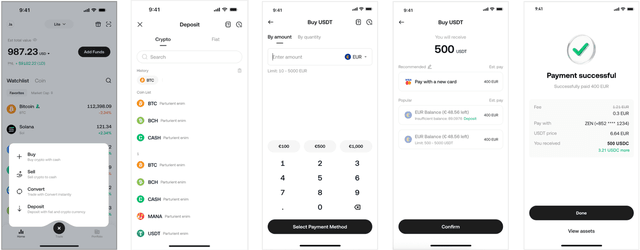
The purchase process takes just 4 simple steps:
-
Select “Buy”: Tap “Trade” at the bottom of the app, then tap “Buy” in the menu.
-
Choose Payment Method: The Lite Version supports various payment methods, including:
-
Credit/debit cards
-
Bank transfers
-
Third-party payment methods
-
(Availability depends on your region)
-
-
Confirm Purchase:
-
Enter the amount you wish to buy.
-
Review the transaction details carefully.
-
Tap “Confirm Purchase”.
-
Once the transaction is complete, the cryptocurrency will be credited to your account and can be viewed on the “Assets” page.
-
-
How to Sell Cryptocurrency (Sell)
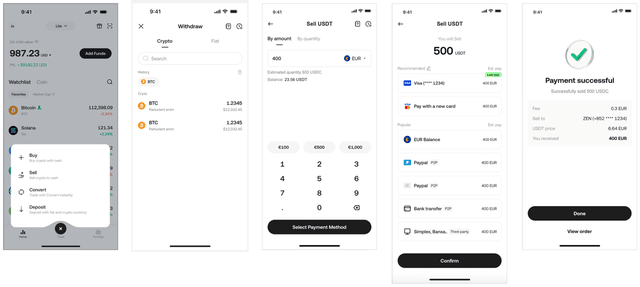
Selling is as simple as buying:
-
Select “Sell”: Tap “Trade” at the bottom of the app, then tap “Sell” in the menu.
-
Set the Cryptocurrency to Sell: Choose the cryptocurrency you want to sell.
-
Enter Amount: Specify the amount of cryptocurrency to sell. You can choose to sell based on the crypto amount or its equivalent fiat value.
-
Choose Payout Method: Depending on your region, funds may be received directly in your bank account or wallet balance.
-
Confirm Sale:
-
Review the details.
-
Tap “Confirm Sale”.
-
The fiat proceeds from your sale will be sent to your bank account.
-
-
How to Convert Cryptocurrency (Convert / Flash Exchange)
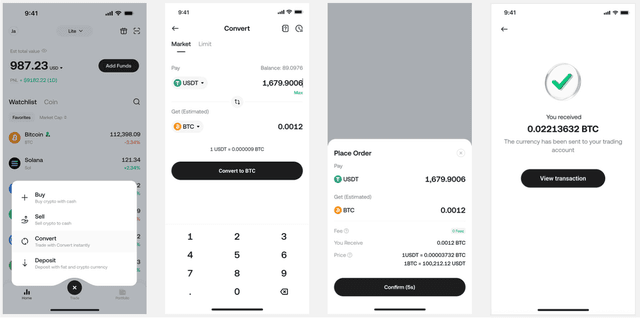
The “Flash Exchange” feature allows you to quickly swap one cryptocurrency for another. KuCoin does not charge any fees for this.
-
Select “Flash Exchange”: Tap “Trade” at the bottom of the app, then tap “Flash Exchange” in the menu.
-
Set Cryptocurrencies for Conversion: Choose the currency you want to convert from and the currency you want to convert to (e.g., from BTC to ETH).
-
Enter Amount: Enter the amount of the cryptocurrency you wish to convert.
-
Preview Conversion: The system will instantly show you a preview of the amount of the new currency you will receive.
-
Confirm Conversion: If you accept the displayed exchange rate, tap “Confirm” to complete the transaction. The converted cryptocurrency will appear in your wallet.
IV. Managing Your Cryptocurrency Portfolio
KuCoin Lite Version provides intuitive asset management tools to help you track your portfolio's performance.
-
Homepage Watchlist: You can directly view the real-time market prices of the coins you hold in the market list on the homepage, making it easy to quickly grasp price changes.
-
Asset Trend Chart: The Asset Trend Chart at the top of the homepage and Assets page visually shows the overall performance of your investment portfolio.
-
Asset List: You can view all the coins held in your account and perform operations like Deposit and Withdrawal at any time.
V. Security Tips – Protect Your Assets
Security is paramount in the crypto space. Follow these best practices to secure your account:
-
Enable Two-Factor Authentication (2FA): Adding 2FA (e.g., Google Authenticator) provides an extra layer of security.
-
Keep Your Recovery Codes Secure: Store your account recovery codes securely in an offline location in case you lose access.
-
Use a Strong Password: Use a complex password and avoid reusing it across different platforms.
-
Beware of Phishing Links: Only access KuCoin through official channels, as phishing attacks are common in the crypto space.
VI. Frequently Asked Questions (FAQ)
-
Are assets shared between the Lite Version and the Pro Version?
Yes, the assets are shared.
However, to simplify the user experience, the Lite Version currently only supports functions related to the 'Funding Account,' including asset viewing, deposits, withdrawals, flash exchange, etc.
If assets are transferred to other accounts via the Pro Version (e.g., deposited into a Futures account), they will not be displayed on the Lite Version's Assets page. You need to switch to the Pro Version to view them.
-
Does the Lite Version support Spot Trading or Futures Trading?
The Lite Version is not currently planned to support Spot or Futures Trading.
The Lite Version is designed to provide a simple interface and low-risk entry point. Once you are familiar with cryptocurrency and wish to try more advanced trading tools, you can easily switch to the Pro Version.
-
Can existing users use the Lite Version?
Absolutely.
The Lite Version is available to all users. If you are an existing user who prefers a simpler trading interface and does not require leveraged trading methods, you can switch via the menu at the top of the app's homepage.
I hope this manual helps you successfully start your crypto investment journey on KuCoin Lite Version!
Enabling Google 2FA (Two-Factor Authentication) Security Guide
Enabling 2FA is a crucial step to protect your crypto assets from unauthorized access. We strongly recommend using Google Authenticator.
Though the Lite Version has a simpler interface, account security settings are shared with the Pro Version. You will need to complete the binding process in the account's security settings page.
Step 1: Download the Google Authenticator App
Before starting the binding process, you need to download the Google Authenticator application on your phone:
-
iOS (Apple): Search for Google Authenticator in the App Store.
-
Android: Search for Google Authenticator in Google Play or other app stores.
Step 2: Access KuCoin Account Security Settings
-
Log in to your KuCoin account.
-
Tap your “Profile/Avatar” or the “Security Settings” entry point in the top right corner of the APP.
-
On the “Account Security” or “Security Settings” page, find the “Google Verification” option.
-
Select “Configure” (or “Bind”).
Step 3: Security Verification and Obtaining the Key
The system will ask you to perform an initial security verification to confirm your identity:
-
Enter your login password, and you may also need a verification code sent via email or SMS.
-
Upon successful verification, the page will display:
-
A QR Code.
-
A Security Key (a string of letters and numbers).
-
CRITICAL TIP: You must perform the following action immediately:
Write down and securely store your Security Key! Write this key on paper and keep it in a very secure, offline location known only to you (never save it as a screenshot on your computer or phone). This key is your only way to recover 2FA if you lose your phone or accidentally delete the Google Authenticator App.
Step 4: Bind KuCoin in the Google Authenticator App
-
Open the Google Authenticator App you downloaded.
-
Tap the “+” sign to add a new account.
-
Choose either:
-
“Scan a QR code”: Use your phone's camera to scan the QR code displayed on the KuCoin page.
-
“Enter a setup key”: Manually enter the Security Key you saved in Step 3.
-
-
After successful binding, the Google Authenticator App will generate a 6-digit dynamic code every 30 seconds for your KuCoin account.
Step 5: Complete the Binding
-
Return to the Google Verification page on the KuCoin APP.
-
Quickly enter the 6-digit dynamic code currently displayed on the Google Authenticator App into the “Google Verification Code” box.
-
Tap “Submit” or “Activate”.
Congratulations! You have successfully enabled Google 2FA for your KuCoin account. From now on, you will need this dynamic code when logging in, withdrawing funds, and making important security setting changes.
