
Sign Up and Login Help
Contents (Click to navigate)
1. Sign Up Steps
2. Login Help
3. Change/Forgot Password
1. Sign Up Steps
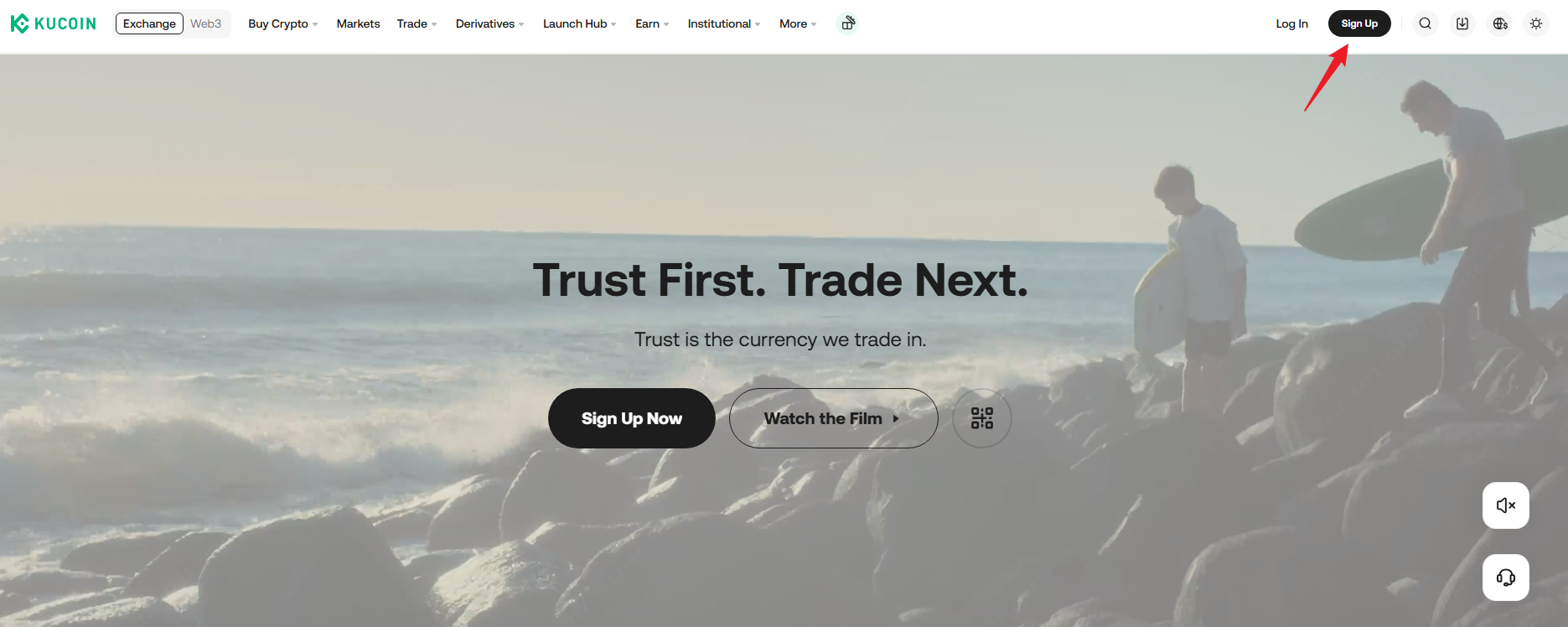
Visit the official KuCoin site and select Sign Up in the top right. You can sign up with either an email or a phone number.
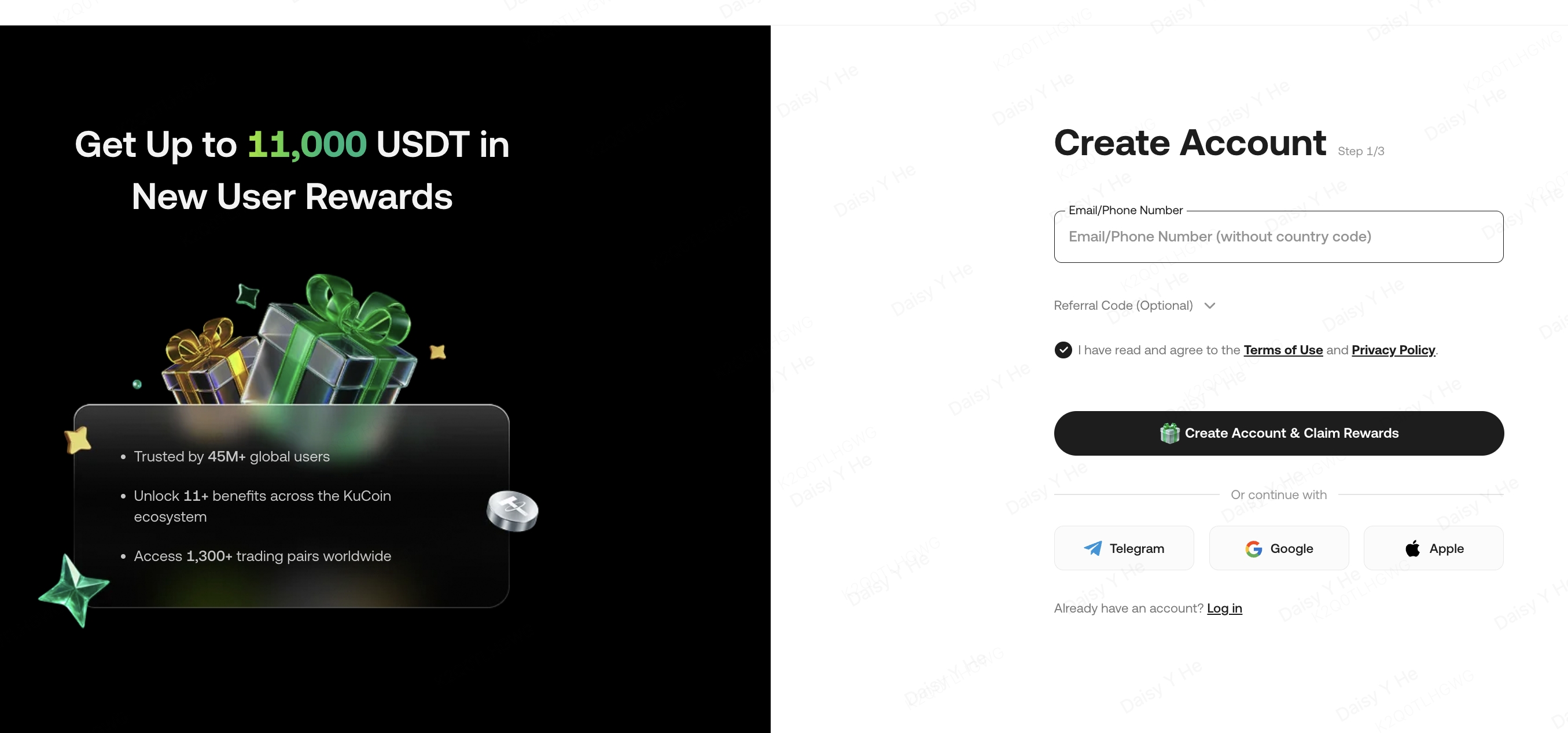
i. Sign Up with Email/Phone Number (Web/App)
From the KuCoin homepage on either the web or app, enter the email/phone number you wish to sign up with, and the referral code (if any). Check the box to agree to the Terms of Use, then select Create Account and Claim Reward. After verification, enter the code you receive, set up your login password, and then select Confirm to finish.
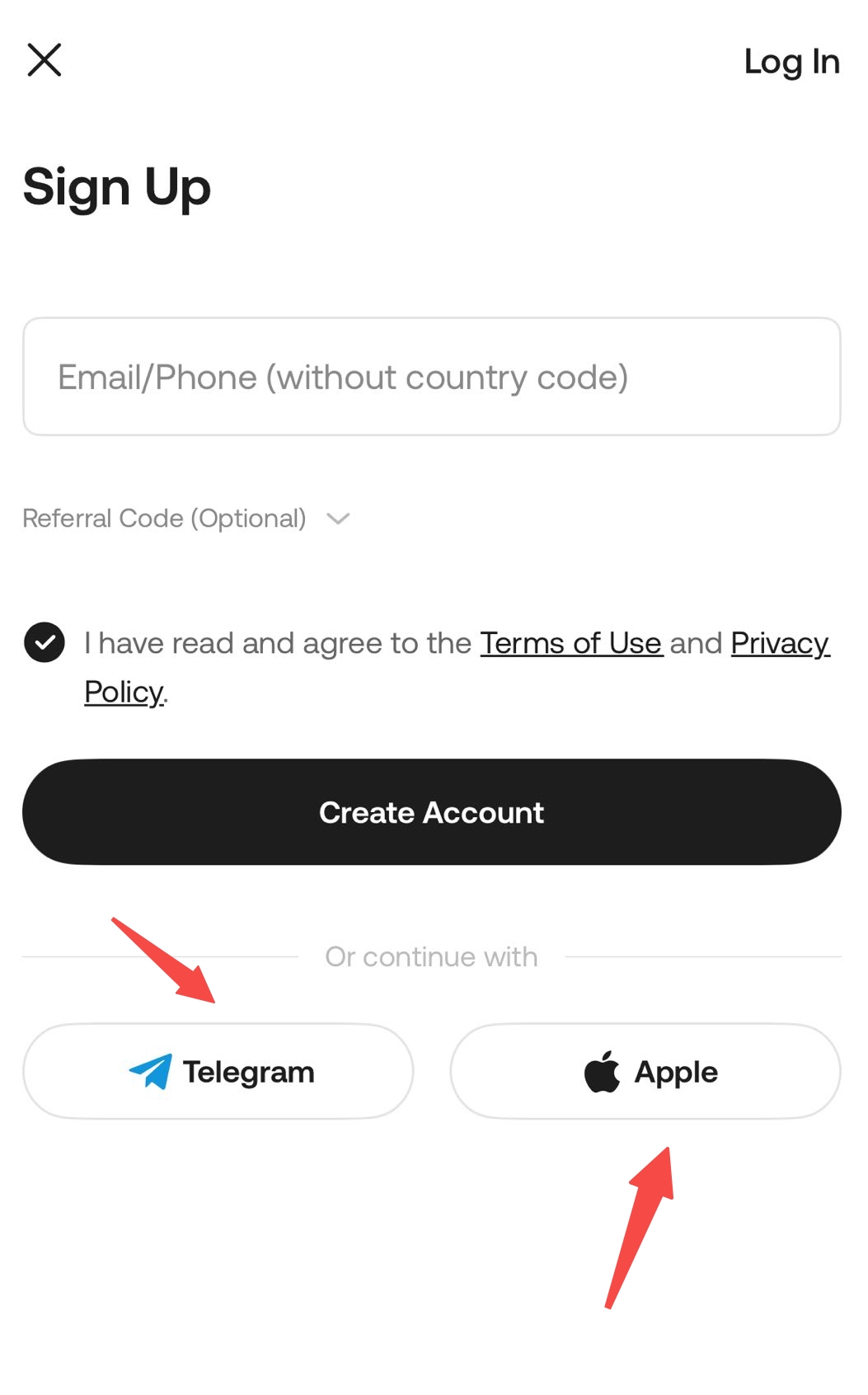
ii. Sign Up with Apple ID/Telegram Bot (App Only)
Note:
i. If your email or phone number is already in use with another account, it cannot be used again.
ii. Got an invite from a friend? Make sure their Referral Code pops up when you're setting your password. If the code doesn’t fill in automatically from an invite link, the link may have expired. If this happens, manually enter the last 6 digits of their referral code instead.
iii. Once you’ve signed up for an account, all of KuCoin’s features are for you to explore. Check out our Getting Started guides to set up your security settings and start trading.
2. Login Help
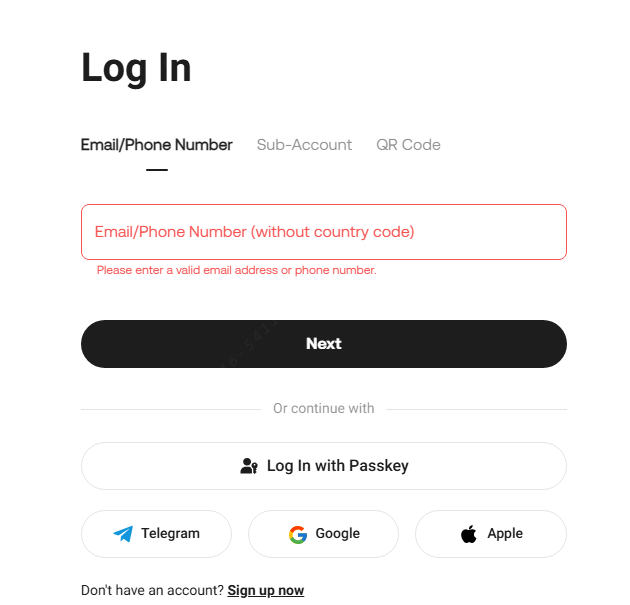
Visit the official KuCoin site and select Log In from the top right. You can log in via your account details or by scanning a QR code.
i. Login with Account Details
Enter your email/phone number, click Next and password to log in.
ii. Login with QR Code
Open the app and tap Home. After logging in, tap the Scan icon to log in via QR code straight from the web.
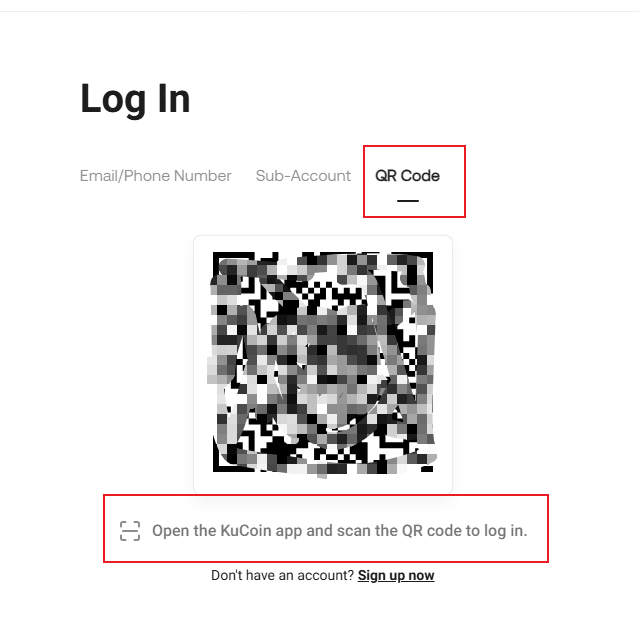
Notes:
i. If you’ve forgotten your password, reset it with Forgot Password.
ii. For problems logging in with Google, check out Google 2FA.
iii. For problems logging in with your phone, check out Linking Your Phone.
iv. Entering the wrong verification details more than 5 times will lock your account for 2 hours, so use your attempts with caution.
3. Change/Forgot Password
If you’re able to log in, see Change Login Password.
If you’re unable to because you’ve forgotten your password, see Forgot Password.
Change Login Password (When logged in)
Look for your profile icon in the top right. Select Security, then hit Change on the right of Login Password:
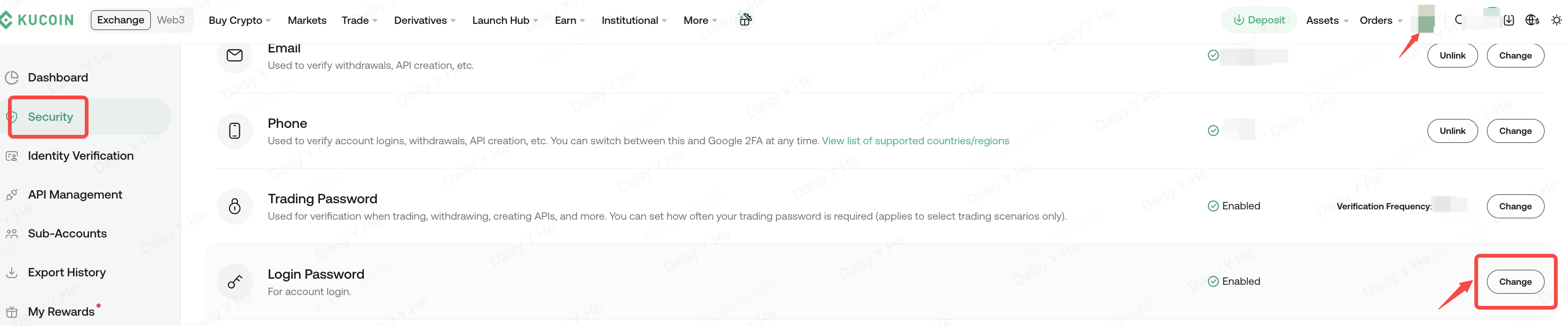
Enter the old password, set a new password, and click Submit to finish.
Forgot Password (Unable to log in)
First, enter the correct email address or phone number on the login page, select “Forgot Password” and click confirm. Complete the security verification process and confirm. Remember: Before entering your email, make sure it’s the one you used to sign up with KuCoin. This email or SMS verification code is valid for 10 minutes.
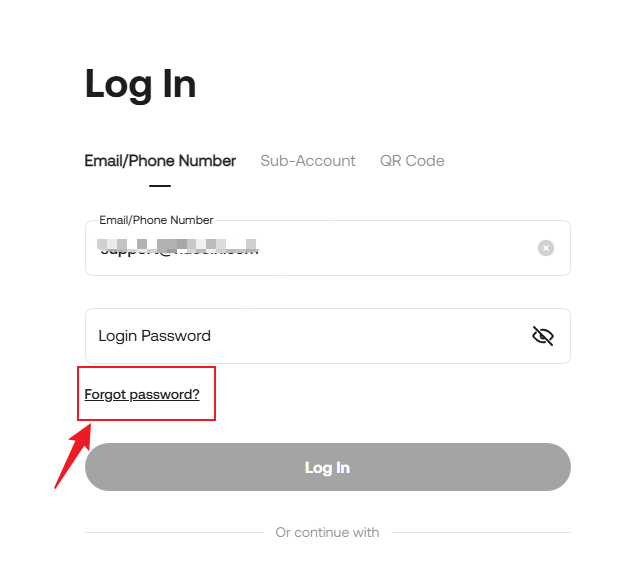
Now, set your new password. Choose one that’s not too simple and keep it secure.
Tip: Avoid using the same password as your email or other accounts.