
How to Provide External Transfer Records
Last updated: 09/15/2026 11:09:00
There are various scenarios for providing transfer records. Please refer to the scenario (A–C) that best matches your situation to follow the correct steps. At the end of this article, you will also find a detailed guide on the key elements and their requirements when submitting information requested by Customer Support.
Contents
Scenario A: Screenshot of Transfer Record from Other Exchange/Platform
Step 1: Log in to the platform where you made the withdrawal.
Step 2: Proceed to the withdrawal page and look for the transfer made to your KuCoin account.
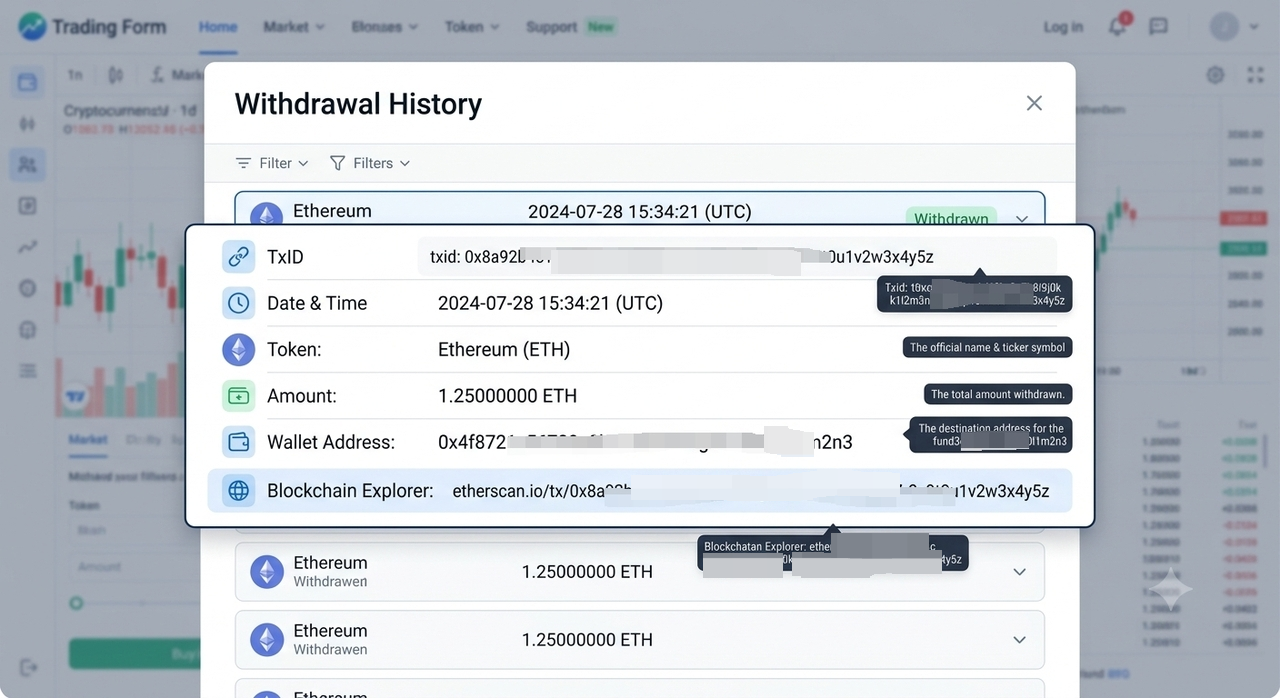
Step 3: Take a clear screenshot reflecting the following:
-
Transaction hash
-
Transaction details
-
URL (if visiting from web browser)
Step 4: Attach the screenshot to your email or customer support ticket.
Note: Do not reveal your password / seed phrase during the login process. KuCoin staff will NEVER ask for your login credentials.
Scenario B: Screen Recording of Transfer Record from Other Exchange/Platform
Step 1: Start screen recording or take video recording on the device you used or a second device.
Step 2: Demonstrate current date and time on mobile or computer.
Step 3: Log in to the platform where you made the withdrawal.
Step 4: Proceed to the withdrawal history and look for the transfer made to your KuCoin account.
Step 5: Ensure that the following information is clearly visible in the recording.
-
Login process
-
Transaction hash (TXID)
-
Transaction details
-
URL (if visiting from a web browser) + Date & Time
Step 6: End the recording and attach it to email or customer support ticket.
Note: Do not reveal your password / seed phrase during the login process. KuCoin staff will NEVER ask for your login credentials or any codes.
Scenario C: Screen Recording of Transfer Record from Private Wallet
Step 1: Start screen recording or take video recording on the device you used or a second device.
Step 2: Demonstrate current date and time on mobile or computer.
Step 3: Open the wallet app you used for withdrawal by launching it from the App Store or Google Play Store, rather than opening it directly from your home screen.
Step 4: Proceed to the withdrawal history and look for the transfer made to your KuCoin account.
Step 5: Ensure that the following information is clearly visible in the recording.
-
Login process (if applicable)
-
Transaction hash (TXID)
-
Transaction details
-
URL (if visiting from a web browser) + Date & Time
Step 6: End the recording and attach it to email or customer support ticket.
Note: Do not reveal your password / seed phrase during the login process. KuCoin staff will NEVER ask for your login credentials.
Key Element List and Requirements
|
Key Elements
|
Requirements / Explanation
|
|
Login process
|
Screen recording / screenshot (whichever applicable) should clearly show the entire login process to your deposit / withdrawal account, including:
Please ensure that you do not reveal your password. KuCoin staff will never ask for your login credentials!
|
|
Transaction details
|
Screen recording / screenshot (whichever applicable) should clearly show the relevant transaction details, including:
|
|
Transaction hash (TXID)
|
Screen recording / screenshot (whichever applicable) should clearly show the full Transaction Hash (TXID) without any parts hidden, cut off, or blurred. If the TXID is too long, please scroll or adjust the view so that the entire string can be clearly seen, or you may also copy the TXID and paste it in your Notes to view the full TXID.
|
|
URL (if visiting from a web browser) + Date & Time
|
Screen recording / screenshot recording should be done on full screen and clearly show the following elements at all times:
|
Note:
-
Supported formats for screenshots: JPG, JPEG, PNG.
-
Supported formats for video recording: MP4, FLV, MOV, RMVB, etc. Max file size: 25 MB.
-
All information must be captured in one single continuous screen recording. Any edits, cuts, or separate clips will not be accepted.
-
Do not reveal your password / seed phrase during the login process. KuCoin staff will NEVER ask for your login credentials.
-
Screenshots taken from private wallets will not be accepted.
-
Screenshots or recordings taken directly from blockchain explorer will not be accepted.
We hope this article has been helpful. If you have any other questions, please reach out to our 24/7 customer support via online chat or submit a ticket.