How to Convert Cryptocurrency on KuCoin Lite Version
Last updated: 02/11/2026 02:19:00
To simplify the user experience in the Lite Version, we only support two conversion methods: Market Price and Limit Price. If you wish to explore more conversion features, you can switch to the Pro Version. Below, we'll walk through the steps for converting crypto via Lite Version.
Content
Step 1: Visit the Convert Page in the Lite Version
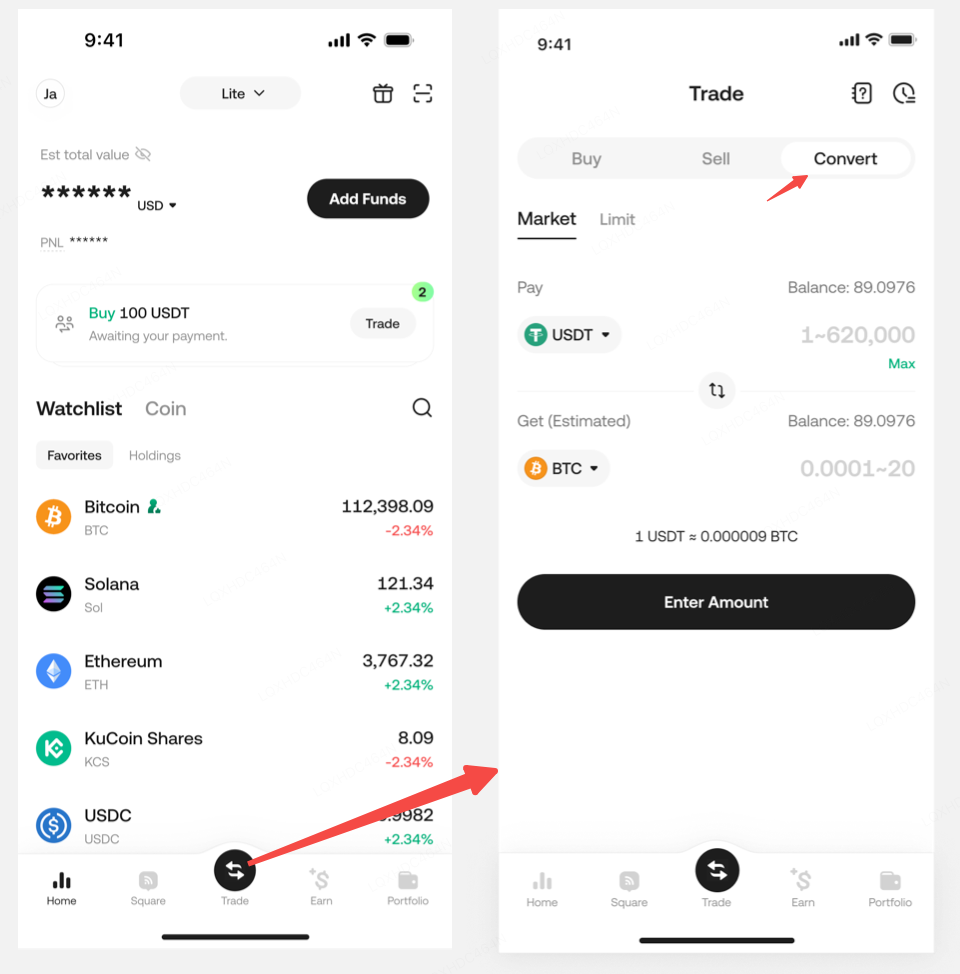
Open the KuCoin app, tap the "Trade" button at the bottom, and change to Convert tab.
On the Convert page, select your desired trading mode: "Market" or "Limit".
Step 2: Set Parameters and Convert
Market Order
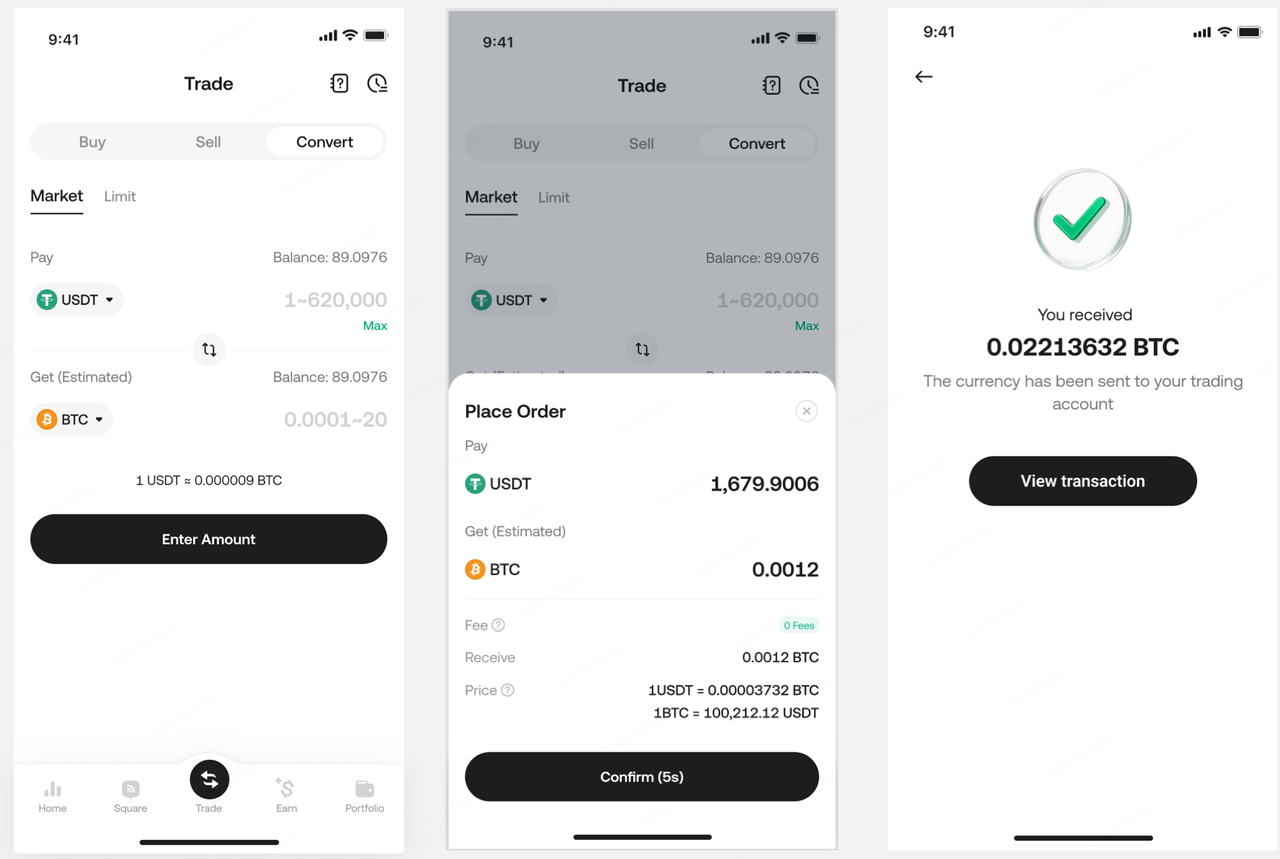
On the Market tab, select the asset you want to convert from and the asset you want to convert to. Then, enter the amount you wish to convert. After tapping "Convert", you can review the order details (such as the amount and exchange rate) on the preview screen and confirm the order. Please note that quotes are tied to the latest market price and are therefore time-sensitive. If the quote expires, it will be automatically refreshed, and the amount you will receive will be adjusted accordingly.
After the transaction is completed, you can tap "Orders" in the top right corner of the page to view the details.
Limit Order
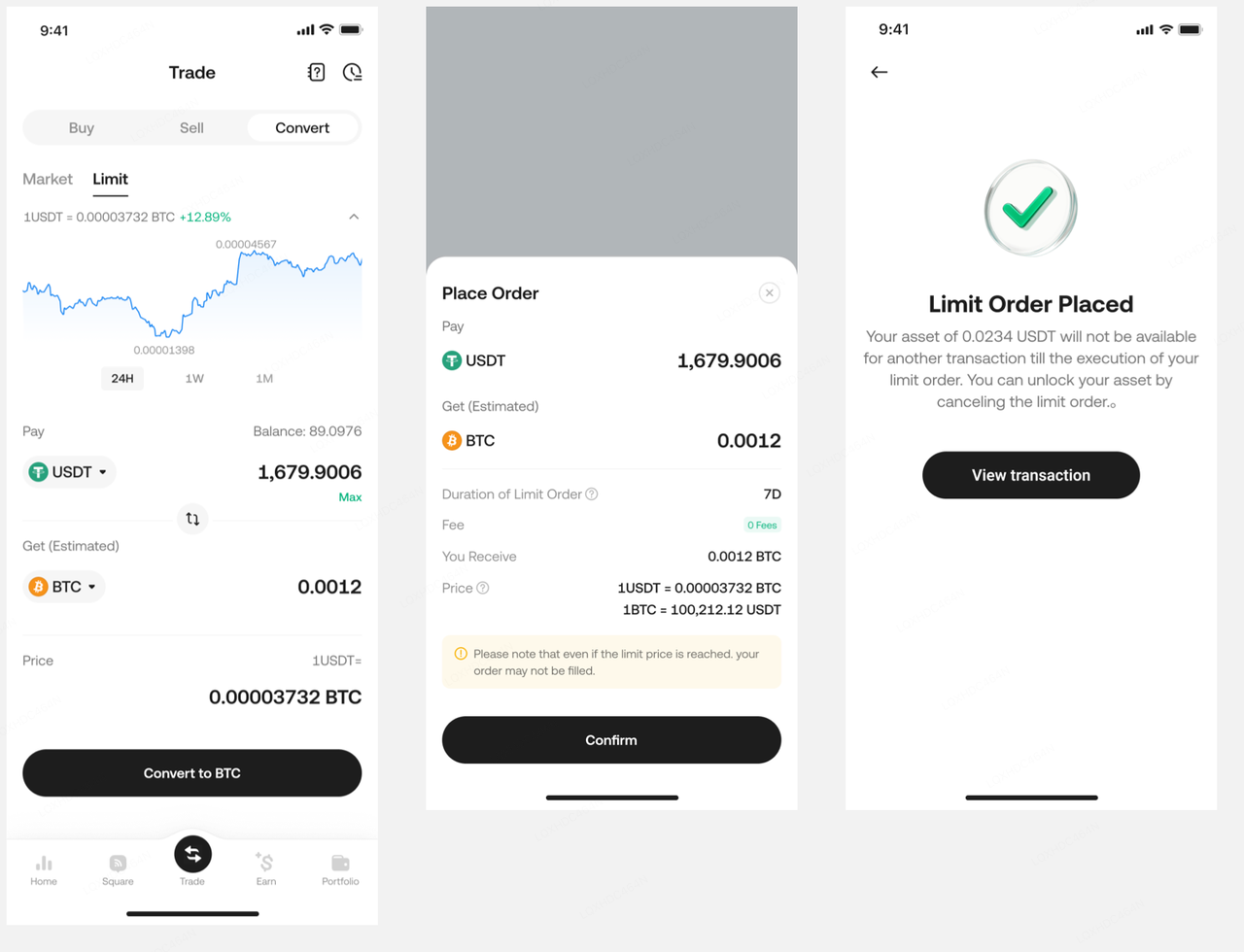
On the Limit Order tab, select the assets you want to convert between. Then, enter the amount you wish to convert. The exchange rate defaults to the current market price, but you can also set your desired rate. To protect your transaction, we have enabled a price protection mechanism. If the rate you set is significantly different from the market price, the order may not be executed.
After tapping "Place Order", you can review the order details (such as amount, price, and validity period) on the preview screen and confirm the order.
After the transaction is completed, you can tap "View Order" to check the details.
Please note:
Even if the market price reaches your limit price, your order may not be filled immediately.
Orders have a default validity period of 7 days. After placing an order, the corresponding assets will be frozen for the duration of the order's validity. You can unfreeze the assets by canceling the limit order. If the order is not filled within its validity period, it will be automatically canceled by the system.
Step 3: View Order History
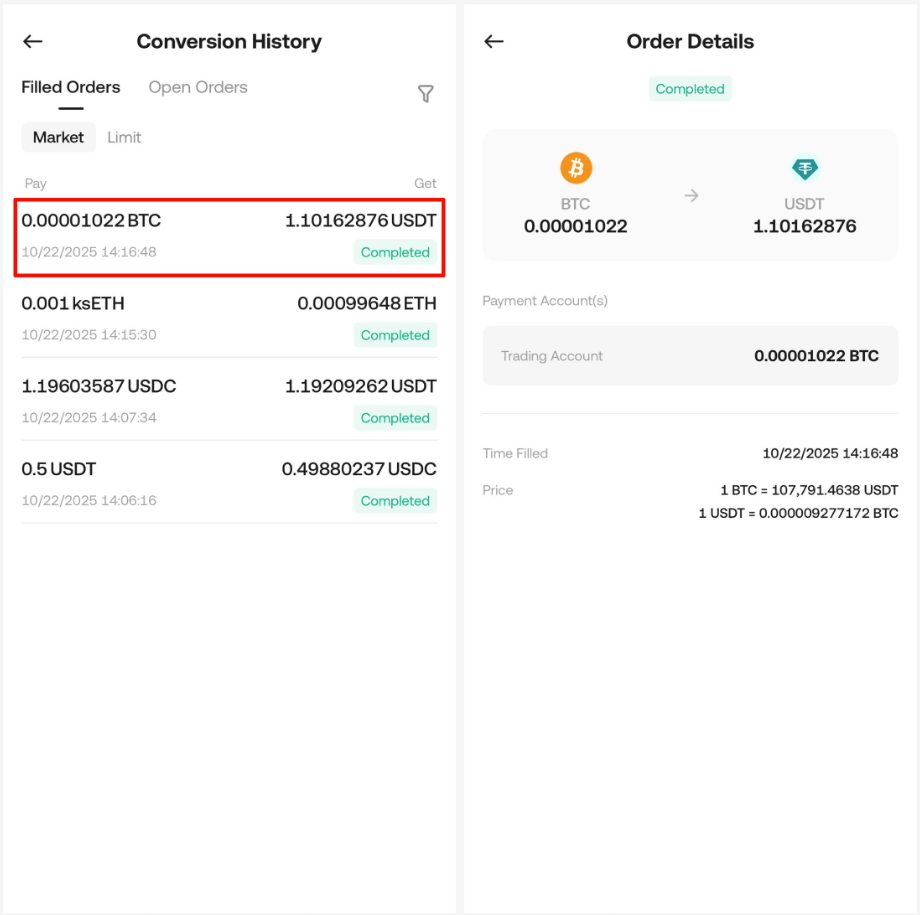
On the Convert page, tap the icon in the top right corner to view a list of your conversion records. Select any record to view its details.