
KuCoin Lite Version Beginner's Guide
Last updated: 02/11/2026 02:16:00
KuCoin Lite redefines the crypto onboarding experience. Built for clarity and ease, it strips away the complexity, allowing new users to focus on the essentials: buying, selling, and converting cryptocurrency seamlessly. Discover how it works in the following overview.
Content
- 1.What is KuCoin Lite Version?
- 2.How to Switch to KuCoin Lite Version?
- 3.Create and Verify Your Account
- 4.How to Buy Cryptocurrency on KuCoin Lite Version
- 5.How to Sell Cryptocurrency on KuCoin Lite Version
- 6.How to Convert Cryptocurrency on KuCoin Lite Version
- 7.Managing Your Cryptocurrency Portfolio on KuCoin Lite Version
- 8.Security Tips for Using KuCoin Lite Version
- 9.Frequently Asked Questions (FAQ)
1.What is KuCoin Lite Version?
The KuCoin Lite Version is specifically designed for users new to cryptocurrency, offering a lower barrier to entry. It simplifies the process by providing a cleaner and more intuitive interface, focusing on essential functions like buying, selling, and converting crypto. If you are an advanced trader, you can opt to use the Pro Version, which offers more comprehensive and powerful investment tools.
Please note that the KuCoin Lite Version and the KuCoin Pro Version are within the same APP. You can simply switch between them via the version toggle at the top of the APP; there's no need to download a separate application. Be wary of any websites claiming that the KuCoin Lite Version requires a separate download to avoid downloading fake apps.
2.How to Switch to KuCoin Lite Version?
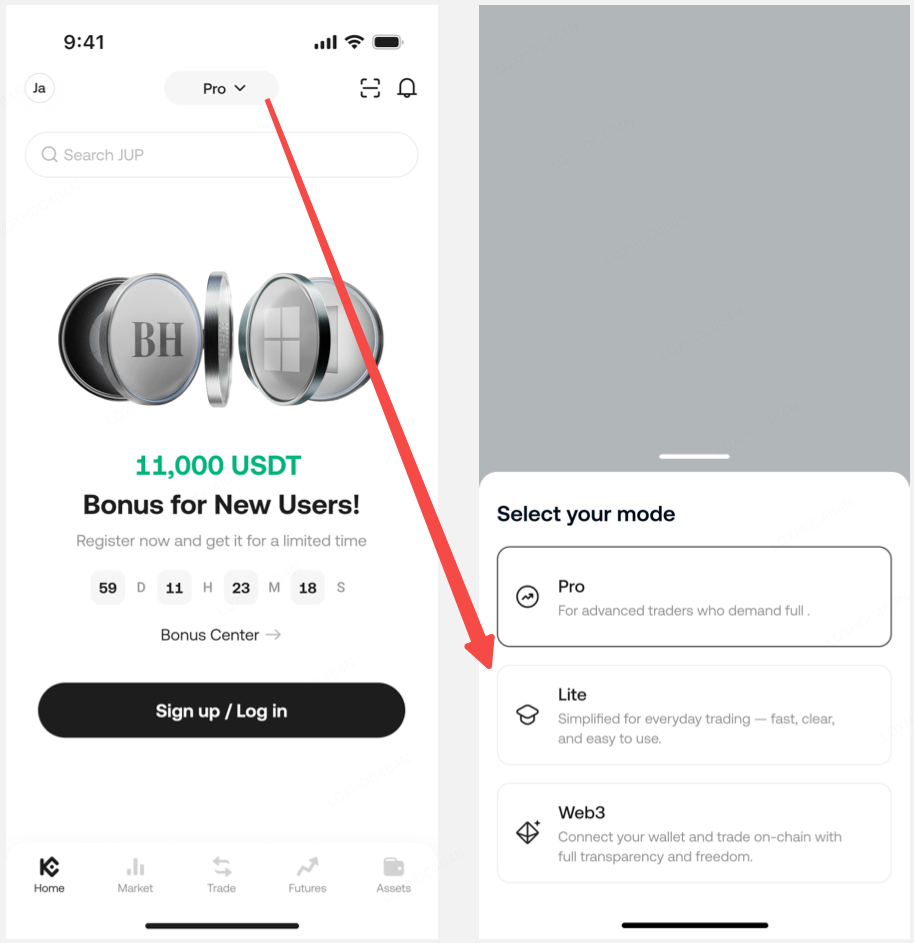
If you are in KuCoin Pro mode:
-
Open the KuCoin application.
-
Locate the version switch menu at the top of the APP.
-
Tap the "Lite" option to switch to Lite mode.
3.Create and Verify Your Account
To start using KuCoin, you need an account. The specific steps are as follows:
Register: Open the KuCoin application, select "Register," and then enter your email address and password.
Verify Your Identity: Complete the identity verification process, which may involve submitting personal information and uploading a valid ID document. This verification is crucial for protecting your account and unlocking deposit and withdrawal functions.
4.How to Buy Cryptocurrency on KuCoin Lite Version
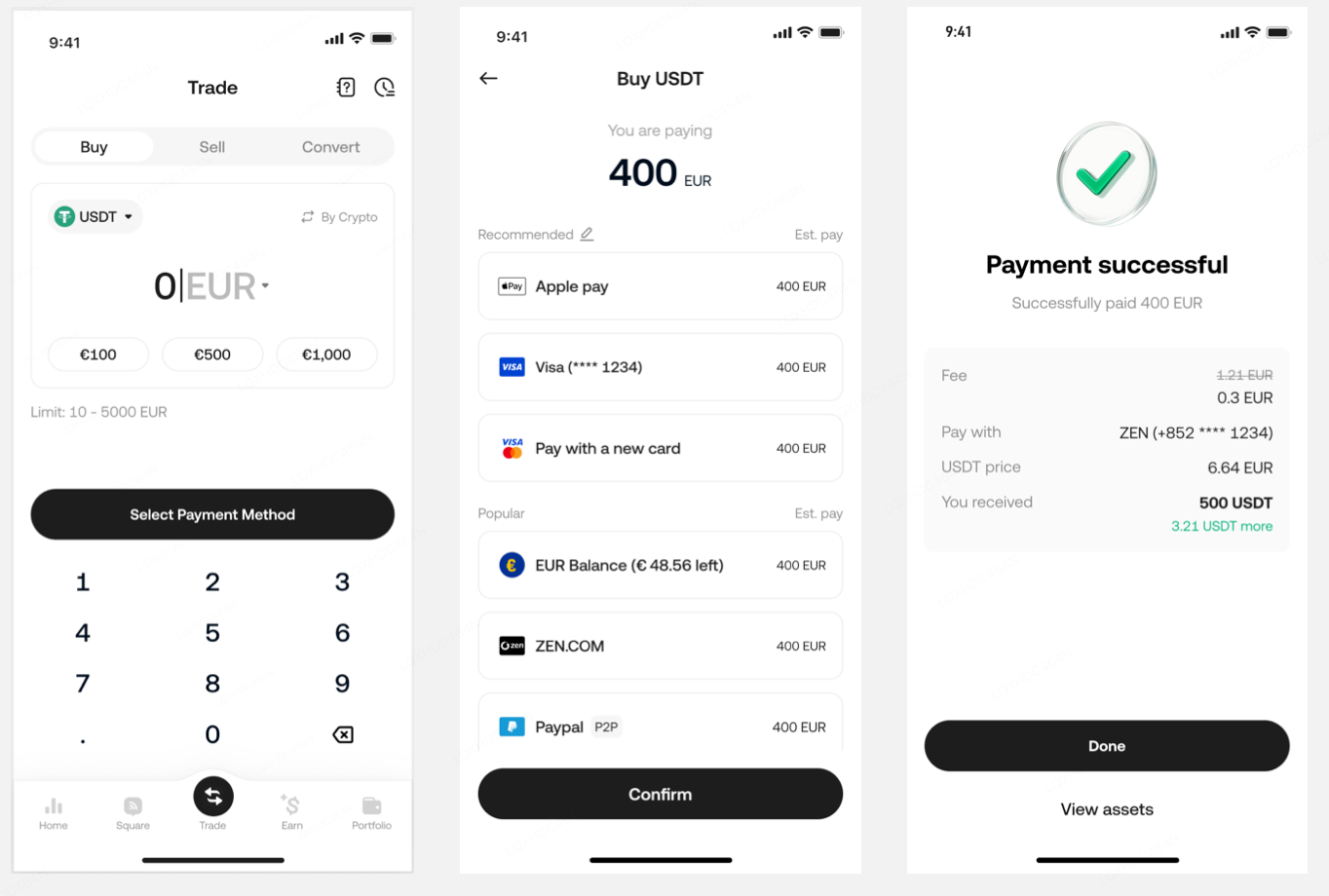
Buying cryptocurrency on the KuCoin Lite Version only takes 4 steps:
-
Visit "Buy" page: Tap "Trade" at the bottom of the app, then you will see the buy page.
-
Set Transaction Information: On Buy page, you can change the cryptocurrency you wish to purchase or the fiat currency you want to use. If both are already selected, simply enter the purchase amount (or value) below, then click the button to proceed to the next step.
-
Choose Payment Method: The KuCoin Lite Version supports various payment methods, including credit/debit cards, bank transfers, and third-party payment methods (availability depends on your region).
-
Confirm Purchase: Please carefully review the transaction information, and confirm. Once the transaction is complete, the cryptocurrency you purchased will be credited to your account and can be viewed on the Assets page.
5.How to Sell Cryptocurrency on KuCoin Lite Version
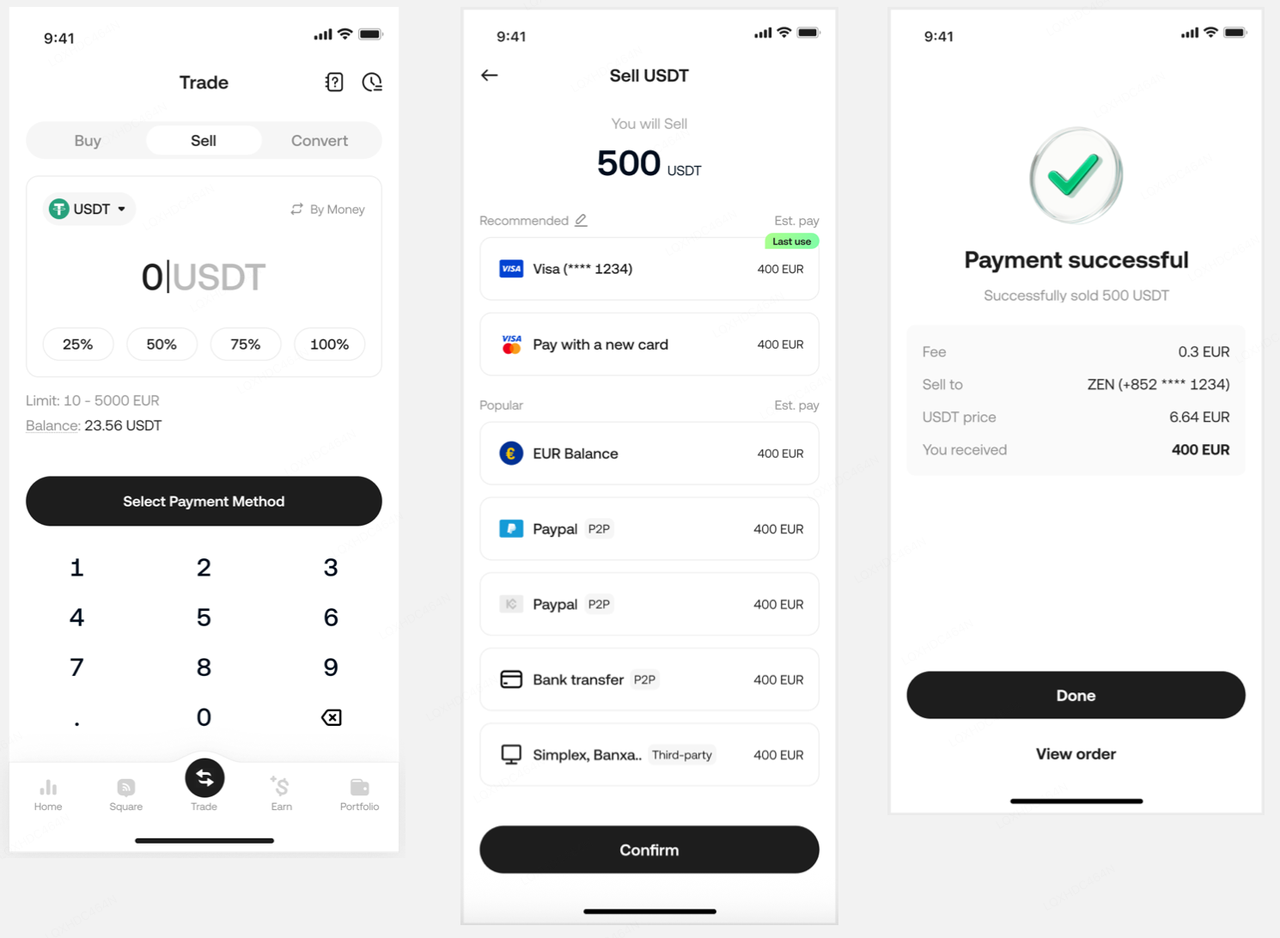
Selling on the KuCoin Lite Version is as simple as buying. The specific steps are as follows:
-
Visit "Sell": Tap "Trade" at the bottom of the app, change to Sell tab on top of the page.
-
Set the Cryptocurrency to Sell: Choose the cryptocurrency you want to sell.
-
Enter Amount: Specify the amount of cryptocurrency to sell. The KuCoin Lite Version offers the option to sell based on the cryptocurrency amount or its equivalent fiat value.
-
Choose Payout Method: Depending on your region, funds may be received directly in your bank account or wallet balance.
-
Confirm Sale: Review the details and confirm the transaction. The fiat proceeds from your sale will be sent to your bank account.
6.How to Convert Cryptocurrency on KuCoin Lite Version
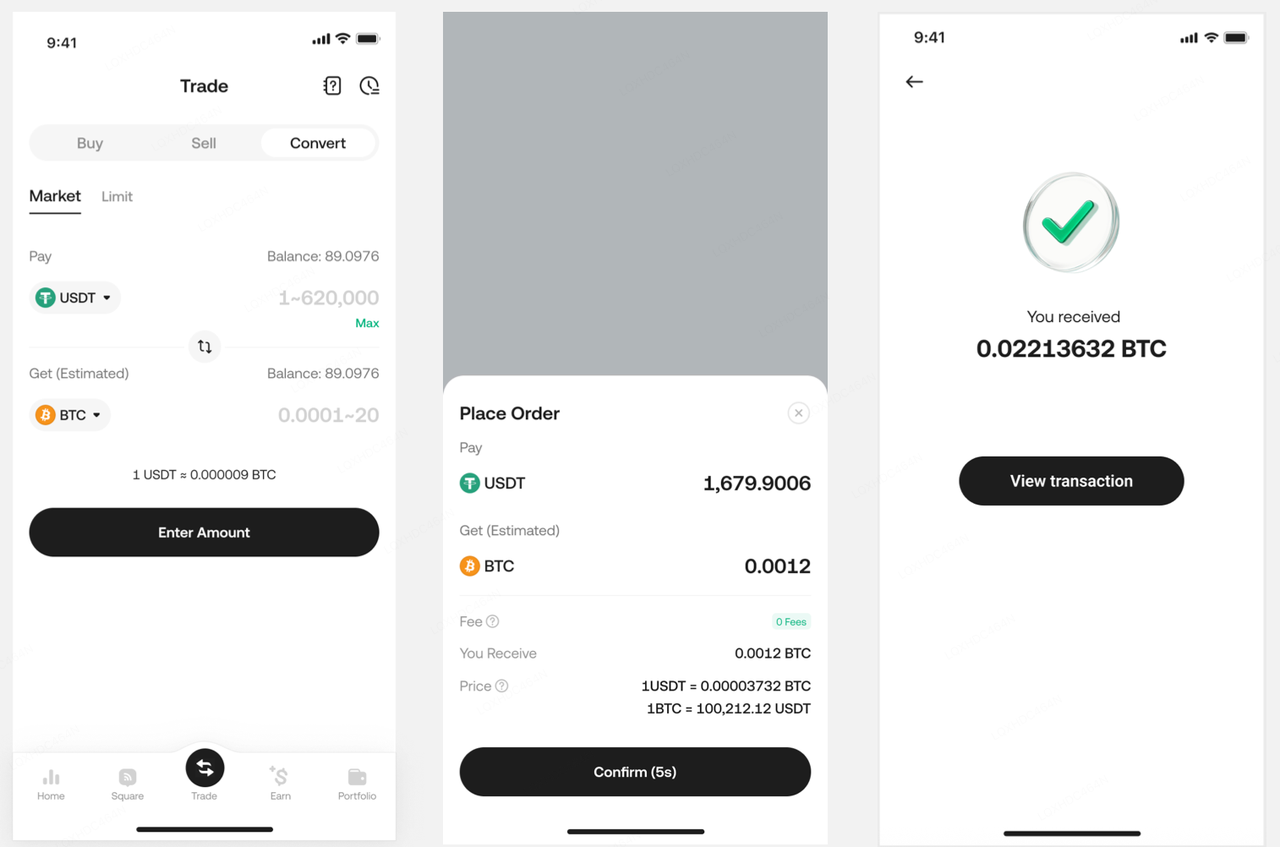
The Convert feature allows users to exchange one cryptocurrency for another. This method is very simple, and KuCoin does not charge any fees for it. The specific steps are as follows:
-
Visit "Convert": Tap "Trade" at the bottom of the app, change to Convert tab on top of the page.Set Cryptocurrencies for Convert: Choose the cryptocurrency you want to convert from and the cryptocurrency you want to receive (e.g., from BTC to ETH).
-
Enter Amount: Enter the amount of crypto you wish to spend.
-
Preview Conversion: The KuCoin Lite Version will show you a preview of the amount of the new currency you will receive.
-
Confirm Conversion: If you accept the exchange rate, click confirm to complete the transaction. The converted cryptocurrency will appear in your wallet.
7.Managing Your Cryptocurrency Portfolio on KuCoin Lite Version
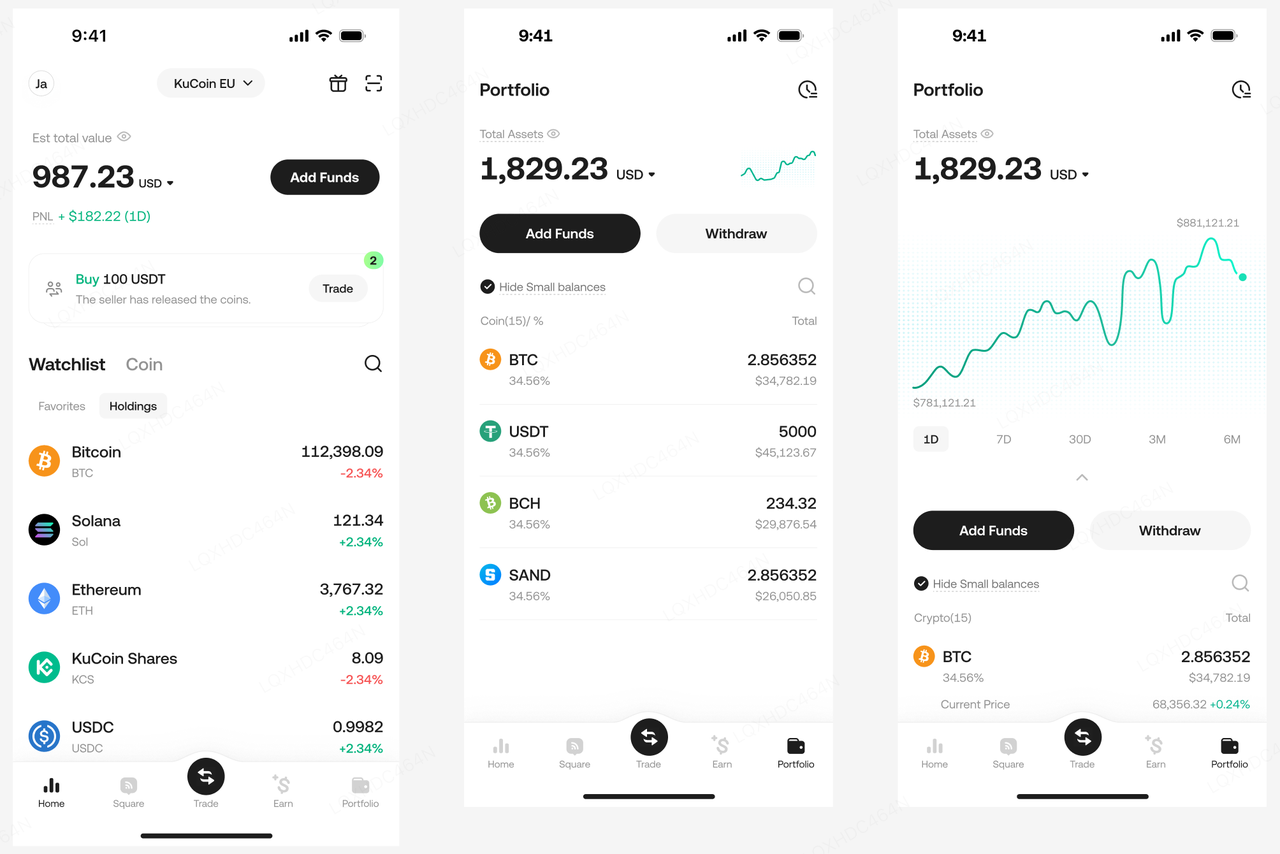
The KuCoin Lite Version allows you to intuitively view and manage your portfolio:
- Homepage Watchlist: You can directly view the market prices of the coins you hold in the market list on the homepage, making it easy to quickly grasp their price changes.
- Asset Trend Chart: The asset trend chart at the top of the homepage and Assets page visually shows the performance of your investment portfolio.
- Asset List: View all the coins held in your account directly, facilitating operations like deposits and withdrawals at any time.
8.Security Tips for Using KuCoin Lite Version
To ensure the security of your account, please consider the following best practices:
- Enable Two-Factor Authentication (2FA): Adding 2FA (e.g., Google Authenticator) provides an extra layer of security.
- Keep Your Recovery Codes Secure: Store your account recovery codes securely in case you lose access.
- Use a Strong Password: Use a complex password and avoid reusing it across different platforms.
- Beware of Phishing Links: Only access KuCoin through official channels, as phishing attacks are common in the crypto space.
9.Frequently Asked Questions (FAQ)
9.1. Are assets shared between the Lite Version and the Pro Version?
Yes, they are shared. However, to simplify the user experience, the Lite Version only supports functions related to the 'Funding Account,' including asset viewing, deposits, withdrawals, flash exchange, etc. Therefore, if assets are transferred to other accounts via the Pro Version (e.g., deposited into a Futures account), they will not be displayed on the Lite Version's Assets page. You need to switch to the Pro Version to view them.
9.2. Does the Lite Version support Spot Trading or Futures Trading?
The Lite Version is specifically designed for new users. While simplifying the interface, it also reduces complex features, allowing users to start investing in cryptocurrency quickly. The design (original intent) of the Lite Version is a simple interface and low risk, so supporting Spot and Futures Trading is not currently under consideration. After new users have been exposed to cryptocurrency for a while and want to try more trading tools, they can conveniently switch to the Pro Version.
9.3. Can existing users use the Lite Version?
There are no barriers to using the Lite Version; both new and existing users can use it. If users prefer a simpler trading interface and do not need to use trading methods like leverage, they can switch to the Lite Version via the menu at the top of the app's homepage.