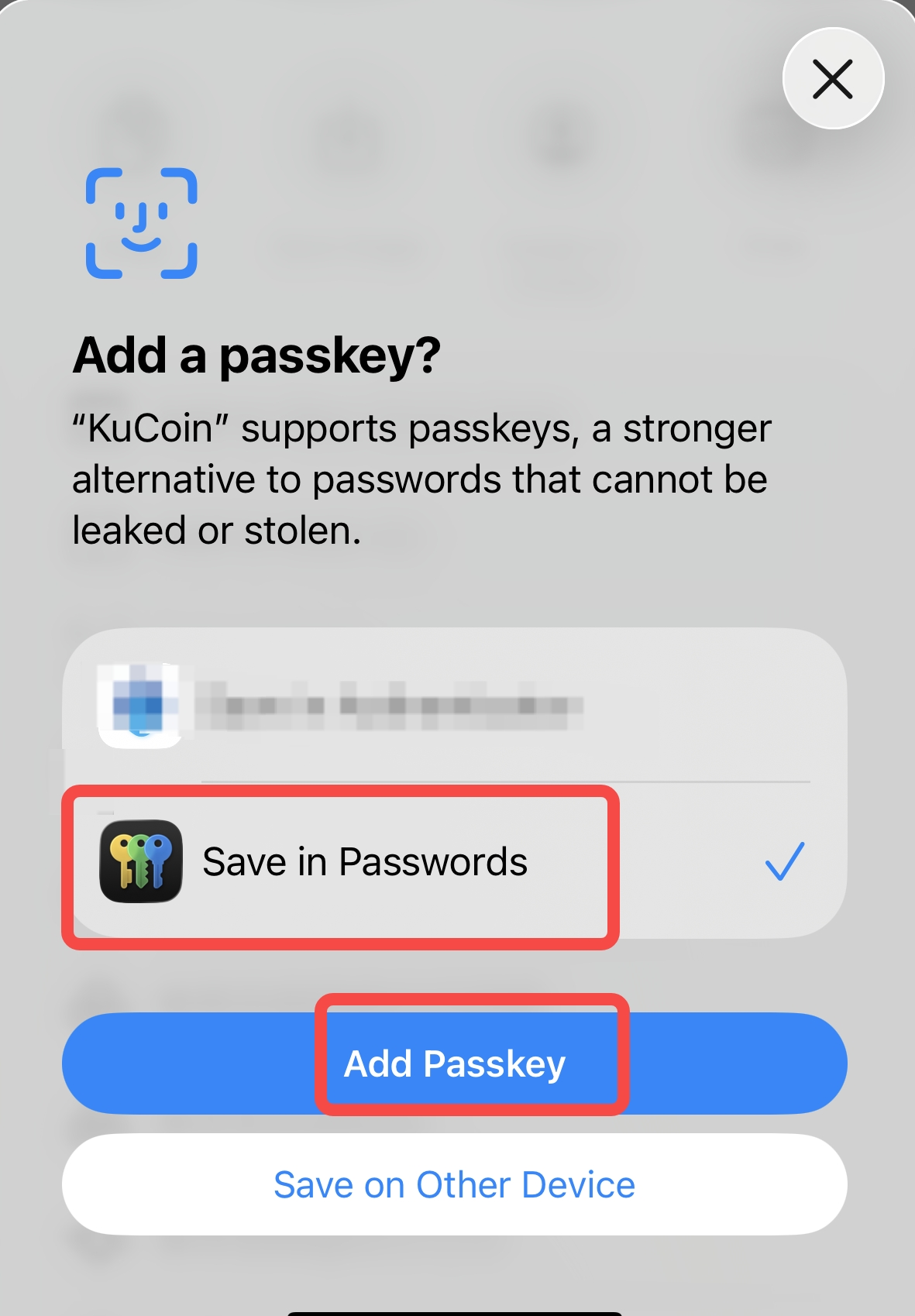
How to set Passkey?
Official website setting steps:
(Please watch this video on YouTube https://www.youtube.com/watch?v=yCl2SZ3-O5k)
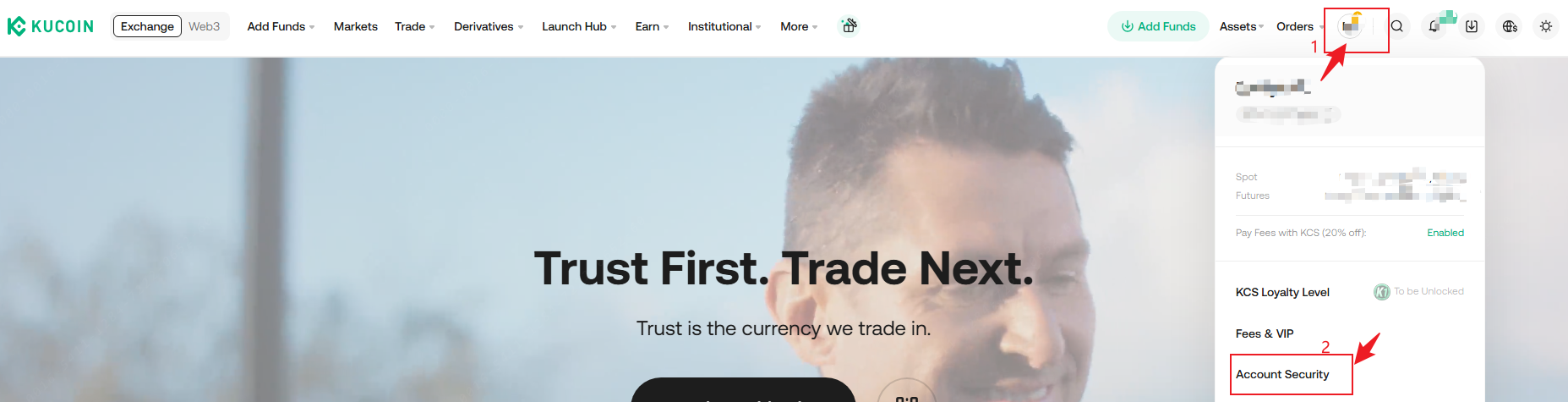
1.Visit KuCoin official website and log in;
2.Click the personal icon in the upper right corner to enter the "Account Security" page;
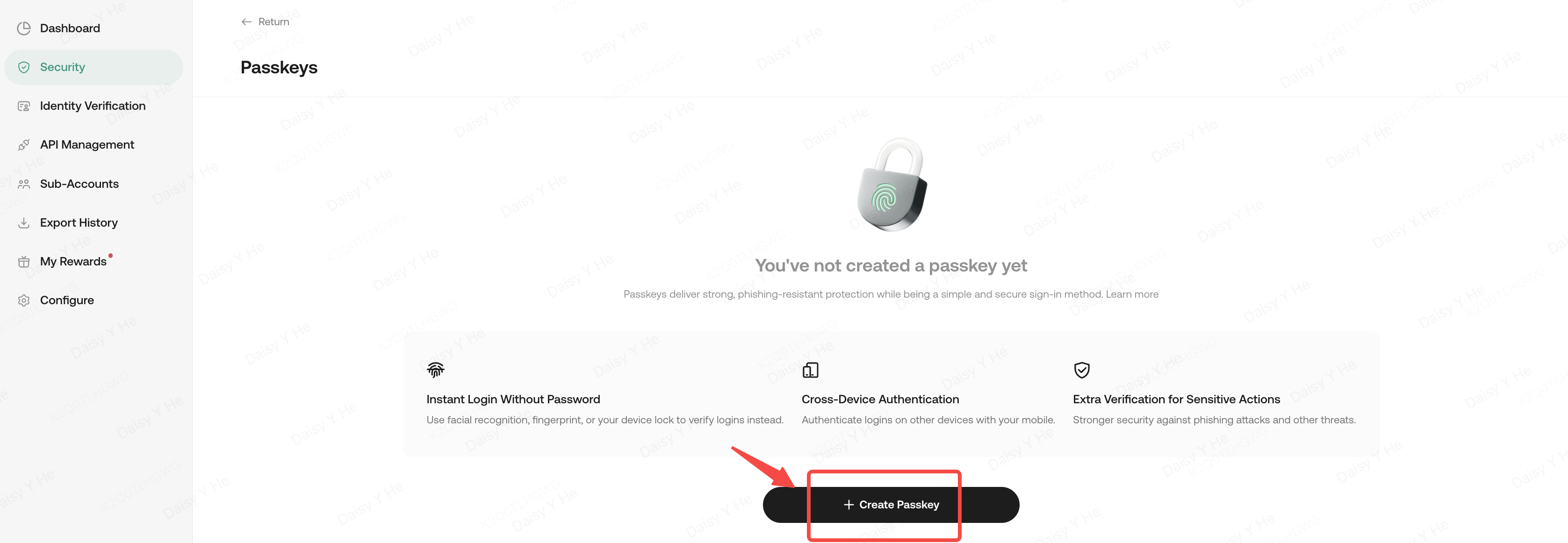
3.Click the "Passkeys"-"Configure" button to enter the Passkey setting page;

4.Click the "Create Passkey" button below;
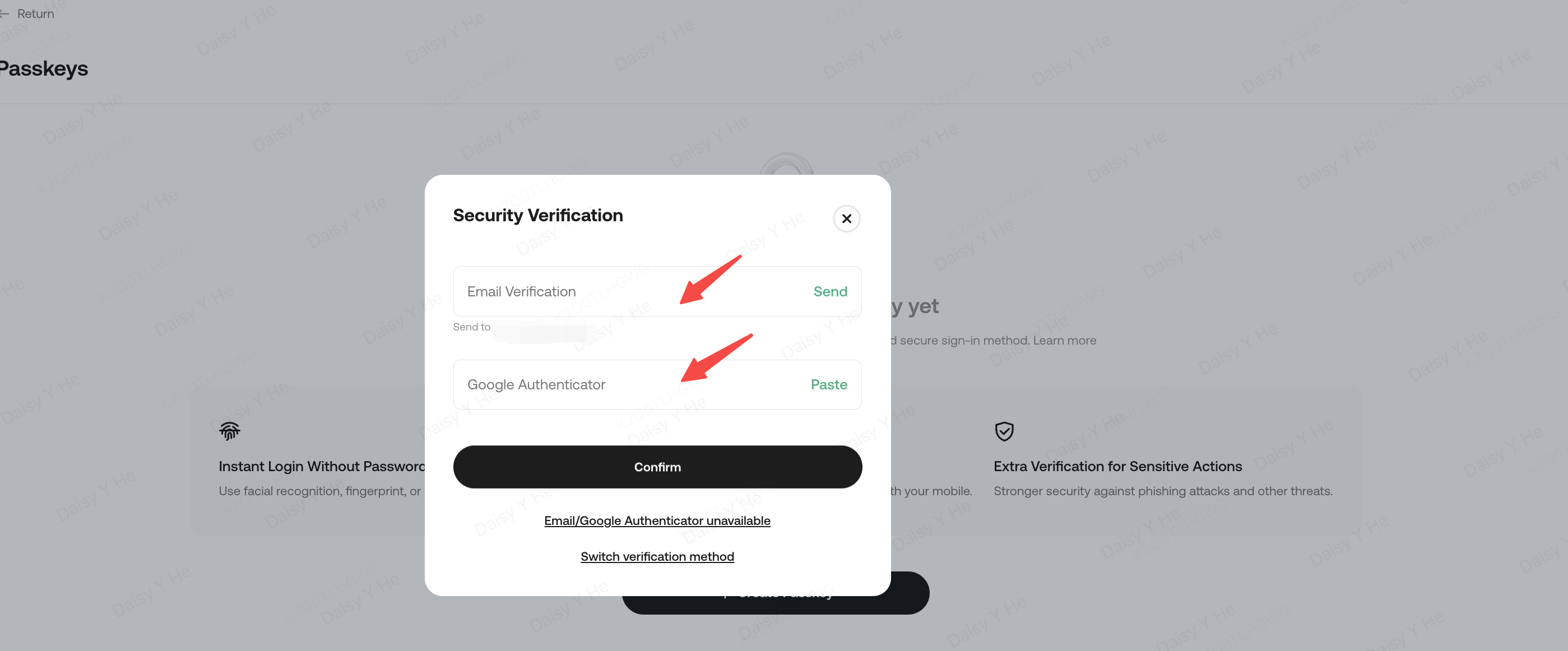
5.After performing security verification, click Confirm;
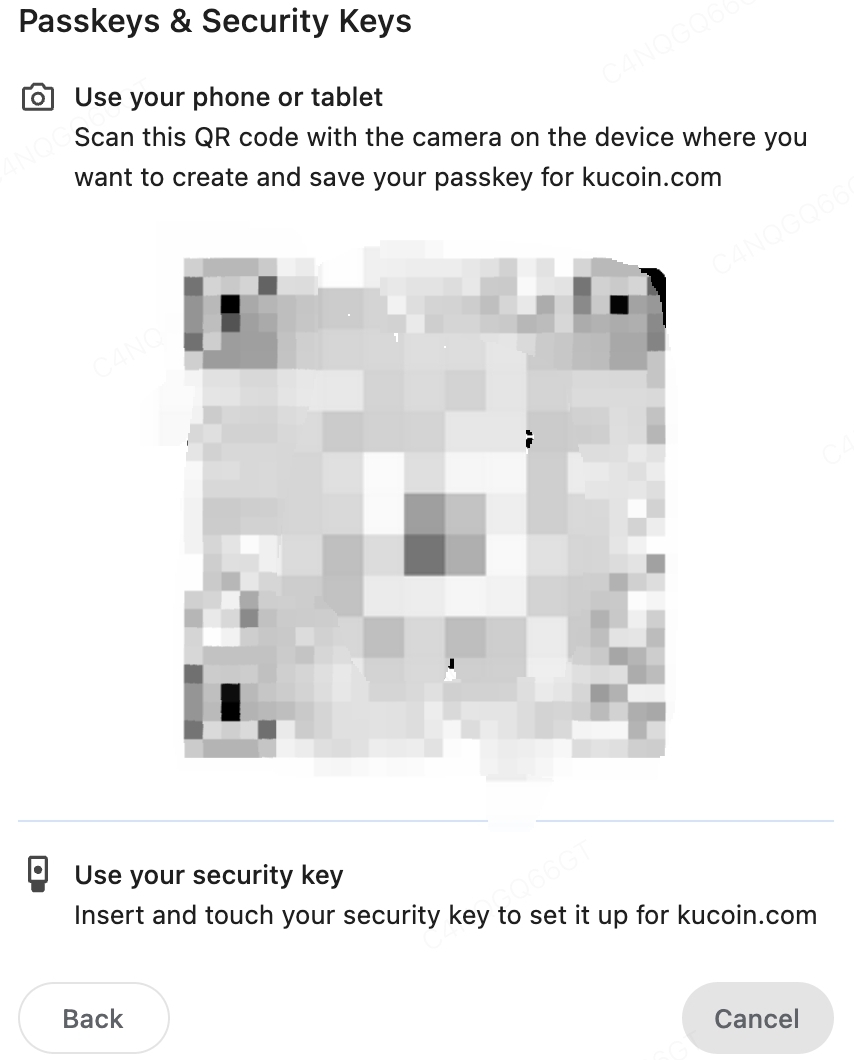
6.Follow the prompts to use your phone or tablet to scan the QR code to set up, or click the "Save another way" button to switch to Windows Hello or external security key creation methods
.
Mobile App setting steps:

(Please watch this video on YouTube https://www.youtube.com/watch?v=G3NQCeFNlIw)
1.Open the KuCoin mobile App (if it is not installed, please download it from a trusted source first) and log in;
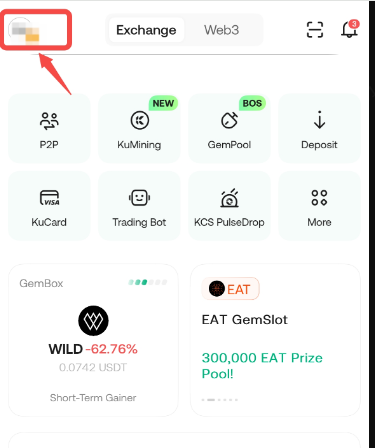
2.Click on the personal icon in the upper left corner;
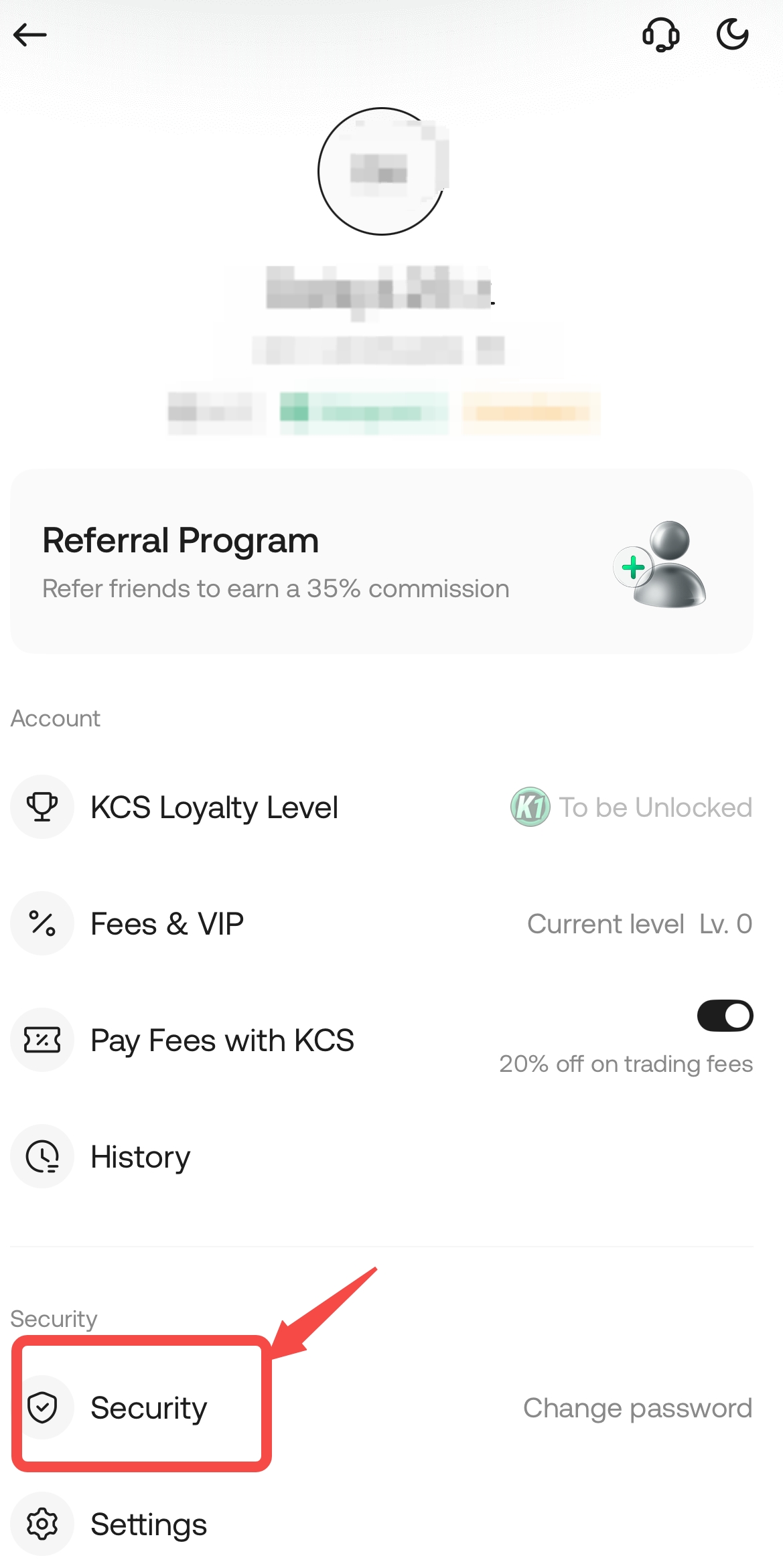
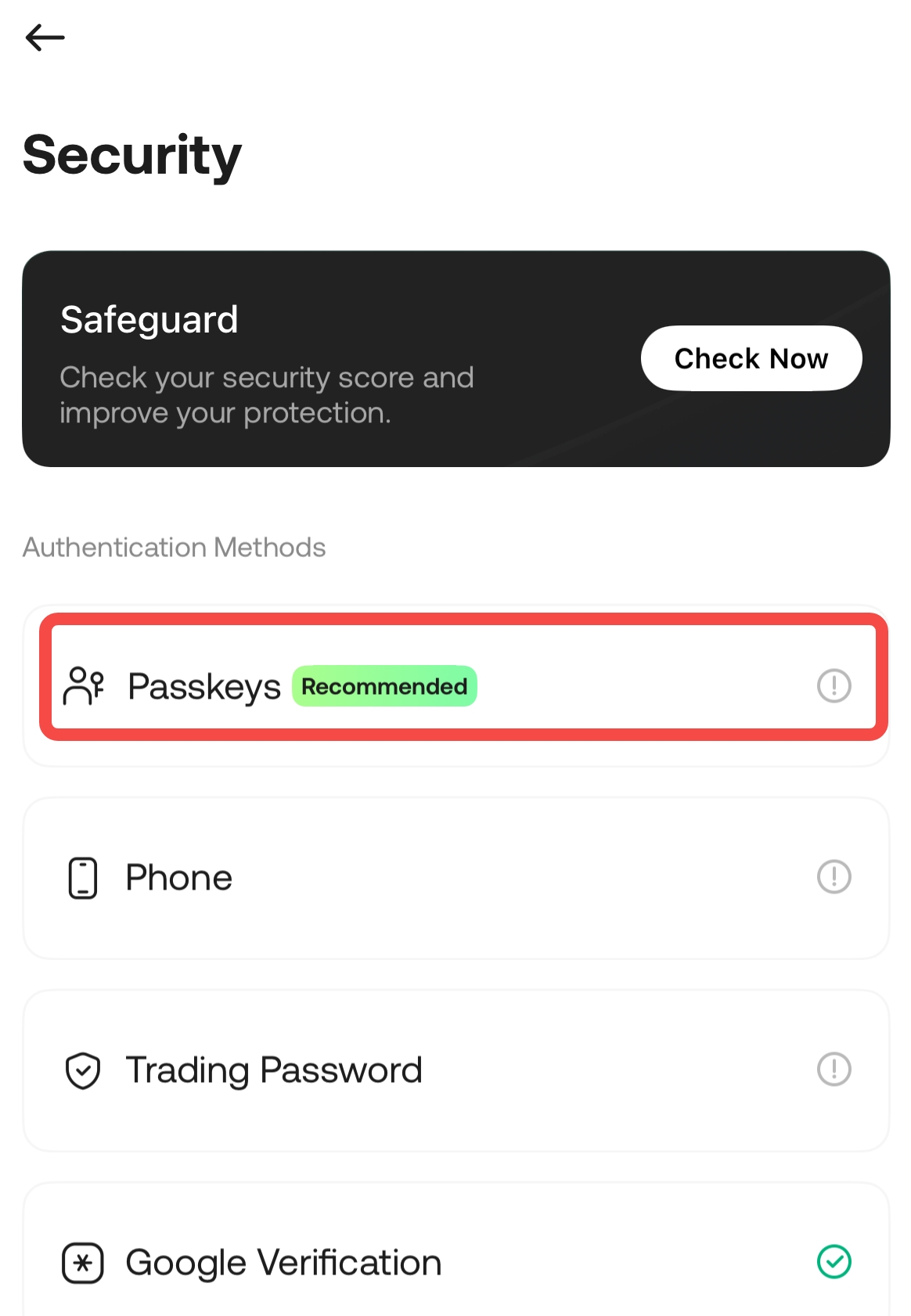
3.Click to enter the "Security" page;
4.Click to select "Passkeys";
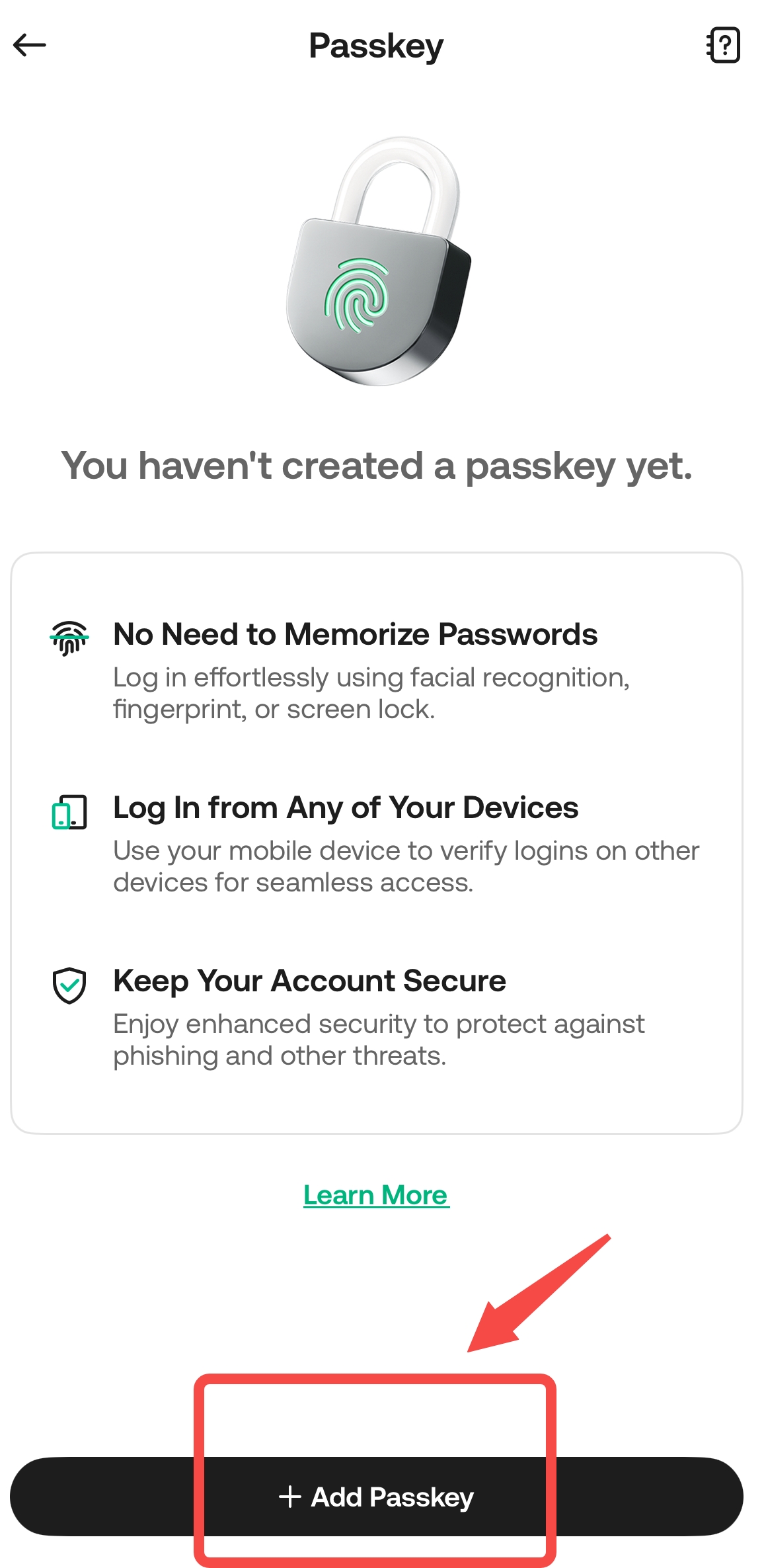
5.Click "Add Passkey";
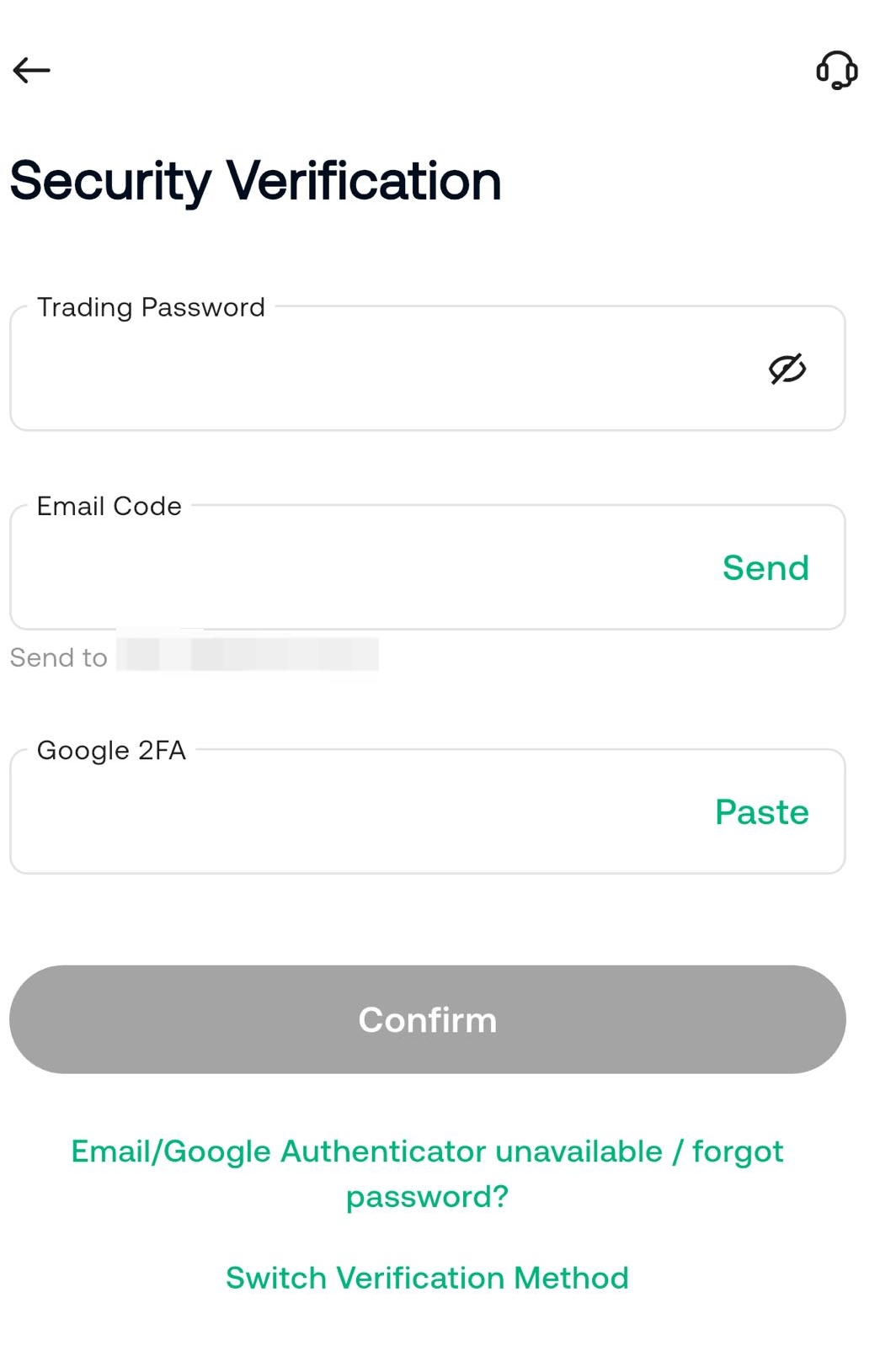
6.Perform security verification;
7.Follow the prompts to click "Save in Passwords" - Add Passkey to set up strong verification methods such as Face ID, fingerprint or PIN code; or click "Save on Other Device" to switch devices.