
How Can Browser Extensions See Your Trading Account? The Permissions You Grant May Go Further Than You Think
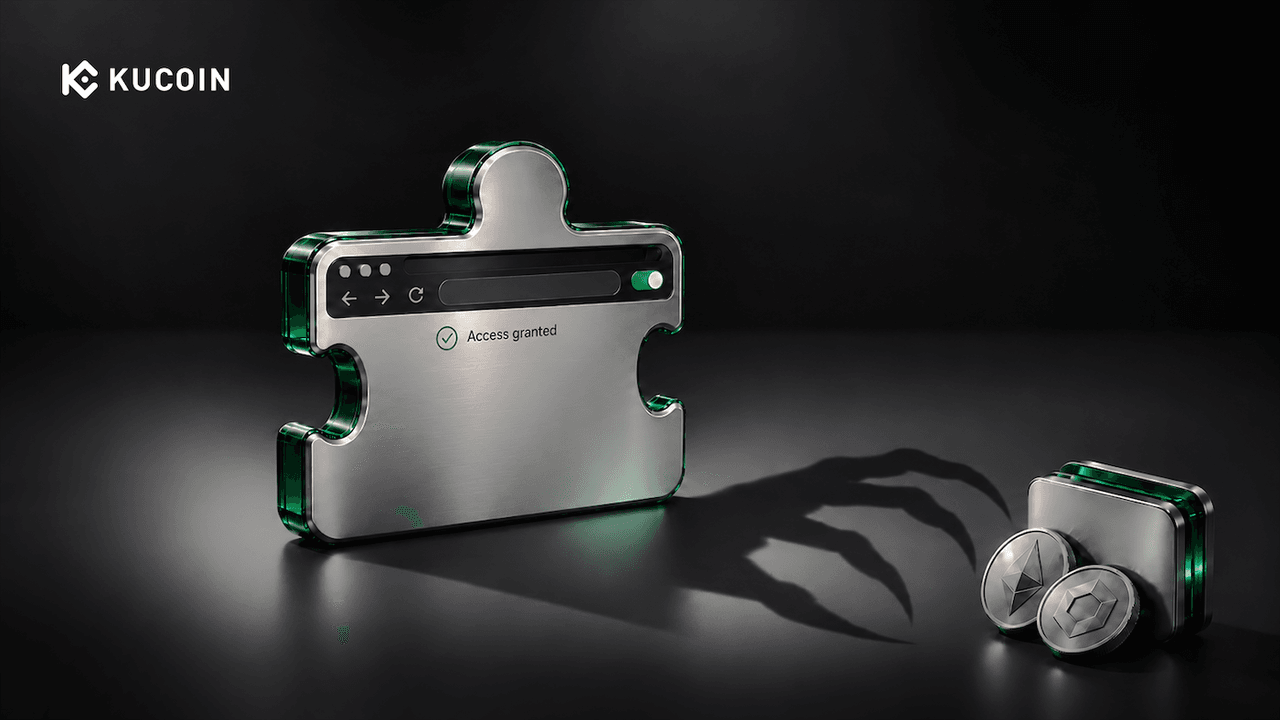
You installed a translation extension to read project documentation and added a price alert tool to keep an eye on the market. During installation, your browser asked for permission to “Read and change all your data on all websites,” and you accepted without giving it much thought.
But that permission may extend well beyond translating articles or displaying prices. If the extension’s access includes your exchange’s website, it may also be able to read the account pages you open after logging in—and even modify their contents. It does not necessarily need your account password or API key to do so.
Protecting your trading account means looking beyond “Who knows my password?” It also means asking an often-overlooked question: Who is allowed to read and modify the webpage in front of me?
1. What Does “Read and Change Website Data” Actually Mean?
A browser extension is more than just an icon on your toolbar. With the appropriate permissions, it can run code on websites within its authorized scope, read page content, adjust page layouts, and pass the information it reads to other components of the extension. Features such as translation and autofill rely on these capabilities.
The problem is that website access permissions define where an extension can operate, not whether each action matches the purpose you have in mind. “Help me translate this project overview” does not automatically mean “Only read this project overview.” If you allow an extension to access all websites, that access may also cover your exchange and webmail.
Using Chrome as an example, the following permissions and capabilities deserve particular attention. These capabilities depend on the specific permissions granted: access to all websites does not automatically grant clipboard access or access through the Cookies API.
| Permission or Capability | What the Extension May Access | Potential Account Risks |
|---|---|---|
| Read and change webpages it has permission to access | Text, forms, buttons, and information already loaded on account pages | A malicious extension may read balances, positions, or order details, or change what the page displays and the contents of input fields. |
| Read or write to the clipboard | Copied text, such as a recipient address; the exact capabilities depend on whether the extension has read permission, write permission, or both | With clipboard read access, a malicious extension may read sensitive information you copy. With clipboard write access, it may replace a copied withdrawal address before you paste it. |
| Access website cookies through the Cookies API | Cookies for authorized websites, which may include information that maintains your logged-in state | If stolen cookies contain valid session credentials, an attacker may attempt to hijack your session. In Chrome, access through this API requires both the cookies permission and the corresponding website permissions. |
2. Extensions Can Alter Legitimate Websites—Not Just Redirect You to Fake Ones
The following is a hypothetical scenario illustrating the risk, not an account of a specific disclosed incident.
To read English-language articles, Lin installs a translation extension and allows it to access all websites. A few days later, he opens his exchange from a bookmark, signs in as usual, and prepares to review his assets and make a withdrawal.
Suppose the extension contains malicious code and has already been granted access to the exchange’s website. The risk could unfold as follows:
First, it reads the page and looks for opportunities. When Lin opens his asset and order pages, the extension reads information already displayed or loaded there. It may be able to see this content without separately requesting access to the exchange’s API or asking Lin to provide his password again.
Next, it modifies what he sees or is about to submit. For example, it could change the recipient address shown on the page, alter the withdrawal form, or insert a “security verification” window that appears to come from the platform. These are possible ways to abuse webpage read-and-write access. Whether the extension can go on to complete sensitive actions still depends on the platform’s verification procedures and risk controls.
The most misleading part is this: the domain in the address bar may still be correct.
HTTPS protects data in transit between your browser and the website. It does not automatically prevent an authorized extension from reading or modifying the webpage locally. Checking the official domain is therefore still necessary, but it cannot replace reviewing your browser extensions.
The website you visit may be legitimate, but the page you see may still have been tampered with by a malicious browser extension.
3. Why Two-Factor Authentication Does Not Eliminate Extension Risks
After you sign in, websites typically use session credentials to recognize subsequent requests. If an attacker obtains valid session credentials, they may attempt to use your existing authenticated session rather than start over with a password and verification code. Whether they succeed also depends on session expiration, device checks, and other security controls.
Even without stealing session credentials, a malicious extension may be able to read your account pages after you sign in normally. Enabling two-factor authentication does not automatically hide your balances, orders, or withdrawal forms from extensions that have permission to access the webpage. Login verification and webpage access permissions serve different purposes.
4. Protect Your Account: Install Fewer Extensions, Grant Fewer Permissions, and Keep Activities Separate
4.1 Limit “All Websites” Access to What Is Actually Needed
In Chrome, go to Extensions → Manage Extensions → Details to review an extension’s site access permissions. For tools that do not need ongoing access to webpages, choose the option that allows access only when you click the extension, if available. For tools that only serve a few websites, restrict access to those specific sites. The exact option names may vary by version and language.
A tool for reading articles should not have ongoing access to your exchange and email simply for convenience. Grant access when needed rather than leaving it permanently enabled across all websites.
4.2 Keep a Clean Environment for Trading and Email
Keep trading activities separate from testing new extensions, downloading unfamiliar tools, and similar activities. Consider using a separate browser without unnecessary extensions. For high-value transactions, consider using a dedicated device.
Do not protect only your exchange pages while allowing numerous extensions to access your linked email account. Your inbox may receive password reset links, security alerts, and verification messages, making it part of the account recovery process.
Incognito mode does not guarantee that extensions are disabled. Chrome allows individual extensions to run in Incognito mode if you explicitly permit them, so review those settings as well.
4.3 Reassess Trust When Installing or Updating
Before installing an extension, check the developer’s identity, confirm that you are downloading it from an official source, and review its feature description. Do not make your decision based solely on its name, icon, or ratings. Remove extensions you no longer use.
If an update requests additional permissions, do not simply accept them to restore functionality. When an extension adds permissions that trigger a warning, Chrome requires users to accept the new permissions before re-enabling it. Treat that prompt as an opportunity to reassess the extension, not as a routine confirmation.
Ask yourself: Why does a tool that previously only displayed market prices now need access to more websites or permission to read the clipboard?
4.4 Keep Account-Level Safeguards in Place
Enable the platform’s two-factor authentication, trading password, and any available withdrawal address restrictions. Before making a withdrawal, verify the full recipient address, network, and amount against an independent, trusted source. Do not treat two displays of the same information on a single webpage as two independent checks.
If an address, button, or verification process suddenly looks unusual, stop what you are doing and verify it through official channels on a trusted device. Do not continue following instructions on a suspicious page to “fix your account.”
5. What Should You Do First If You Have Already Installed a Suspicious Extension?
If you suspect an extension is malicious, stop entering passwords or verification codes in that browser. Take the following steps in order:
-
Stop sensitive activities and isolate the suspicious environment. Do not continue signing in, creating API keys, or making withdrawals. Record the suspicious extension’s name, version, and source, then disable or remove it. Close any open account pages and exit the browser. Also check your device for other suspicious software.
-
Use another trusted device to check your account and limit potential losses. Use the official app or navigate directly to the official website to review your orders, withdrawal history, and security settings. If you find unauthorized activity, contact official customer support immediately and use any available account-freezing or restriction features.
-
Address potentially compromised credentials and authorizations. In a trusted environment, change any passwords that may have been exposed, revoke suspicious login sessions, delete or replace potentially compromised API keys, and check for unfamiliar withdrawal addresses or changes to security settings. Clearing cookies on your own device does not invalidate a session held by an attacker; the session must also be revoked on the server.
-
Check your linked email account as well. Review recent sign-ins, recovery methods, forwarding rules, and third-party access permissions. After securing your exchange account, do not leave your linked email accessible to someone else.
If you have entered a wallet seed phrase or private key into a suspicious extension, treat those credentials as compromised. Deleting the extension or changing the wallet app’s unlock password will not invalidate an exposed seed phrase or private key. Create a new wallet with a newly generated seed phrase on a trusted device, then carefully transfer the relevant assets to it.
Conclusion: A Small Feature Can Come with Broad Permissions
An extension may offer nothing more than translation, alerts, or autofill, but that does not mean you need to give it access to every website.
Before installing it, ask what access it needs. While using it, limit the sites it can access. If something seems wrong, leave the suspicious environment first, then address your account’s security.
Remember:
The feature description tells you what an extension intends to do. Its permissions determine what it is allowed to do. Protecting your trading account starts with taking every permission request seriously.
Disclaimer: The information on this page may come from third parties and does not necessarily reflect KuCoin’s views. It is provided for general reference only and should not be interpreted as financial or investment advice.
Virtual asset investments may involve risk. Please carefully assess the product risks and your own risk tolerance. For more information, please refer to our Terms of Use and Risk Disclosure.