What Is a Limit Order and How to Use It?
1. What Is a Limit Order?
A Limit Order allows users to set a target exchange rate and expiration time before submitting a swap order. Instead of executing immediately at the current market price, the order will remain active and execute automatically when market conditions meet the preset requirements. KuCoin Web3 Wallet Limit Orders are powered by the 1inch Limit Order Protocol and are available on supported EVM chains. The order will remain active and may be executed when market conditions and execution requirements are met.
2. Key Features
-
Market: Execute swaps at the current available market rate
-
Limit: Set a target price and wait for execution
2.1 Customizable Target Prices
You can customize:
-
Target exchange rate
-
Target-price options: Market, +20%, +50%, or a Custom percentage
-
Order expiration time: 10 min, 1 hour, 24 hours, 3 days, or 7 days
2.2 Gas-Free Order Creation
When sufficient token allowance is available:
Creating and submitting a Limit Order only requires a signature
No Gas fee is required for order creation
2.4 Clear Order Tracking
-
Open
-
Partially Filled
-
Filled
-
Expired
-
Canceling
-
Canceled
2.5 Flexible Cancellation
-
Pending: The Limit Order has been submitted and is waiting to be filled.
-
Canceling: The cancellation request is being processed.
-
After cancellation succeeds, a success message appears and the order is removed from Open Orders.
3. How to Place a Limit Order
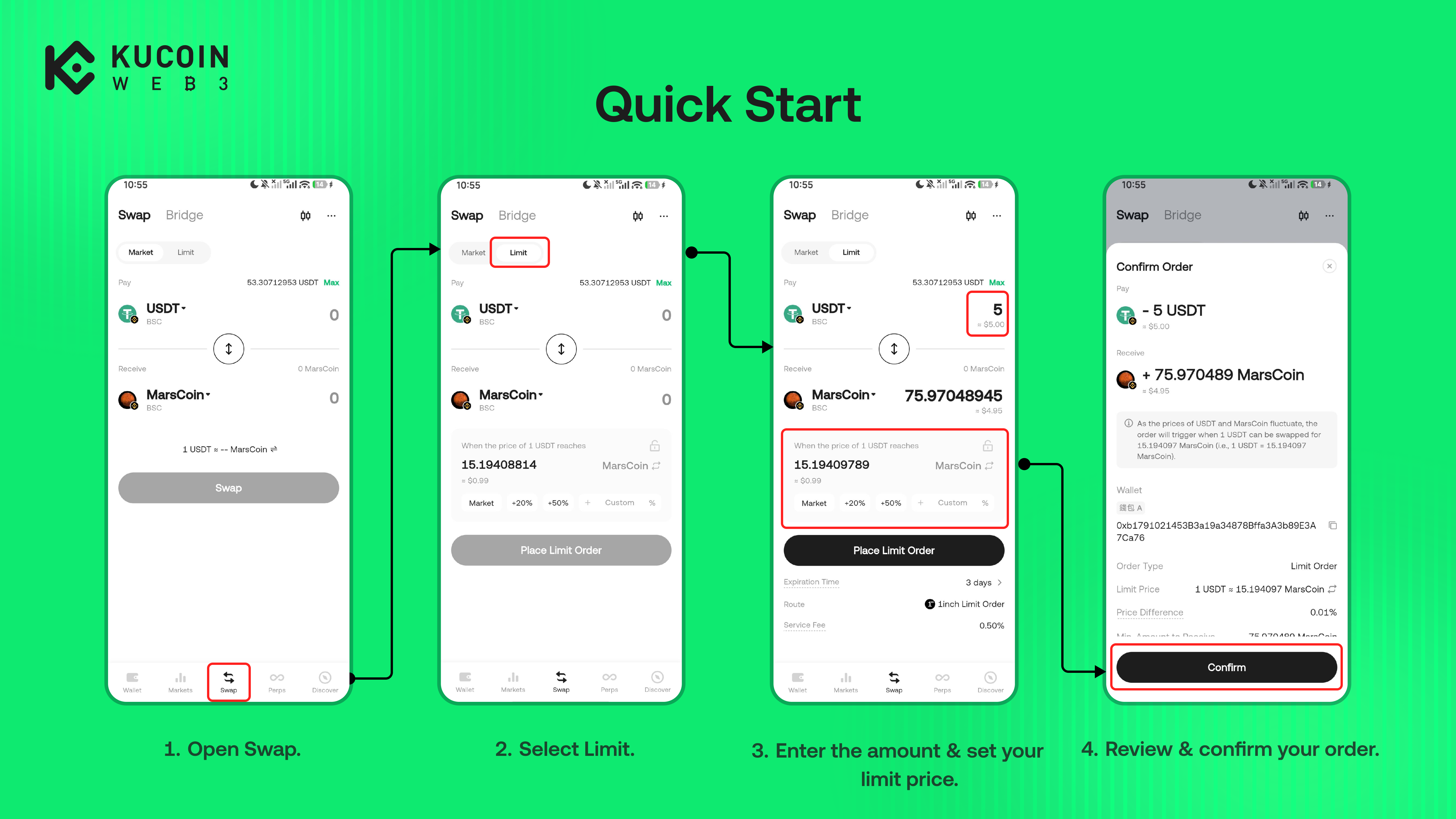
3.1 Quick Start
- Open the KuCoin App;
- Switch to Web3;
- Tap Swap;
- Make sure you are on the Swap tab rather than the Bridge.
- Select the Limit sub-tab next to Market;
- Select the Pay token and Receive token to set the trading pair.
- Enter the amount of the Pay token you want to trade. You can also use the displayed 25%, 50%, 75%, or 100% balance shortcuts;
- Set the target price using one of the displayed options;
- Select the Limit Order expiration time;
- Review the trading pair, Pay amount, estimated Receive amount, target rate, expiration time, route, and displayed service fee.
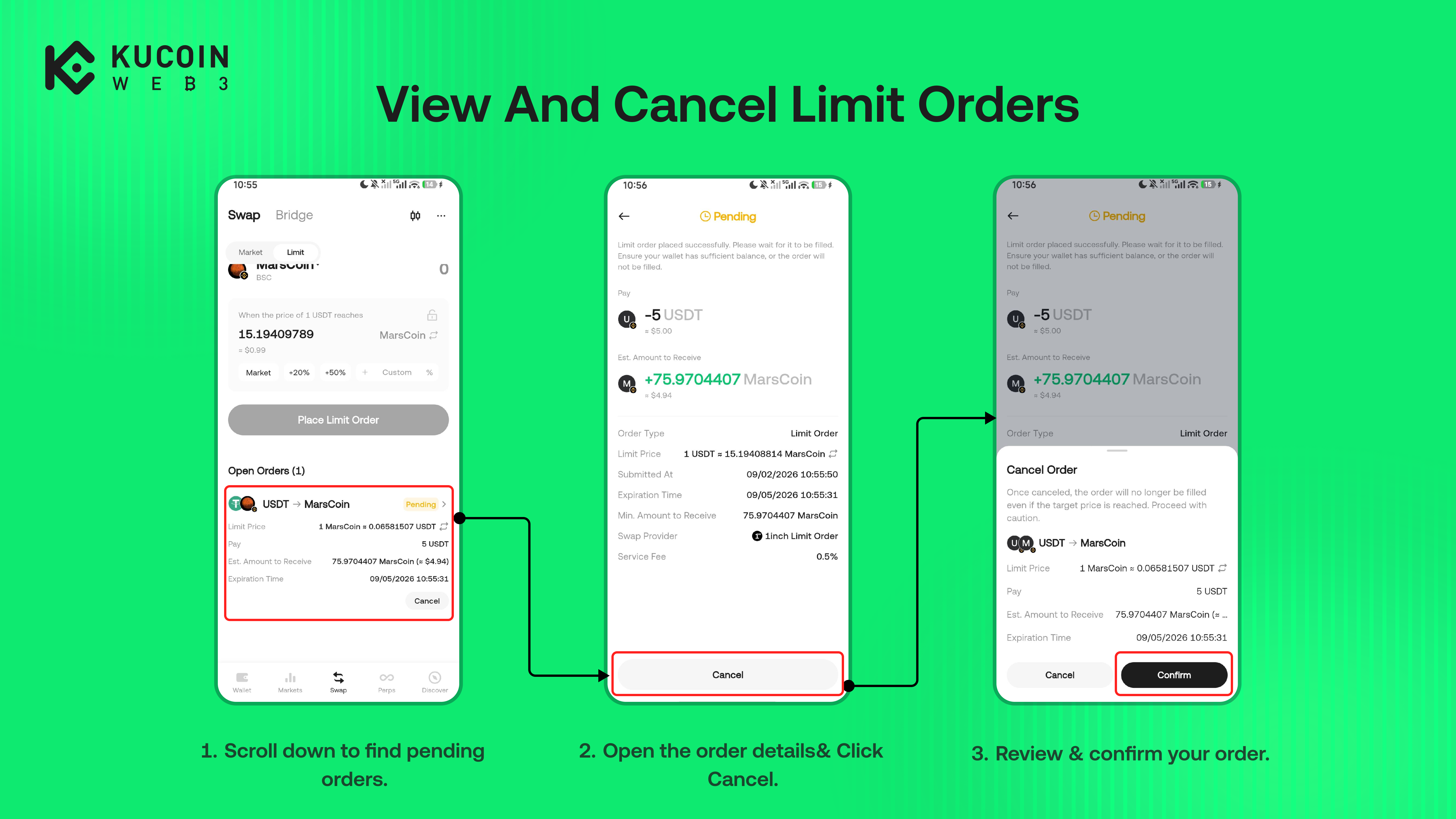
3.2 View and Cancel Limit Orders
- Open Swap and select Limit;
- Scroll to the Open Orders section.
- Select an order to view its details.
- Review the order status, Pay amount, estimated Receive amount, Limit Price, submission time, expiration time, Minimum Amount to Receive, Swap Provider, and Service Fee.
- Tap Cancel on the order card, or open the order details and tap Cancel;
- Review the cancellation warning and order details;
- Tap Confirm.
- Once canceled, the order will no longer be filled even if the target price is reached.
4. Important Notes
-
Limit Order are not guaranteed to be filled.
-
Keep enough Pay token balance while the order is Pending. If the balance is insufficient, the order will not be filled.
-
If the Pay token allowance is insufficient, Token Approval is required before placing the order. Token Approval displays a network fee and requires the network's native gas token.
-
The target rate, estimated receive amount, and displayed price difference may change with the market price.