
How to Export Trade History
You can export your KuCoin trade history for tax declaration and data query purposes. At present, you can only export your trade history from the KuCoin website.
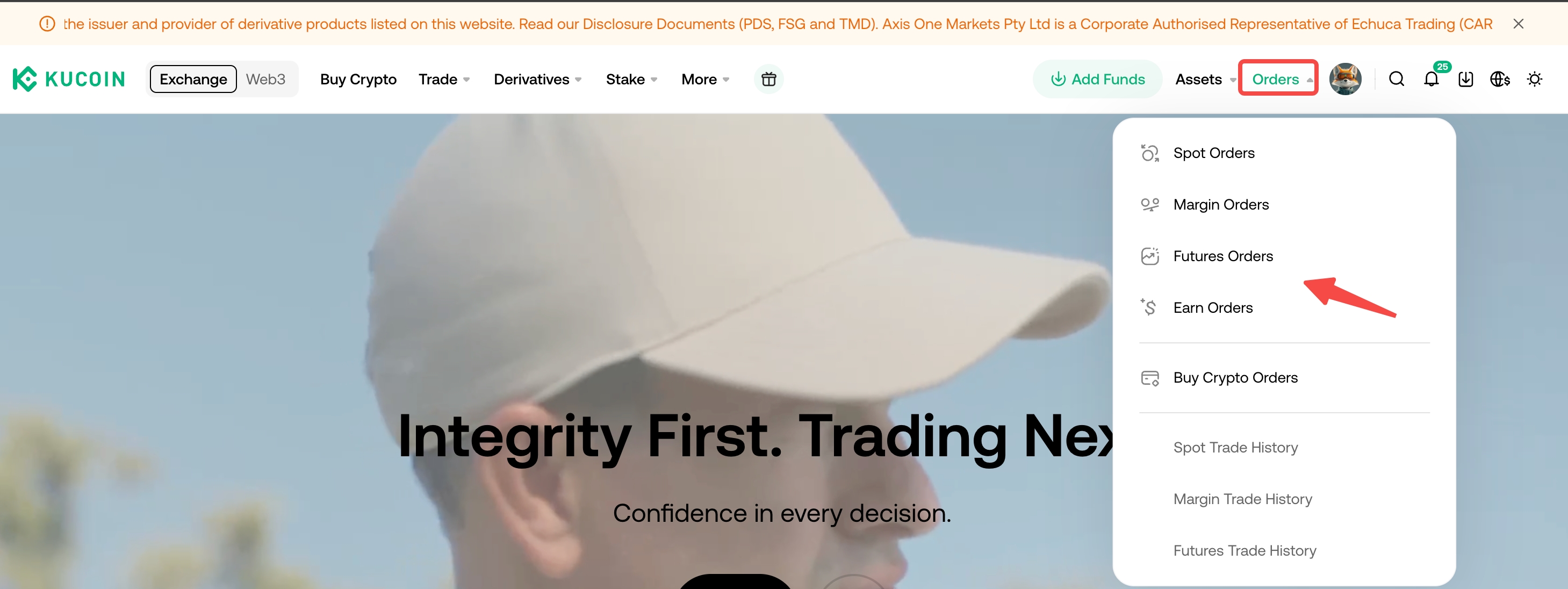
1. Log in to your KuCoin account and visit the Order Center.
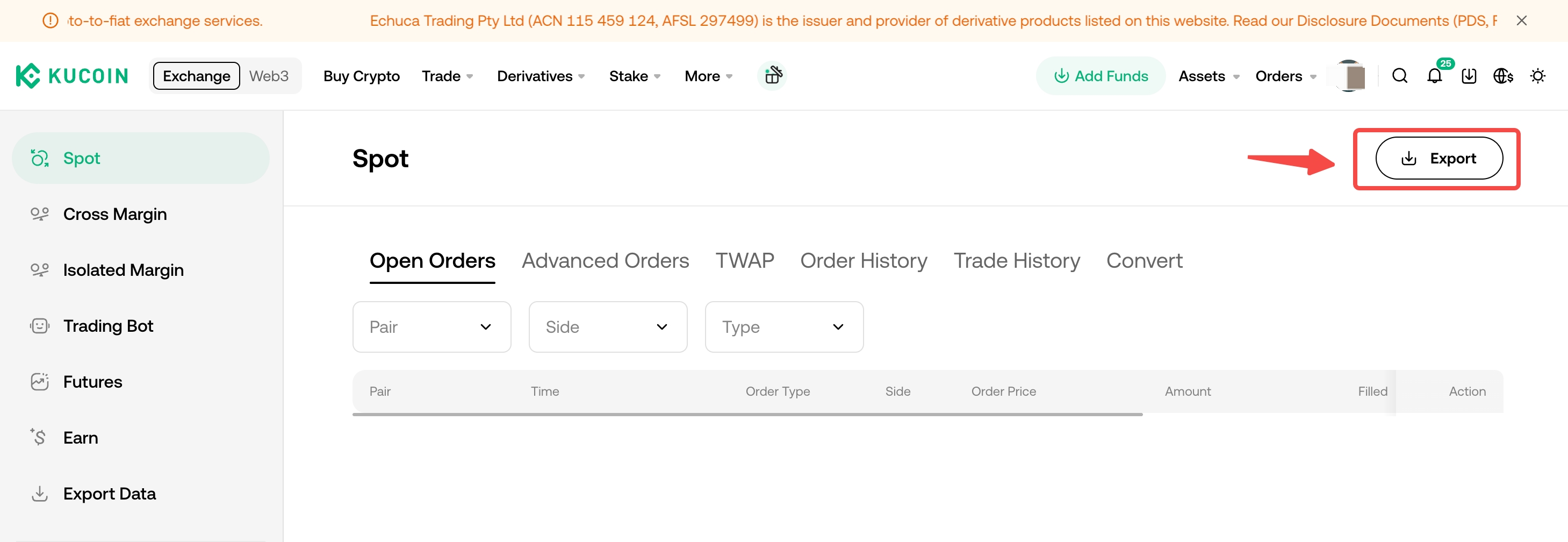
2. Click Export .
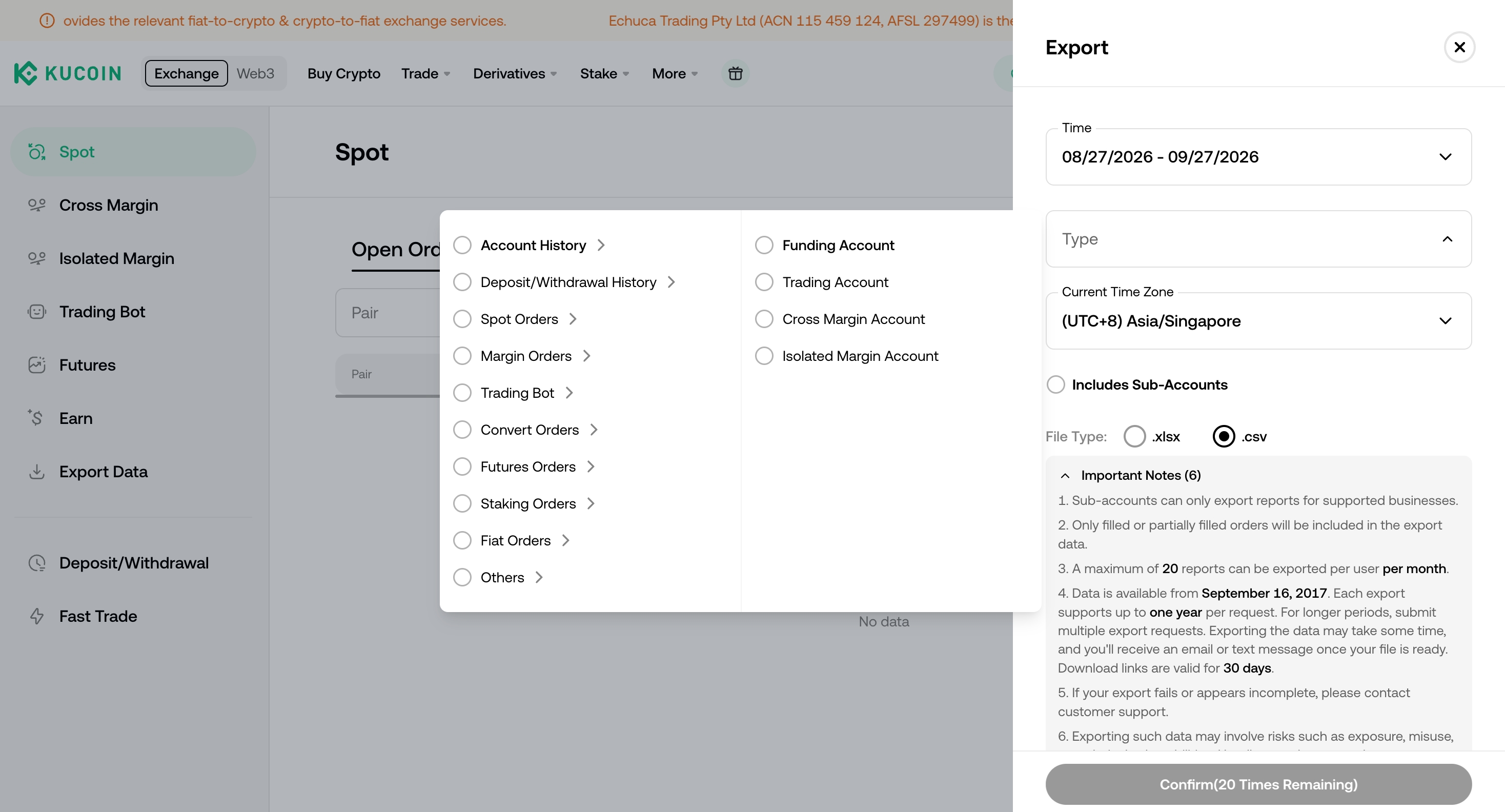
3. Now we support a wide range of data, such as deposit/withdraw records, spot orders, margin orders, convert orders and fiat related records, as you can see in the picture, if you are going to download the spot trading history, please select the specified market, time range, and time zone. If exporting from a master account, you may also choose to include the trades of all sub-accounts. Once you are ready, click Confirm.
You may export your KuCoin trade history for tax declaration and data retrieval purposes. Please note that, at this time, trade history exports are available exclusively via the KuCoin website.
1. Log in to your KuCoin account and navigate to the Order Center.
2. Click Export.
3. We currently support the export of a comprehensive range of data, including deposit/withdrawal records, spot orders, margin orders, conversion orders, and fiat-related transactions, as illustrated in the image below. To download spot trading history, please select the specific market, time range, and time zone. If exporting from a master account, you may also opt to include transactions from all sub-accounts. Once your selections are complete, click Confirm.
4. Please allow some time for the trade history export to process. You may monitor the progress by navigating to Profile > Export Data > Recent Exports. Click Download to complete the process. Please note that the download link will remain valid for 30 days.

Additionally, you may export your Proof of Reserves for tax declaration and data retrieval purposes by accessing this link and viewing the details provided.

Important Notice:
If discrepancies exist between the amounts in your asset snapshots and the balances displayed in your account, the reasons may include:
1. For Margin Accounts, snapshots reflect only net equity. Borrowed assets are excluded from snapshots, whereas lent-out assets are included.
2. For Futures Accounts, snapshot assets do not include unrealized profit and loss (PNL).
3. Regarding KuCoin Staking assets, ETH2 is generated when a user voluntarily converts ETH to ETH2. As ETH2 is distinct from ETH, it is not included in asset snapshots.
Additional Notes:
1. Due to server resource requirements, each user is limited to exporting a maximum of 20 reports per month.
2. Billing data is available from September 16, 2017, onwards. The maximum time span for a single export is one year. Please allow sufficient time for data generation. You will receive an email or text message notification once the file is ready. The exported file will include a download link valid for 30 days.
3. Due to resource constraints, only orders that have been fully or partially filled will be included in the export.
4. Export files are available in .xlsx, .csv, or .pdf formats. You may select your preferred format. If you require a different format, you may convert the file manually. Using Microsoft Excel as an example:
a) Open the exported file and select File > Save As.
b) Save the file in .csv format.
c) If Microsoft Excel displays an error upon opening the saved .csv file, you may disregard it. This notification indicates that certain data elements, such as objects, macros, and cell formatting, may be lost during the conversion from .xlsx to .csv. This conversion will not affect the accuracy of the exported data. Should you have any questions, please contact our customer service team.
5. If you encounter any issues with the export process, such as export failures or missing data, please contact our customer support via online chat or submit a ticket for assistance.