
Step-by-Step Streamer Guide: From Sign-Up to Going Live
Last updated: 05/11/2026 01:23:00
1. Going Live Guide
*How to Access KuCoin Live: Update your KuCoin App to v4.14.0 and then open the app, tap the "Live" tab in the bottom navigation bar.
A. Apply to go live
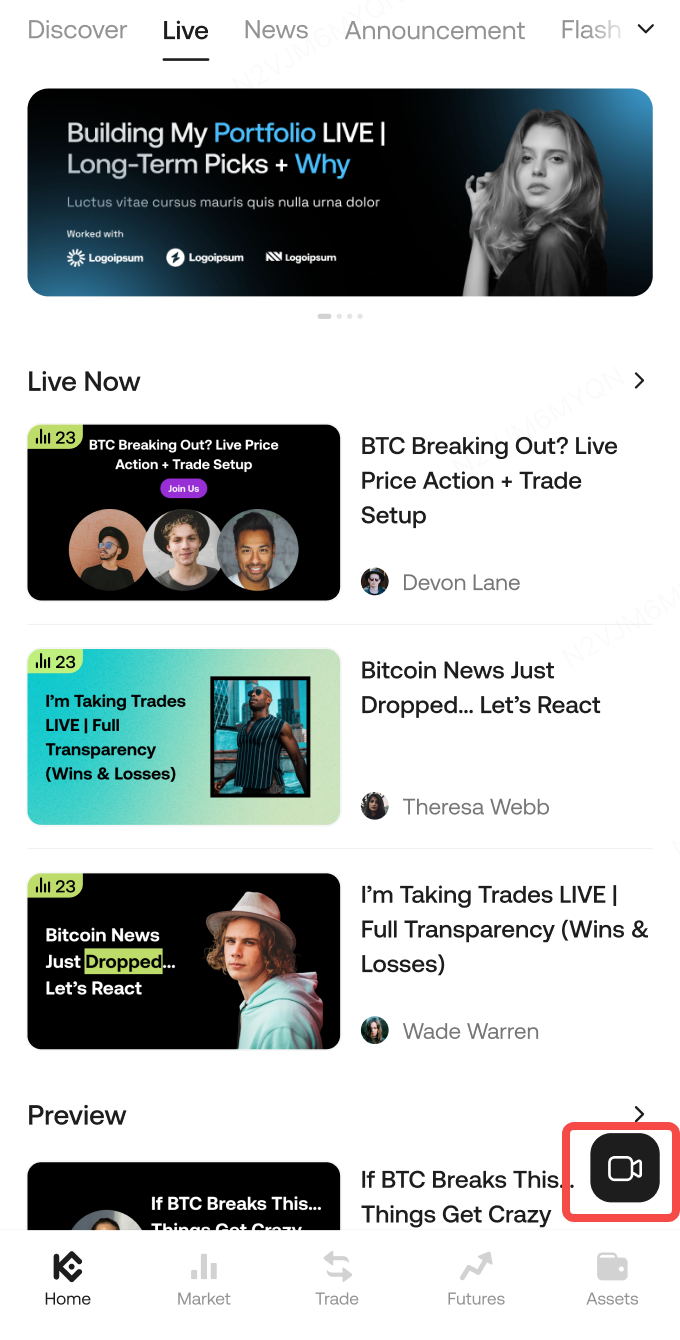
Click the "Camera" Icon in KuCoin and submit your first stream application. Get approved to become a streamer instantly.
B. Submit livestream details
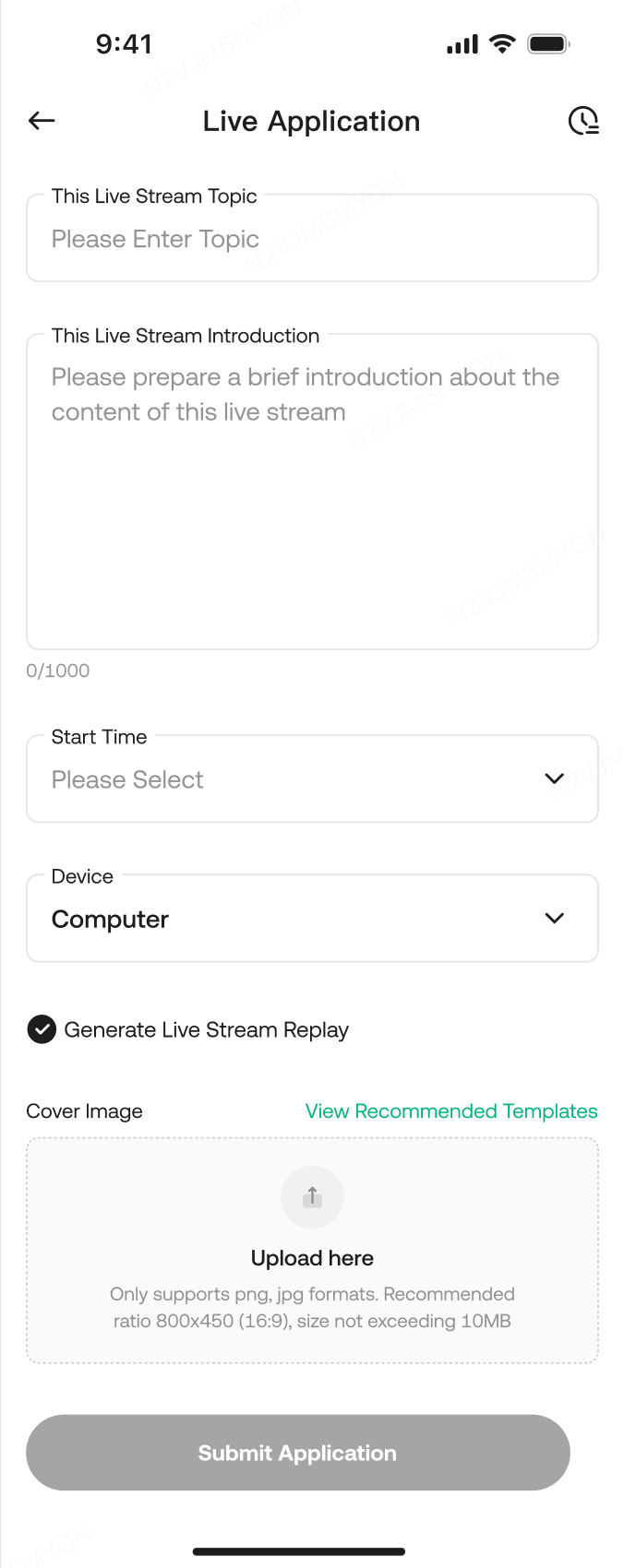
On the livestream homepage, tap the floating camera button “📹” at the bottom to enter the application page. Fill in Title / Description / Start Time / Cover Image, then submit.
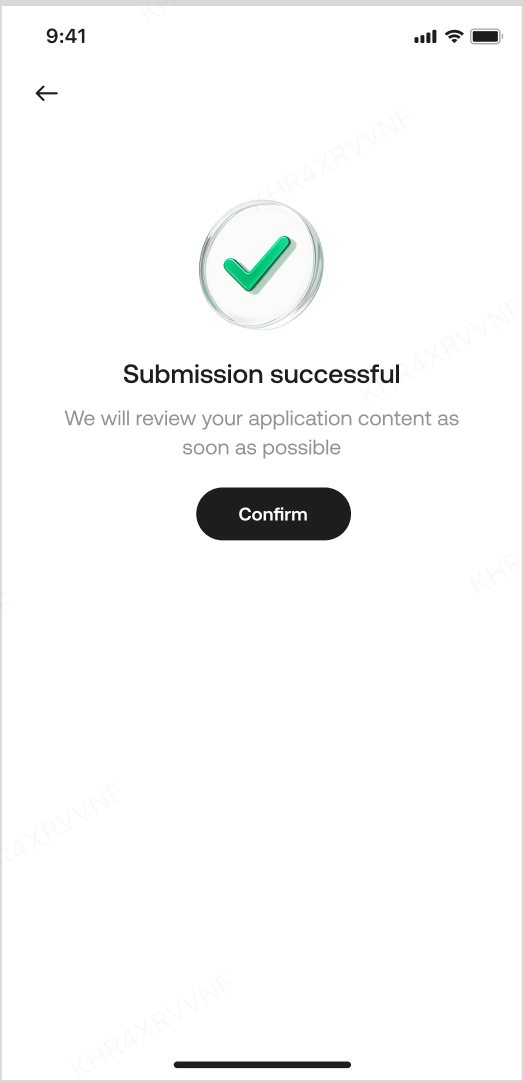
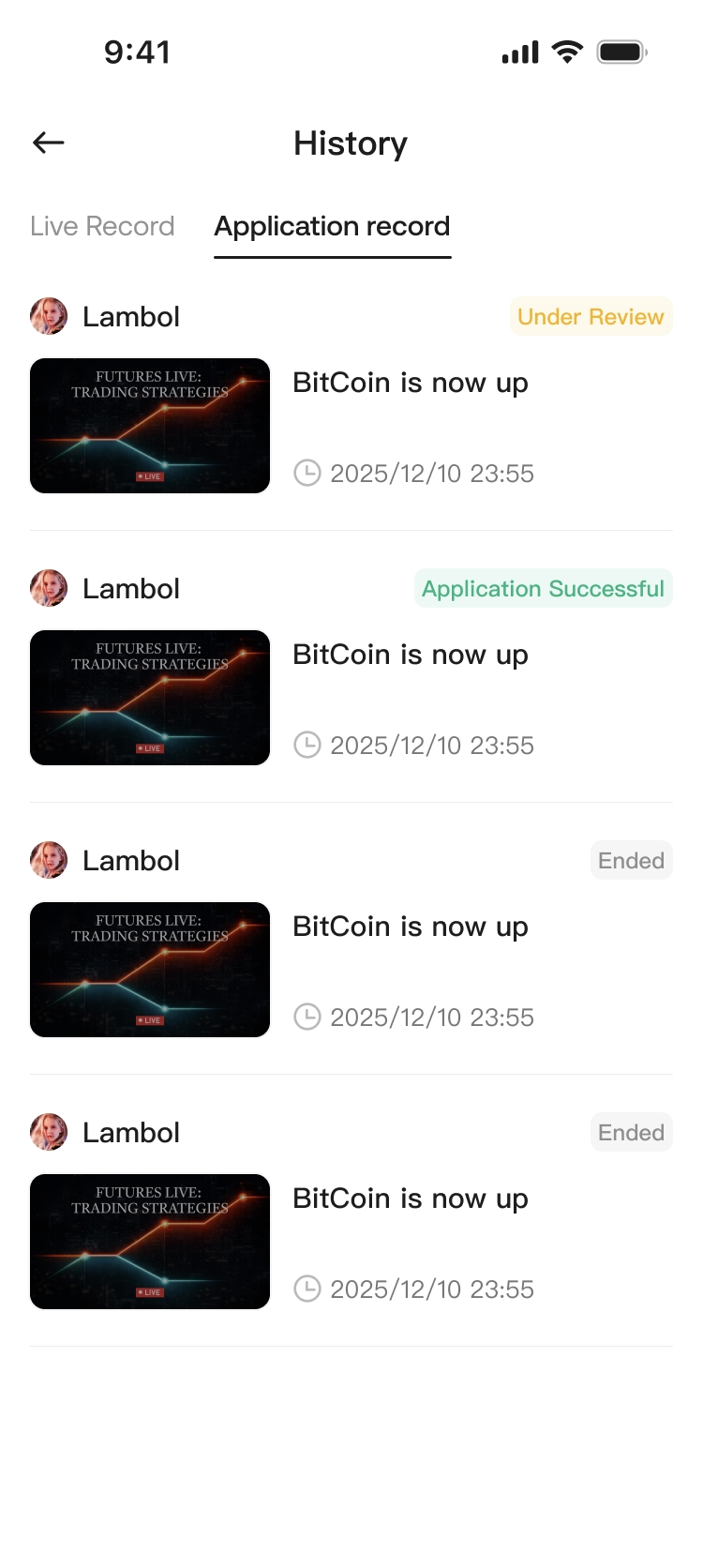
C. After submitting, tap Confirm to enter History → Application Records.
Craft Your Stream’s First Impression
A strong title, description, and cover image help viewers discover your stream. Please fill them in carefully:
-
Stream Title: Required, ≤ 30 characters
-
Stream Description: Required, ≤ 1000 characters
-
Start Time: Future time only
-
Stream Cover: Required, ≤ 10 MB; recommended 800 × 450 (16:9)
-
Need a cover image? Start with our templates and customize it to stand out.
-
Generate Replay: Enabled by default; the system remembers your last selection
D. Go live after approval
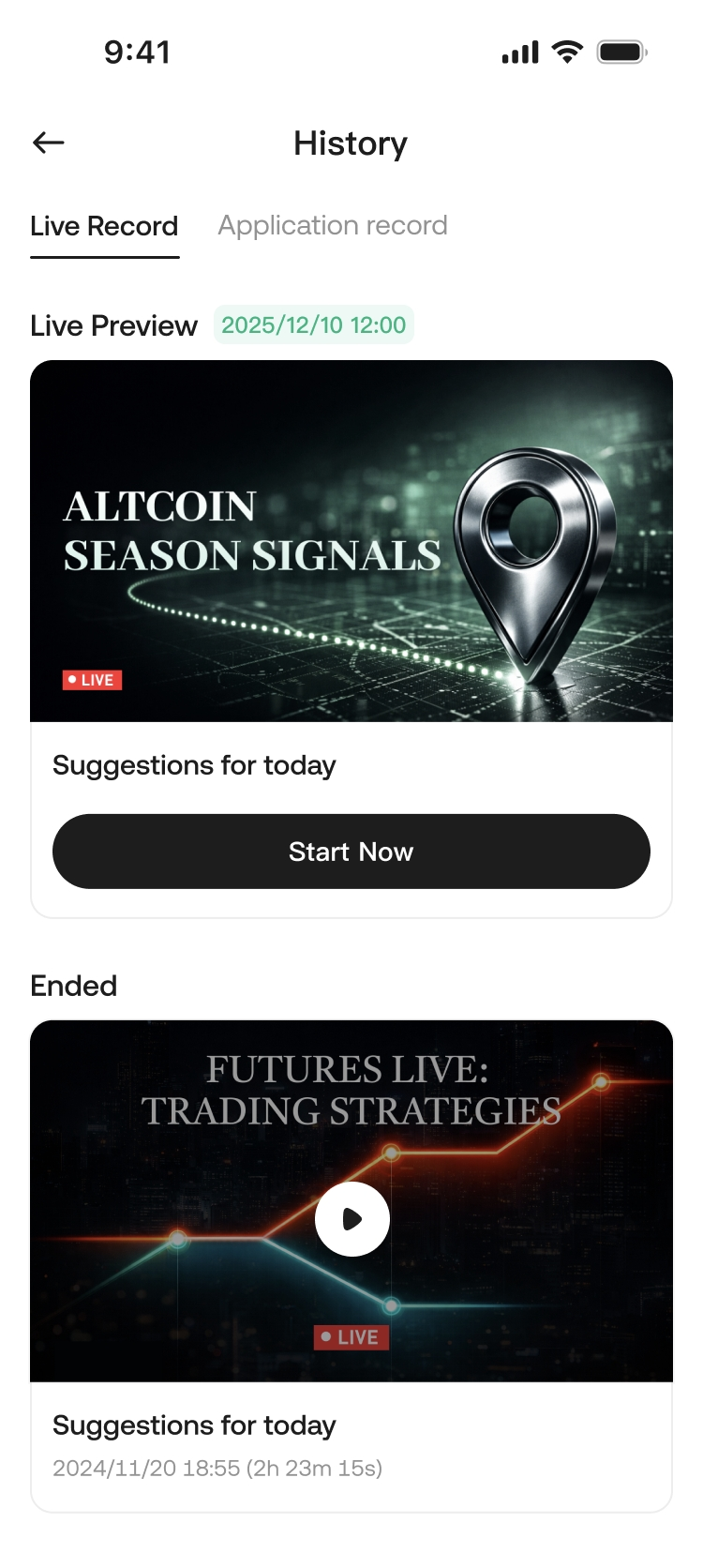
If you applied for [PC Streaming]: In Live History, tap Get Stream Key to copy the Server URL and Stream Key (for OBS Studio or other streaming tools).
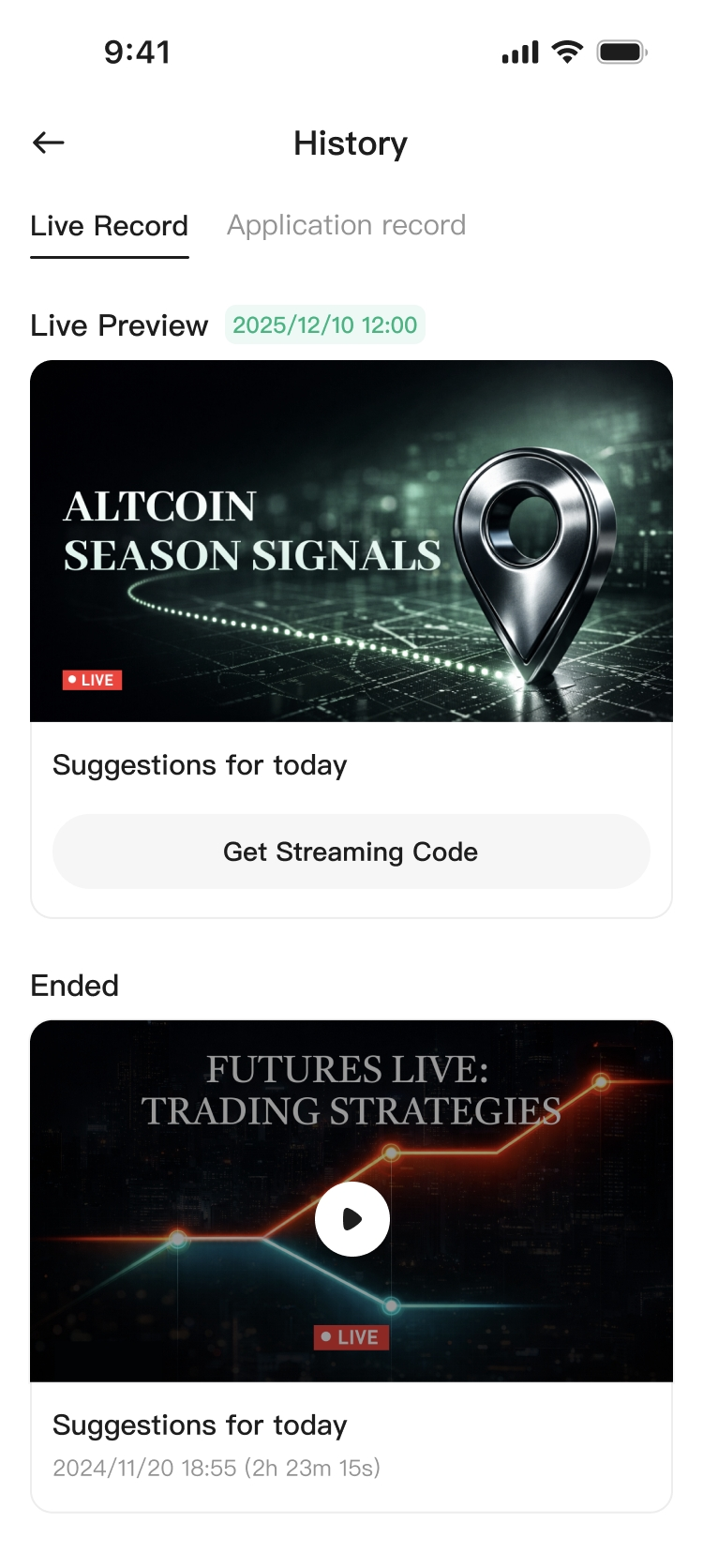
If you applied for [Mobile Streaming]: Tap Go Live Now to enter the mobile streamer live page.
E. Common Reasons for Rejection
-
Promoting or redirecting users to third-party channels / paid services
-
Fraud / misinformation
-
Please ensure your stream complies with our Community Rules. Violations may lead to restrictions or a ban on your account.
F. Livestream Tips (Recommended)
-
Structure: In the first 1 minute, clearly explain today’s topic and key takeaways; every 10–15 minutes, do a quick recap + Q&A.
-
High Interaction: Use fixed prompts to encourage chat (e.g., “Type 1 for bullish, type 2 for bearish”), and respond quickly.
-
Avoid Dead Air: Don’t leave the stream idle or AFK for long. If you must step away, say so in advance and keep it short.
-
Compliance First: Avoid fraud, misinformation, and personal attacks. Do not direct users to third-party paid services or external channels—this reduces review and reporting risk.
Contact our admin on Telegram: @KucoinLive8 or @KucoinLive6
2. Two Ways to Go Live (Mobile / PC Streaming)
2.1 Mobile: “Go Live Now”
Fast and simple. Best for: face-cam streams, mobile scenarios, quick starts.
-
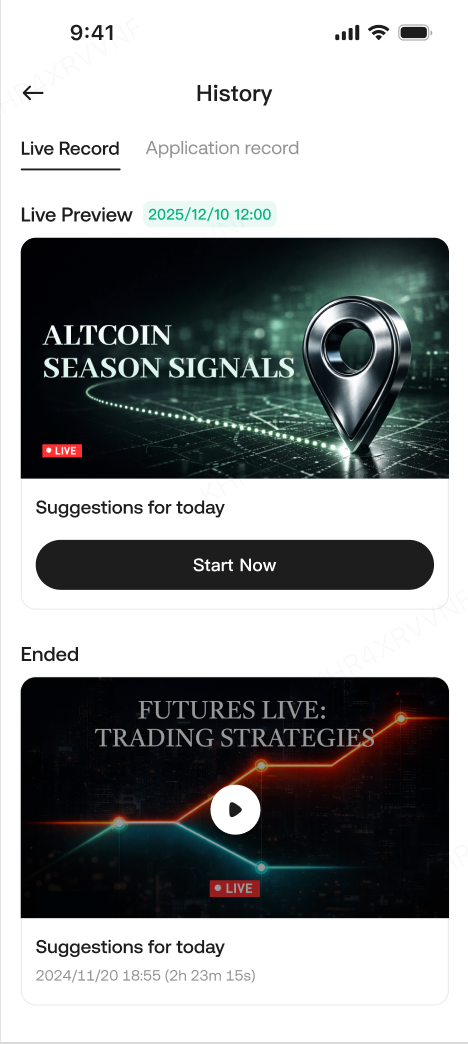
In Live History, tap Go Live Now to enter the mobile streamer live page.
-
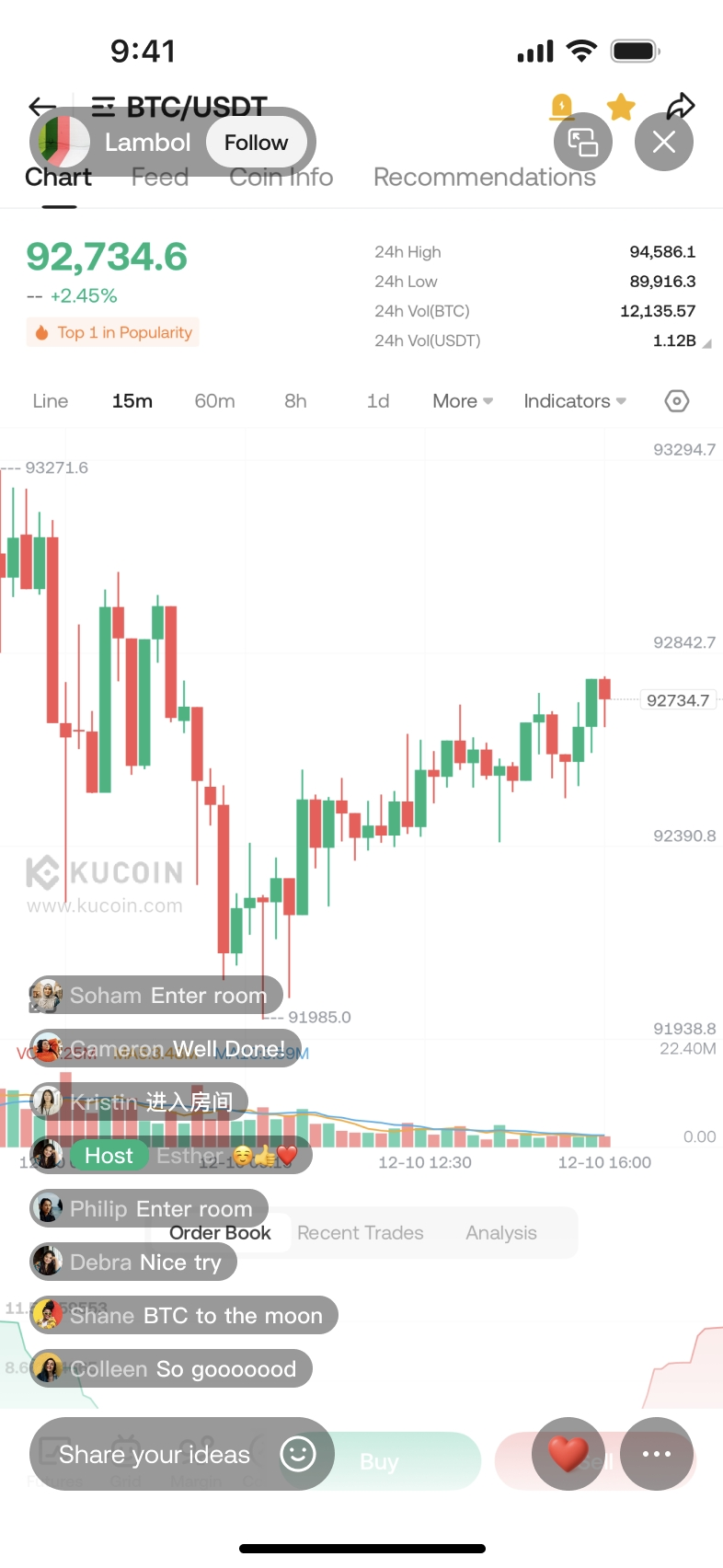
The mobile streamer page includes: streamer profile, camera flip, end stream, online/view/like counts, chat area, input box, landscape mode, etc.
2.2 PC Streaming (Using OBS as an Example)
More professional. Supports screen sharing for chart analysis. Best for: chart walkthroughs, strategy teaching, screen-based explanations, more controllable visuals.
2.2.1 Disclaimer:
Any third-party streaming software, tools, or services referenced on this page are provided independently by third party(ies) and are not developed, operated, owned, controlled, or endorsed by the Platform, nor do they form part of the Platform’s services. Such references are for general information only and do not constitute any recommendation, endorsement, or warranty of any kind. Streamers and users who choose to use any third-party tools do so entirely at their own discretion and risk, and the Platform shall not be responsible or liable for any losses, interruptions, security issues, data problems, or other consequences arising from the use of, or reliance on, such third-party tools. Users are solely responsible for reviewing and complying with the applicable terms, policies, and laws governing such third-party services.
2.2.2 OBS Tutorial Links
Video Tutorial
OBS Official Download
2.2.3 OBS Setup (Text Guide)
Step 1: Download & Install OBS Studio
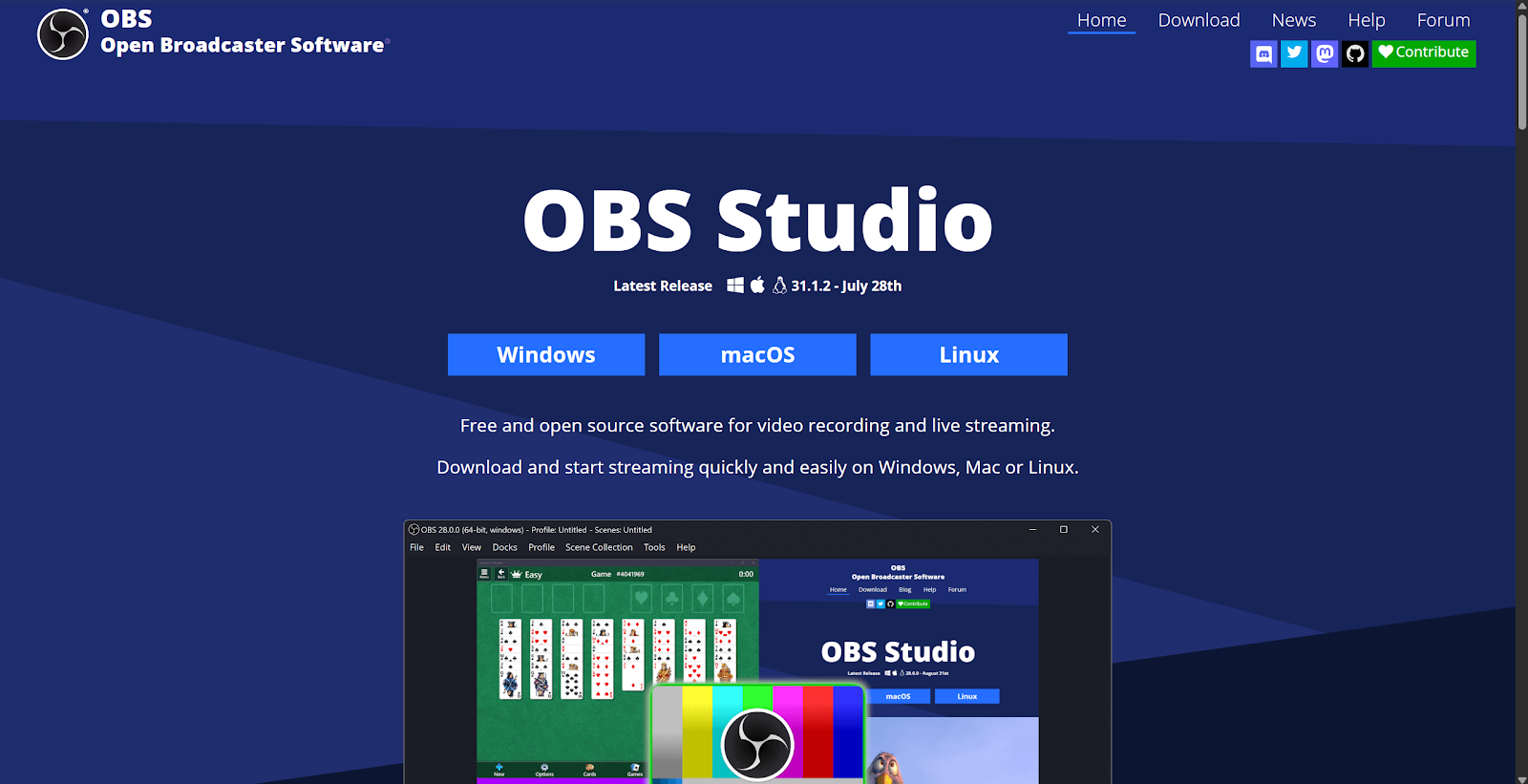
A. Visit the official website to download and install.
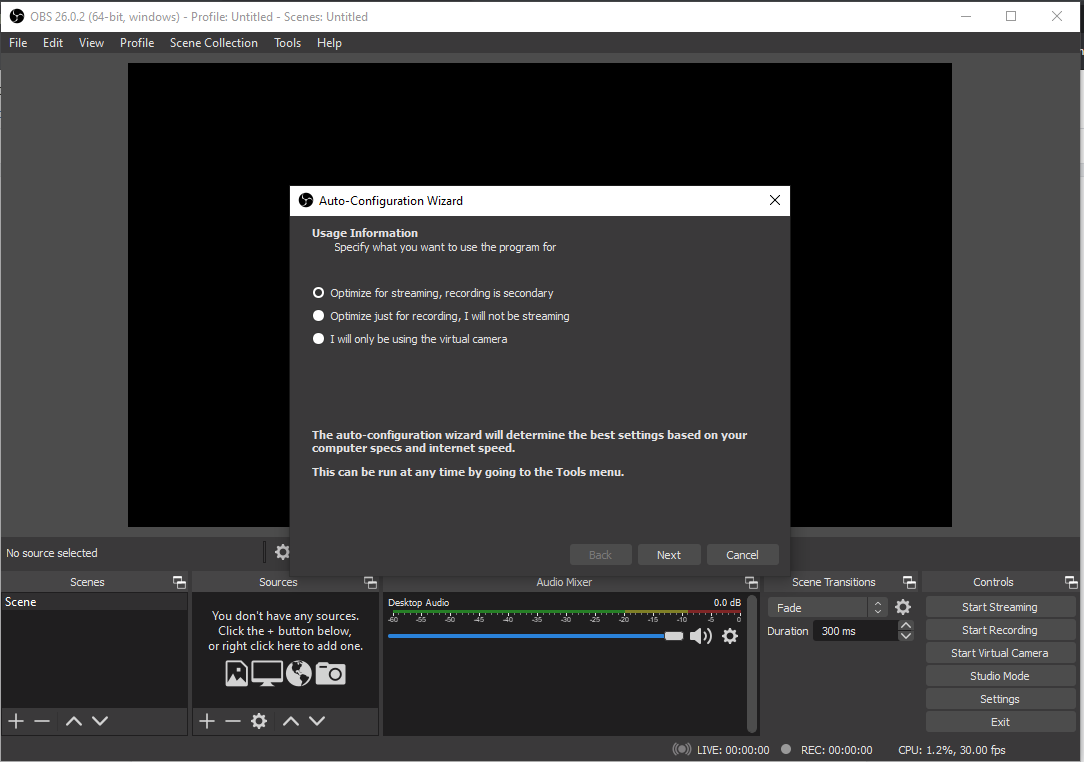
B. After installation, check “Launch OBS Studio”. On first launch, the Auto-Configuration Wizard will run—choose “Optimize for streaming” so OBS detects the best settings automatically.
Step 2: Start Streaming
A. In Live History, tap Get Stream Key, then copy Server and Stream Key.
B. Configure RTMP in OBS:
- Paste the server URL into OBS Server/URL
- Paste the stream key into OBS Stream Key
C. Click Start Streaming in OBS.
2.3 OBS Optimization Settings
Step 1: Output Settings
-
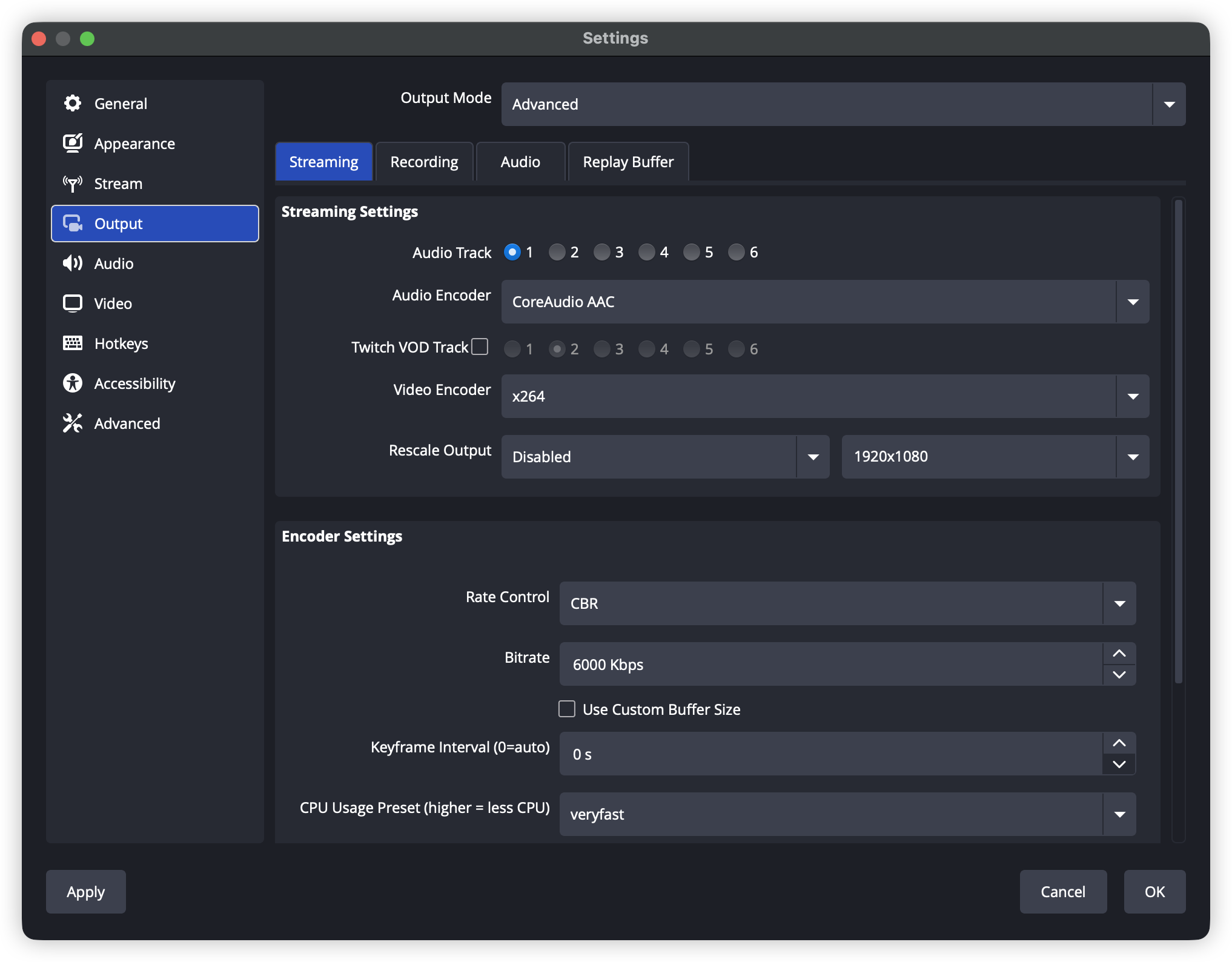
File → Settings → Output
-
Output Mode: Advanced
-
Encoder: NVIDIA NVENC H.264 (if you have an NVIDIA GPU)
-
Rate Control: CBR
-
Bitrate: 6000 Kbps
-
Keyframe Interval: 2
-
Preset: Quality
-
Profile: main
-
B-frames: 2
Step 2: Video Settings
-
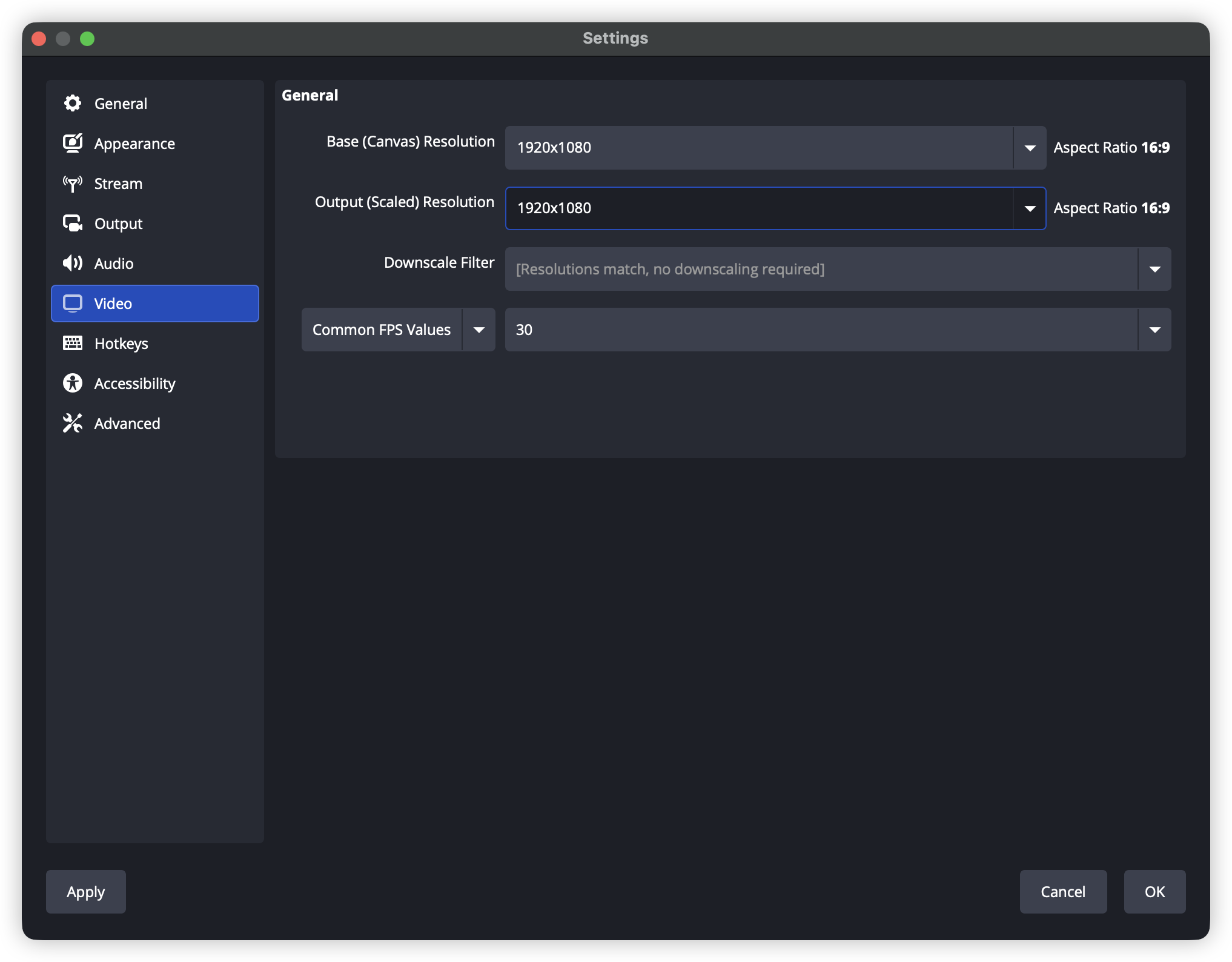
Settings → Video
-
Base (Canvas) Resolution: 1920×1080
-
Output (Scaled) Resolution: 1920×1080
-
Downscale Filter: Lanczos (sharpened, 36 samples)
-
FPS: 60 (or 30 to save bandwidth)
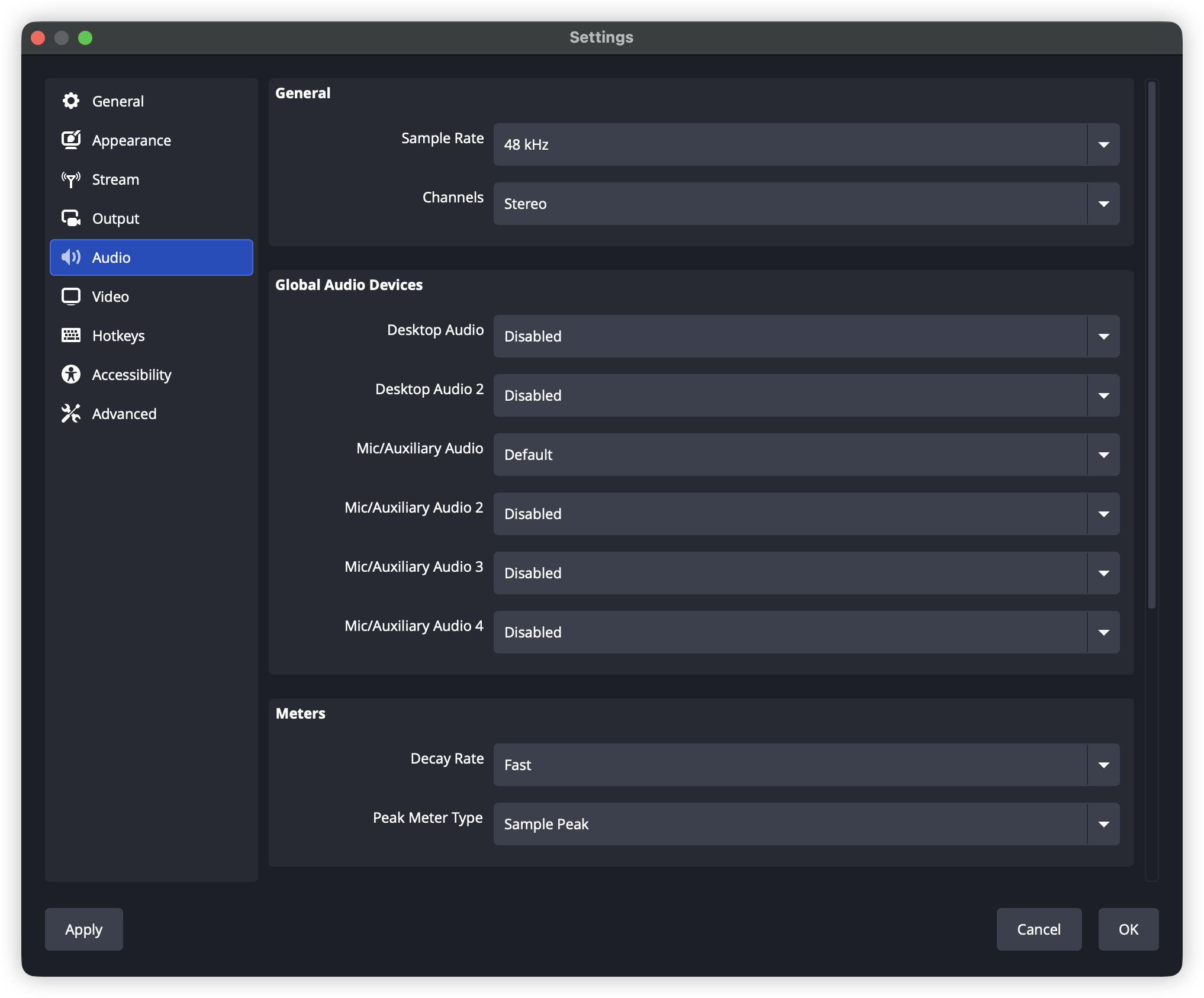
Step 3: Audio Settings
-
Settings → Audio
-
Sample Rate: 48 kHz
-
Channels: Stereo
-
Desktop Audio: Default
-
Mic/Auxiliary Audio: Select your microphone
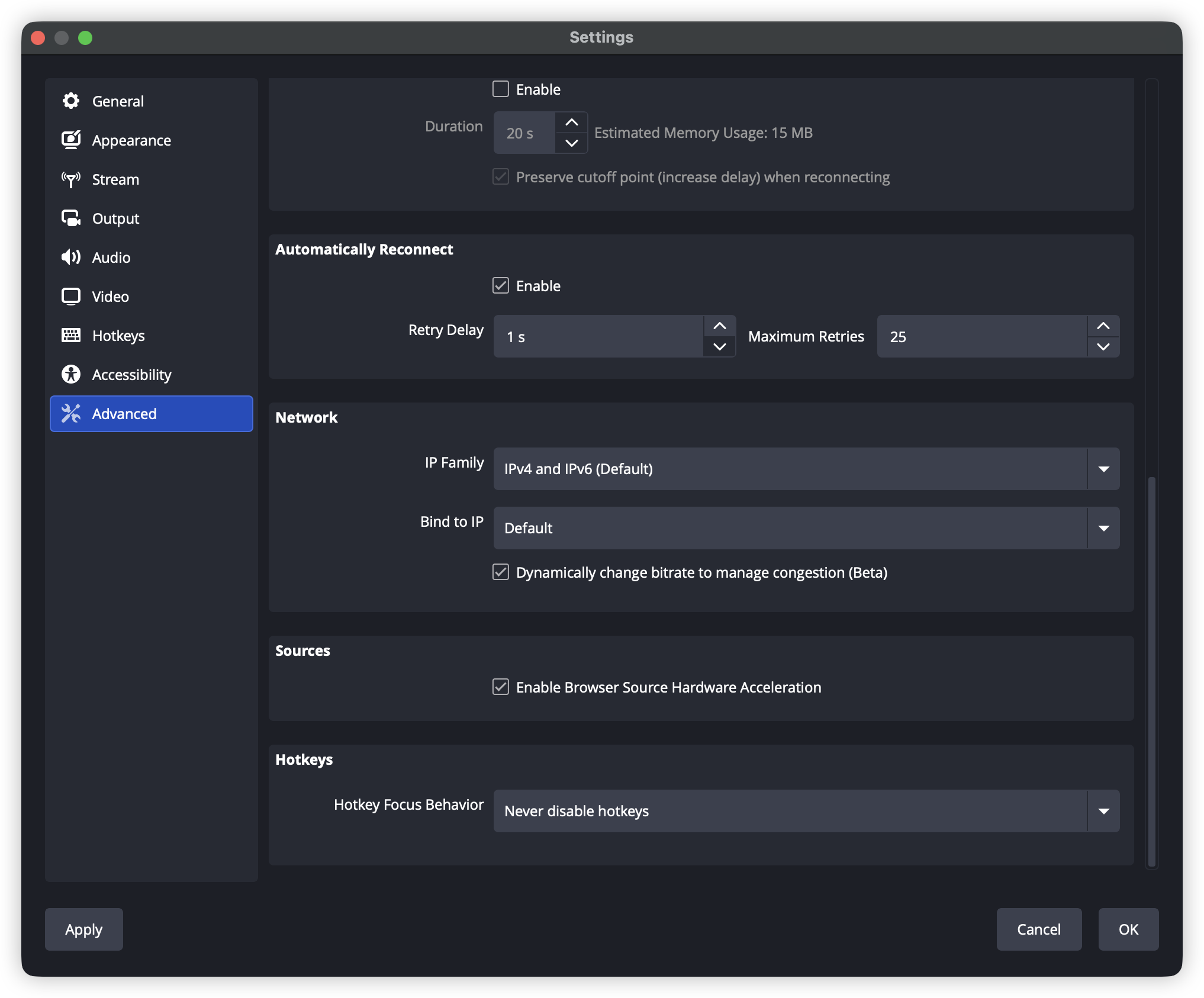
Step 4: Network Optimization
-
Settings → Advanced → Network
-
Enable “Bind to IP” (use wired network)
-
If you experience dropped frames, enable “Dynamically change bitrate to manage congestion”
2.4 Common Issues & Fixes
Issue 1: Severe dropped frames
Fix:
-
Reduce bitrate (decrease by 500 kbps each time)
-
Switch to hardware encoding (NVENC / AMF)
-
Use wired network instead of Wi-Fi
-
Ensure upload bandwidth is 1.5× your total bitrate
Issue 2: Encoding overload
Fix:
-
Lower output resolution to 720p
-
Reduce FPS from 60 to 30
-
Use “veryfast” or “superfast” preset
-
Close unnecessary programs
Issue 3: Platform connection failure
Fix:
-
Check whether the stream key is correct
-
Confirm whether the platform requires special permissions (e.g., X may require paid plan)
-
Try switching server regions/addresses
-
Check firewall settings
Issue 4: Audio/video out of sync
Fix:
-
Settings → Advanced → Audio
-
Adjust “Audio Monitoring Delay”
-
Ensure all audio sources use the same sample rate
3. Multi-Platform Streaming on PC (OBS)
Option A: Aitum Multistream (Recommended)
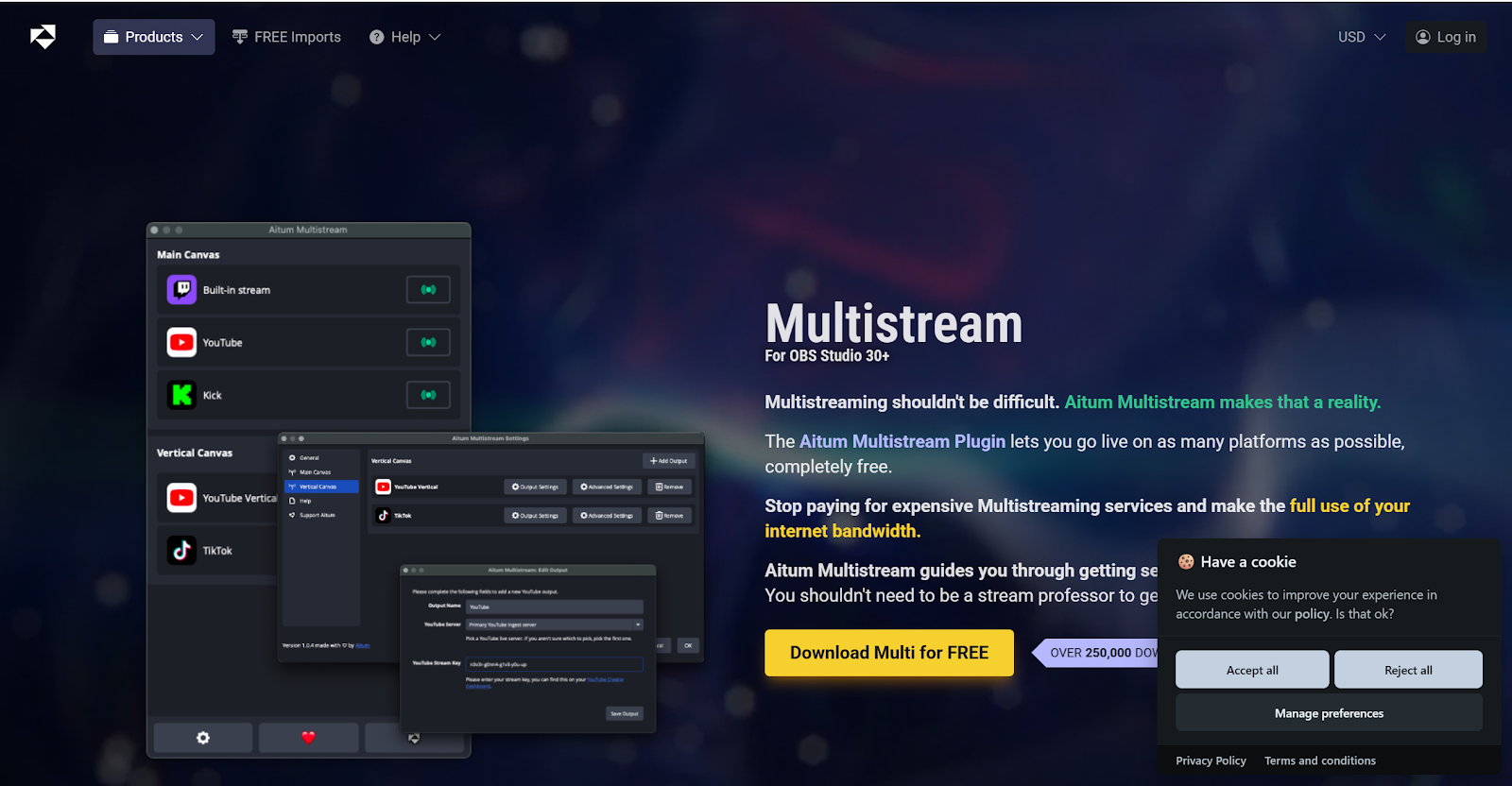
Install a multi-stream plugin such as Aitum Multistream:
-
Supports different resolutions per platform
-
Native multi-output streaming (no third-party relay service required)
-
Supports vertical streaming (Douyin, Kuaishou, etc.)
-
Free to use
Install Steps
-
Download and install the plugin.
-
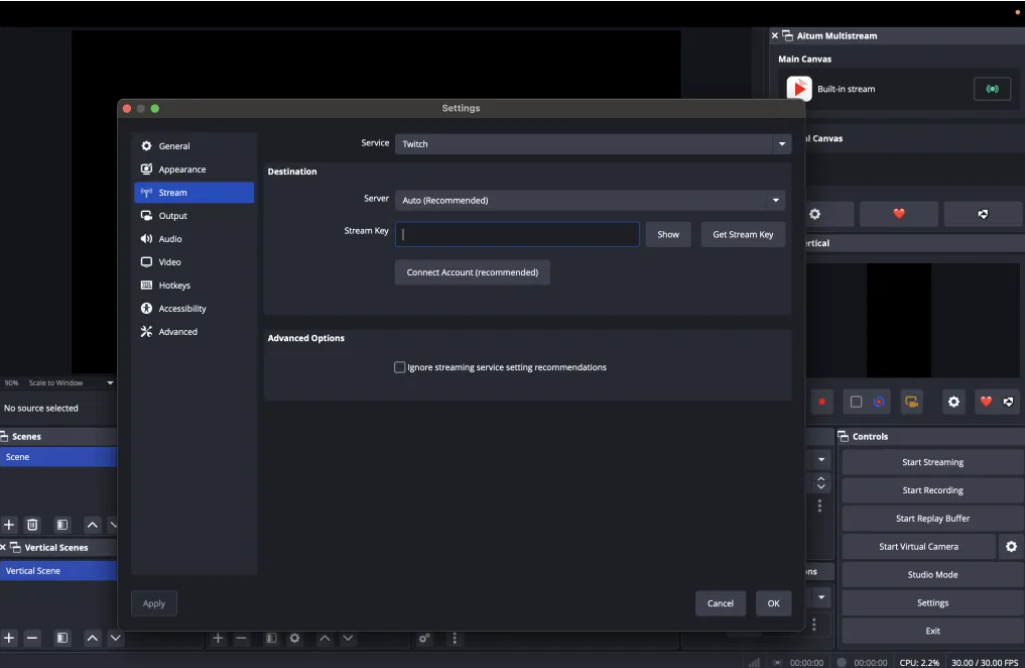
Enable the plugin:
-
Open OBS Studio
-
Menu: View → Docks → Aitum Multistream
-
The plugin panel will appear inside OBS
-
Option B: Multi-RTMP (Alternative)
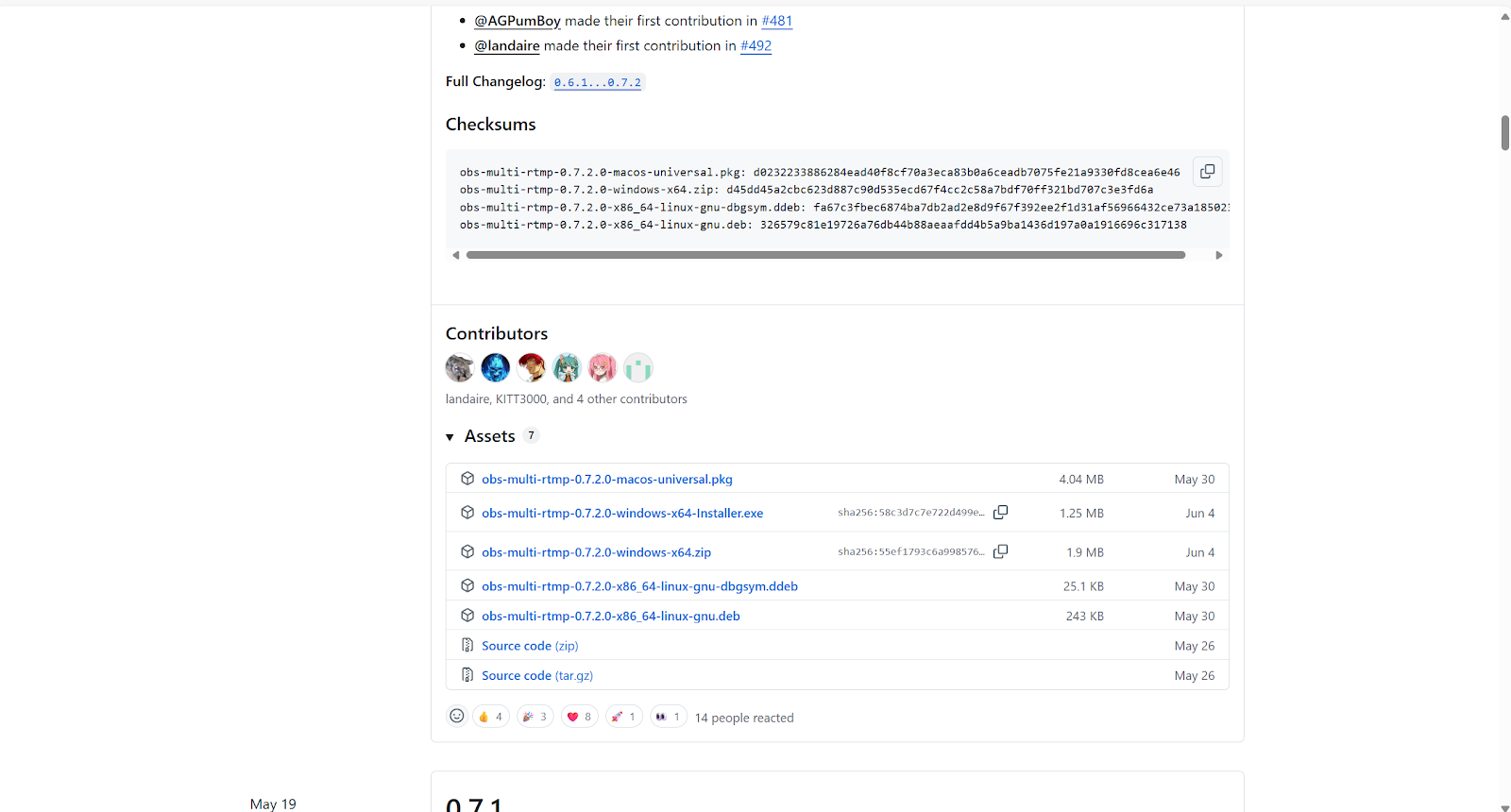
Other multi-stream plugin: Multi-RTMP (May have compatibility issues on OBS 30.2.2+.)
Install Steps
-
Download the plugin.
-
Unzip and copy files into the OBS installation directory.
-
Restart OBS, then enable it via View → Docks.
3.1 Get Stream Keys for Each Platform
X (Twitter) Stream Setup
Since July 2024, X requires Premium or Premium+ to livestream.
-
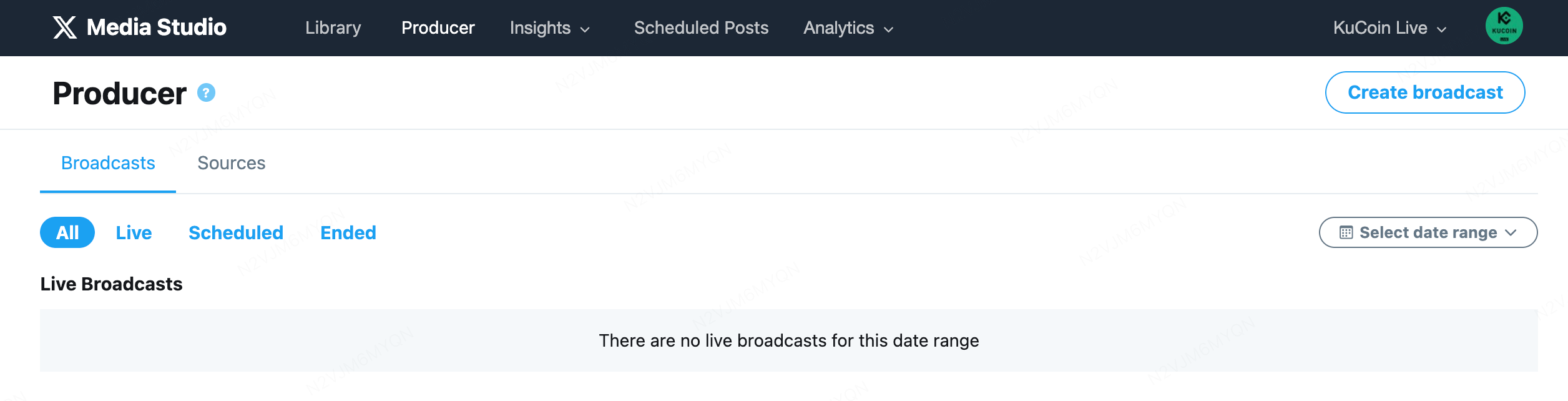
Log in to X and visit here
-
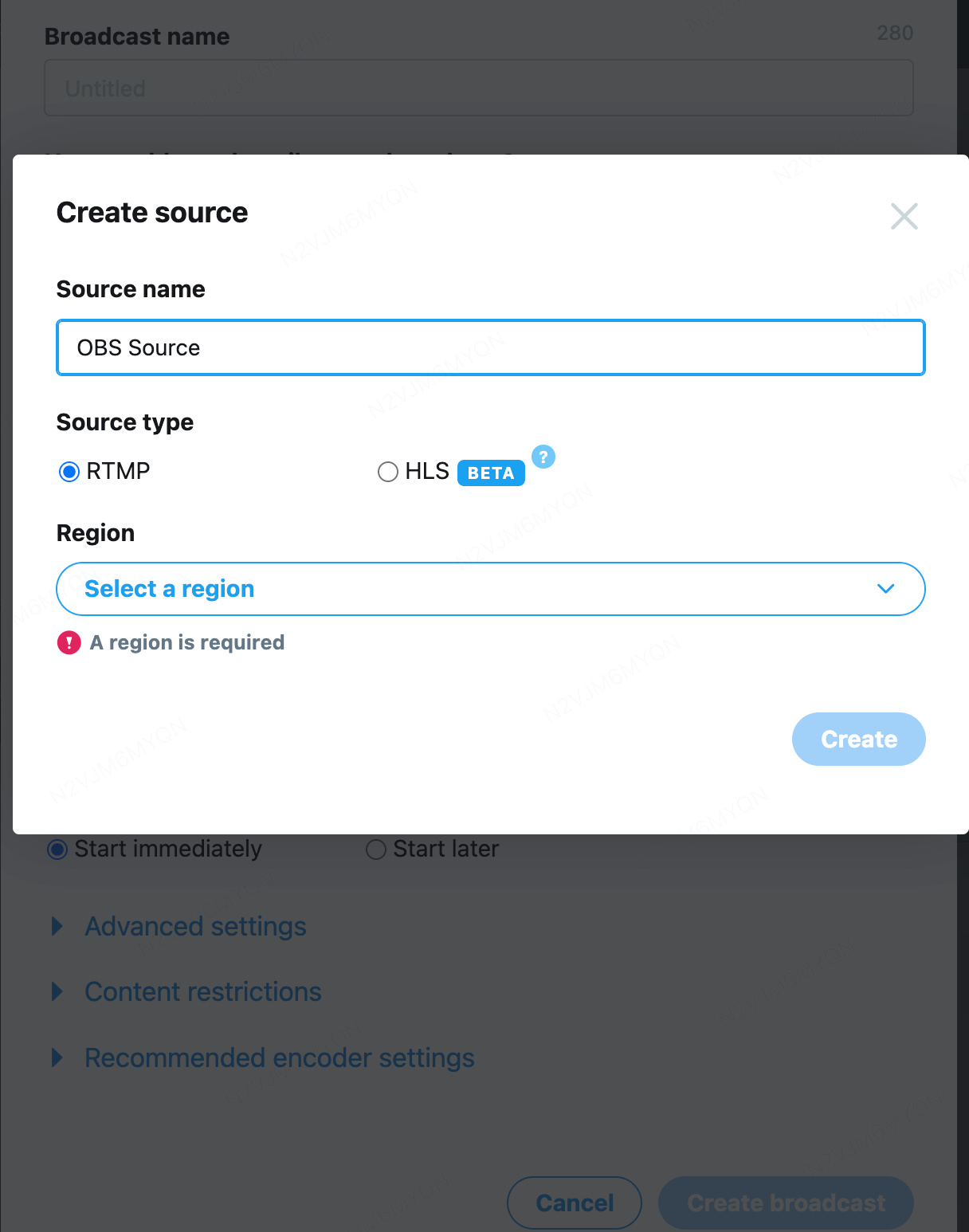
Create an RTMP source
-
Go to “Sources”
-
Click “Create Source”
-
Enter a name (e.g., “OBS Stream”)
-
Select “RTMP”
-
Choose the nearest server region
-
Click “Create”
-
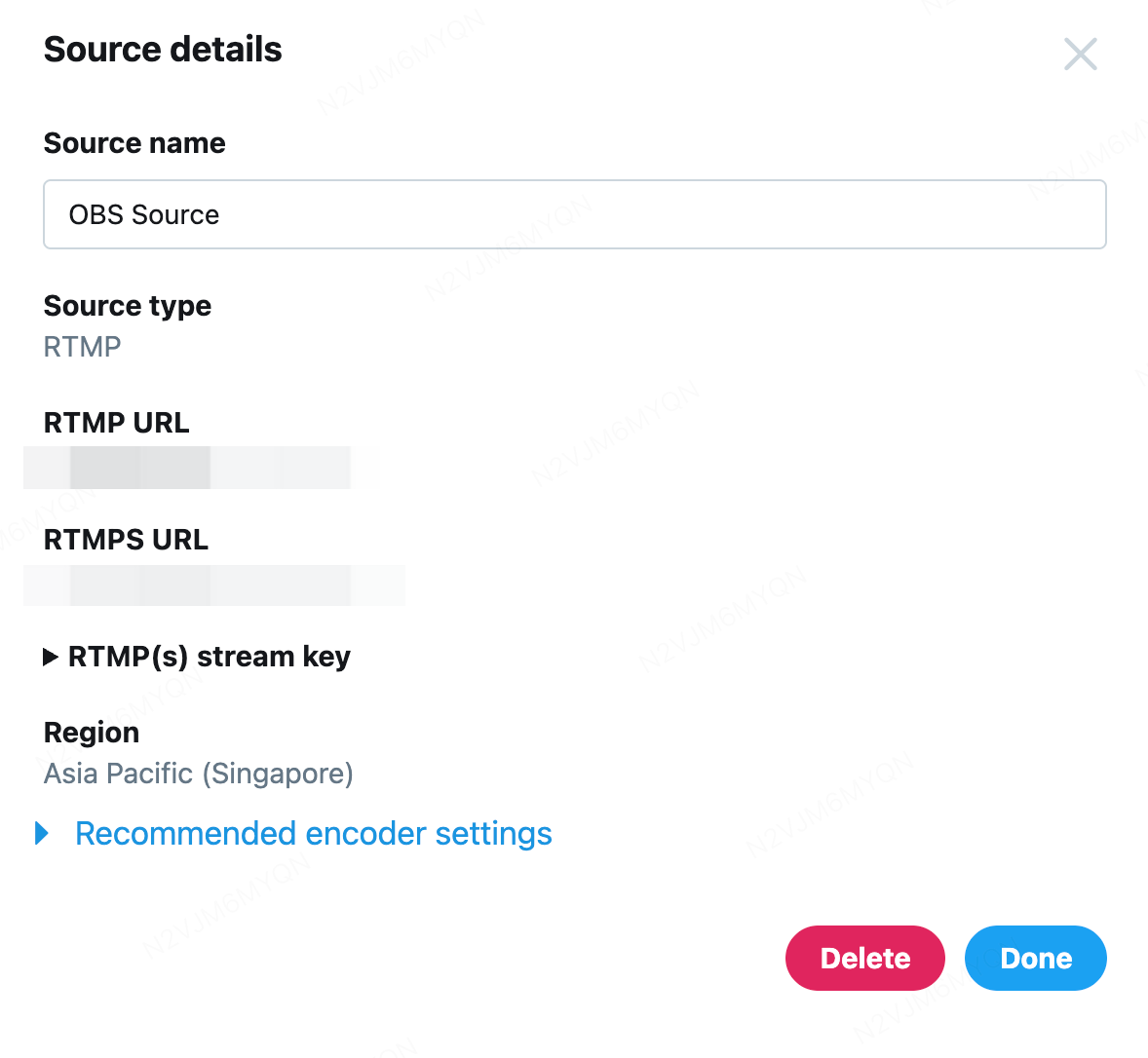
Copy streaming info
-
RTMP URL (server address)
-
RTMP Stream Key
YouTube Stream Setup
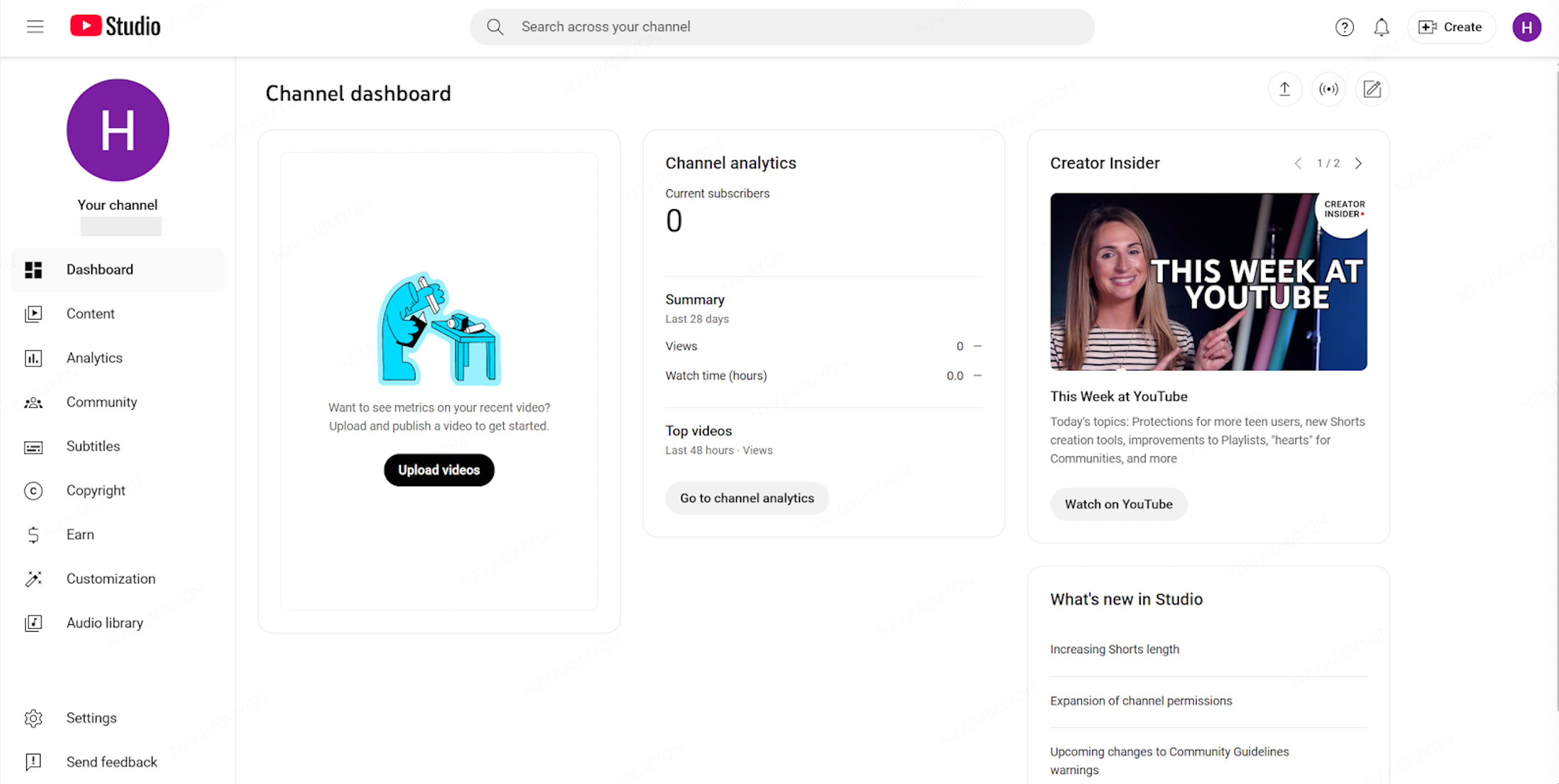
-
Enable livestreaming and go to here
-
Then click “Create” → “Go Live”
-
Get stream key
-
Open the “Stream” tab
-
In “Stream Settings”, find:
-
Server URL: rtmps://a.rtmps.youtube.com/live2
-
Stream Key: Click “Copy”
-
Twitch Stream Setup
-
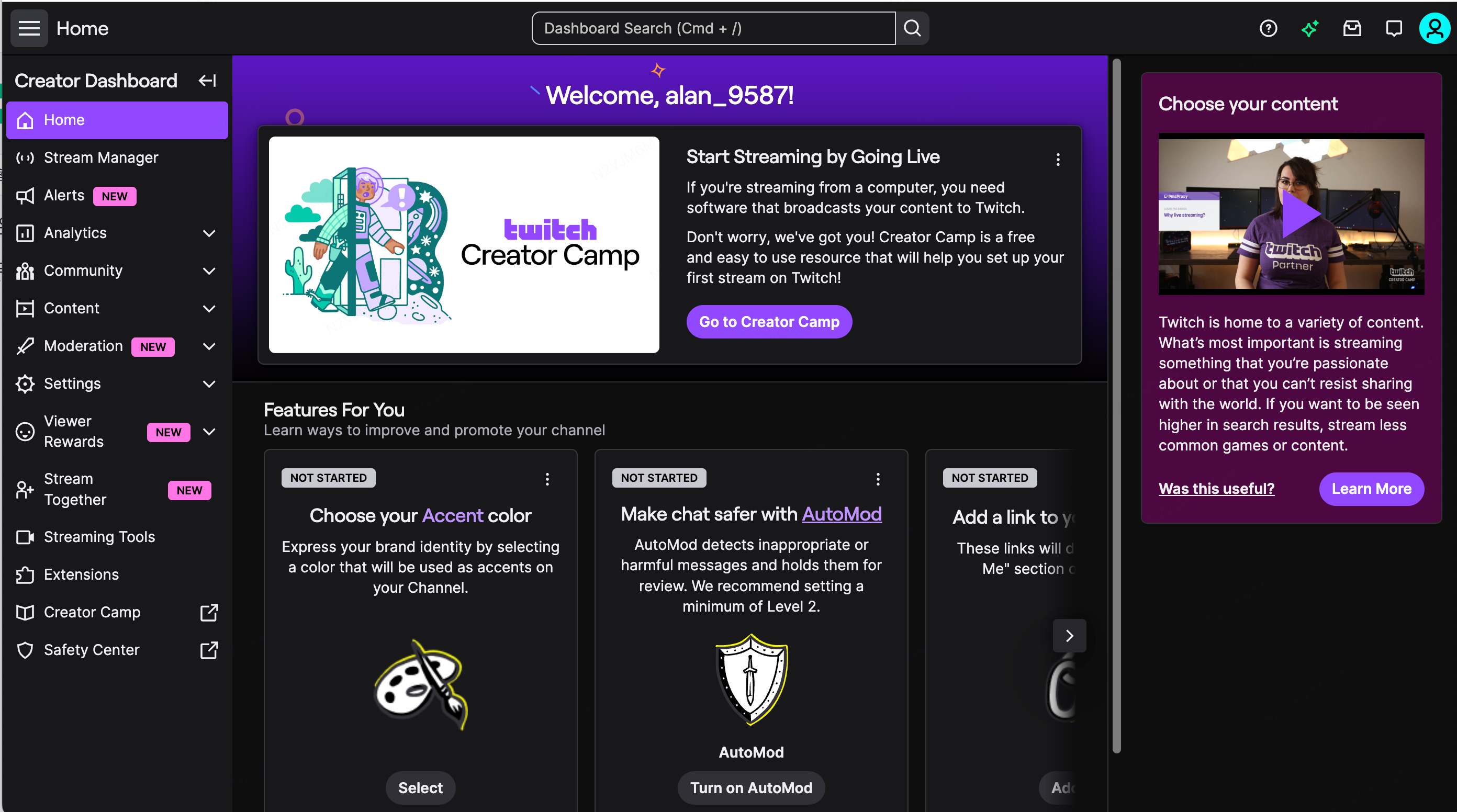
Log in to Twitch, click avatar → “Creator Dashboard”
-
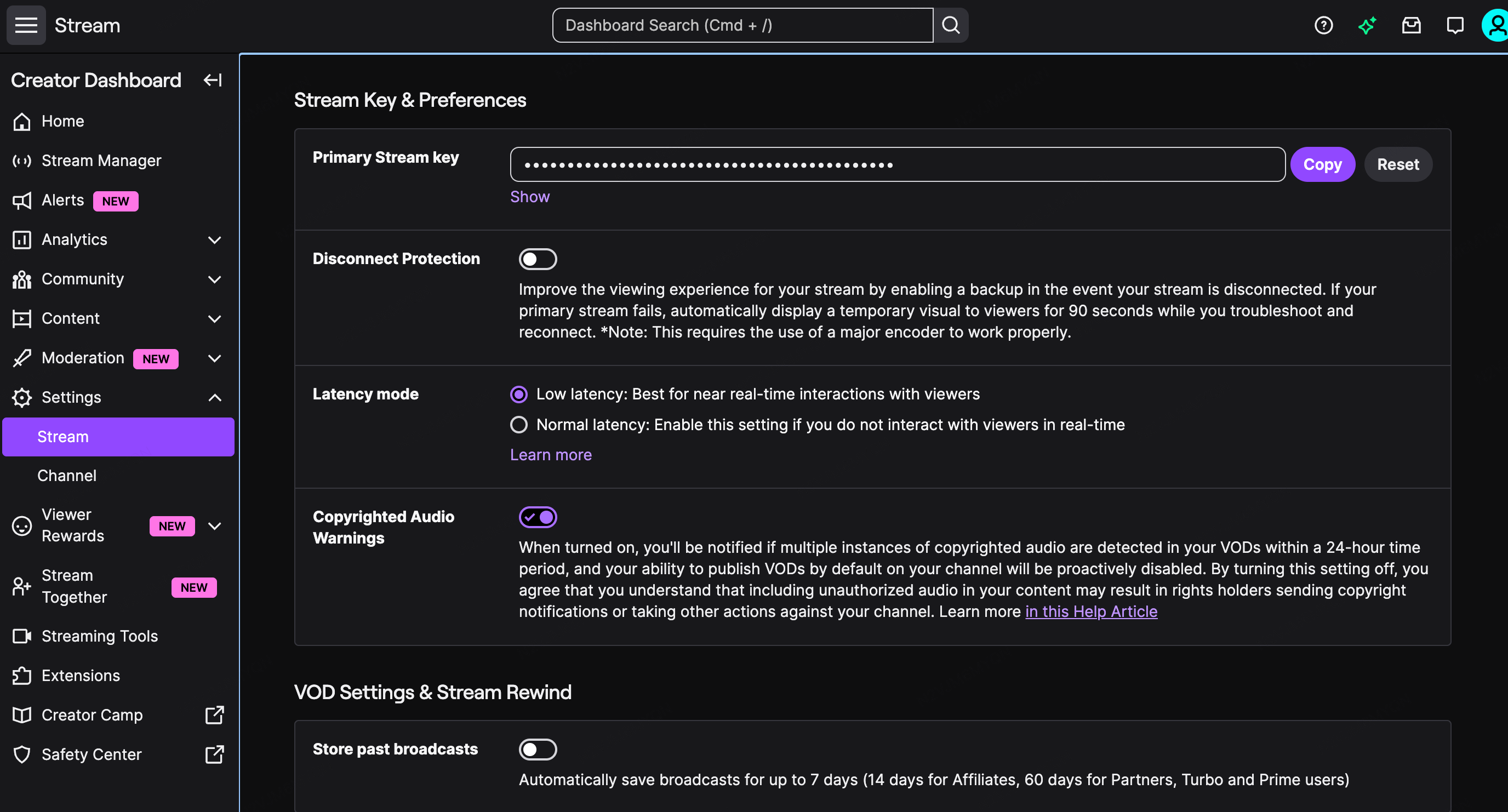
Get stream key
-
Left sidebar (bottom) → Settings
-
Channel and Videos
-
Primary Stream Key → Show → Copy
-
Record server address, standard server address: rtmp://live.twitch.tv/app/
3.2 Aitum Multistream Configuration (Multi-Platform)
Step 1: Open Aitum Multistream panel
-
In OBS, find the Aitum Multistream dock
-
Click “Add Output” to add a new destination
Step 2: Configure Platform #1 (YouTube)
-
Name: YouTube Live
-
Server: Choose a server
-
Stream Key: Paste YouTube stream key
-
Video: 1920×1080, 60 fps, 6000 kbps
-
Audio: 160 kbps
Step 3: Configure Platform #2 (Twitch)
-
Click “Add Output”
-
Name: Twitch Live
-
Server: rtmp://live.twitch.tv/app/
-
Stream Key: Paste Twitch stream key
-
Video: 1920×1080, 60 fps, 6000 kbps
Step 4: Configure Platform #3 (X/Twitter)
-
Click “Add Output”
-
Name: X Live
-
Server: Paste X RTMP URL
-
Stream Key: Paste X stream key
-
Video: You may reduce to 720p to save bandwidth
Step 5: One-click multi-stream
Add your sources (game capture, camera, etc.), finish scene layout, then start multi-streaming: In the Aitum Multistream panel, click “Start” next to each platform, or use “Start All” to start all outputs at once.
4. Ending a Livestream
-
If the streamer ends unexpectedly: the streamer room remains for 5 minutes; after 5 minutes it auto-closes. Viewers will see “Streamer is temporarily away…”.
-
If the stream ends normally: the screen shows “Stream Ended”, and the chat area displays “More Live Streams” (latest 3).
5. FAQ
5.1 Onboarding & Account
Q1: Who can apply to become a KuCoin Live streamer?
A: Any user who completes identity verification and creates content aligned with the platform positioning (crypto market–related) can apply.
Q2: Is there a follower requirement?
A: Zero followers are required. We welcome every passionate streamer who can consistently deliver quality content. Just complete identity verification to get started.
Q3: How long does the review take?
A: The platform will complete the review within 24 hours after submission.
5.2 Content & Rules
Q4: What content topics does the platform recommend?
A: We recommend streamers focus on the following topics, and you may also create around current market trends:
-
Live trading / trade walkthroughs
-
Market analysis
-
Trading strategy sharing
-
Macro & industry hot events breakdown
-
Project deep-dive research
-
Specific token research
-
Industry knowledge & education
Q5: What violations are strictly prohibited?
A: The following are red-line behaviors and will be handled strictly:
A: The following are red-line behaviors and will be handled strictly:
-
Fraud, phishing, off-platform payments, managed trading on behalf of others, etc.
-
Directing users to off-platform deposits, or inducing users to join external groups before trading; do not display personal contact info prominently (cover image, pinned messages, or on-screen) to drive traffic
-
Spreading unverified major market news and creating panic *For details, please refer to the KuCoin livestream content guidelines.
Q6: How do I report violations or appeal a decision?
A: If you find another streamer violating rules, or believe your stream was misjudged, please contact an admin and provide: stream link, timestamp of the issue, screenshots or recordings, and a detailed description. After verification, the platform will respond with the result. Thank you for helping maintain a healthy community.
A: If you find another streamer violating rules, or believe your stream was misjudged, please contact an admin and provide: stream link, timestamp of the issue, screenshots or recordings, and a detailed description. After verification, the platform will respond with the result. Thank you for helping maintain a healthy community.
Q7: Any recommendations for stream length and frequency?
A: We recommend 1–2 hours per stream. A stable streaming schedule helps retain viewers. However, chasing stream counts with low-quality content may reduce reward earnings and exposure weight. The platform encourages high-quality content for both value and income growth.
A: We recommend 1–2 hours per stream. A stable streaming schedule helps retain viewers. However, chasing stream counts with low-quality content may reduce reward earnings and exposure weight. The platform encourages high-quality content for both value and income growth.
Q8: Does the platform support scheduled announcements and replays?
A: Yes. We recommend using the scheduling feature and enabling replays to build long-term content value and secondary distribution.
A: Yes. We recommend using the scheduling feature and enabling replays to build long-term content value and secondary distribution.