Google 2FA (iOS)
To prevent unauthorized access to your account, we recommend enabling two-factor authentication, such as Google Authenticator (Google 2FA) or text message verification. Examples of a good security setup include: Google 2FA + Email Verification + Trading Password, or, Phone + Trading Password. Here, we’ll walk you through the steps for setting up Google 2FA.
Content
1. Why Google 2FA
2. Linking Google 2FA
3. Common Issues with Google 2FA Codes
4. Troubleshooting 2FA Access Issues
1. Why Google 2FA
Getting your password stolen may be more common than you might think. Any of the following actions could put you at risk of a data breach:
• Using the same password on multiple sites
• Downloading unverified software(s) from the internet
• Clicking on unknown links in emails
If someone steals your password, they could prevent you from accessing your account and also:
• Trade away your assets at will, resulting in loss
• Withdraw your assets, emptying your account
Given the anonymity and decentralized nature of blockchain, these actions could lead to irreversible losses. Setting up Google 2FA for your KuCoin EU account adds an extra layer of security.
• Most accounts only have their login password as their first line of defense. Even if your password is compromised, attackers would still need physical access to your phone or security keys with Google 2FA.
• The Google Authenticator app generates unique codes for your account every 30 seconds to log in with. Each code may only be used once.
2. Linking Google 2FA
On KuCoin EU, important actions such as logging in, withdrawing, and changing key account settings require 2FA. Here’s how to set up Google 2FA on your phone.
2.1. Downloading the Google 2FA app:
iOS: Search Google Authenticator in the App Store.
2.2. Linking Google 2FA:
i. Log in to your KuCoin EU account and select your profile from the top right. Look for Account Security → Google Verification from the dropdown list. Select Link (previously Bind) or Change (if you have Google 2FA linked) as shown from the image.

ii. Go to Security, and verify using your email or text message code. Hit the Send Code button for the email or text to be sent to your phone. Enter the verification code once you’ve received it and hit Next.

iii. Return to the Google Verification page. Link Google 2FA to your account by opening the app on your phone. Scan the QR code or enter your Google security key manually. Once linked, the app will generate a 6-digit code that changes every 30 seconds. Enter this code to complete the setup.
Note:
• Always save your security key or QR code for future reference. If you need to change your device or update the authenticator, this key can help to retrieve your Google verification code.
• Make sure to download the correct Authenticator app. The correct icon should look like this: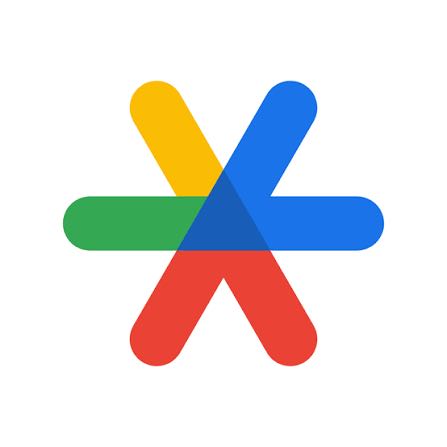
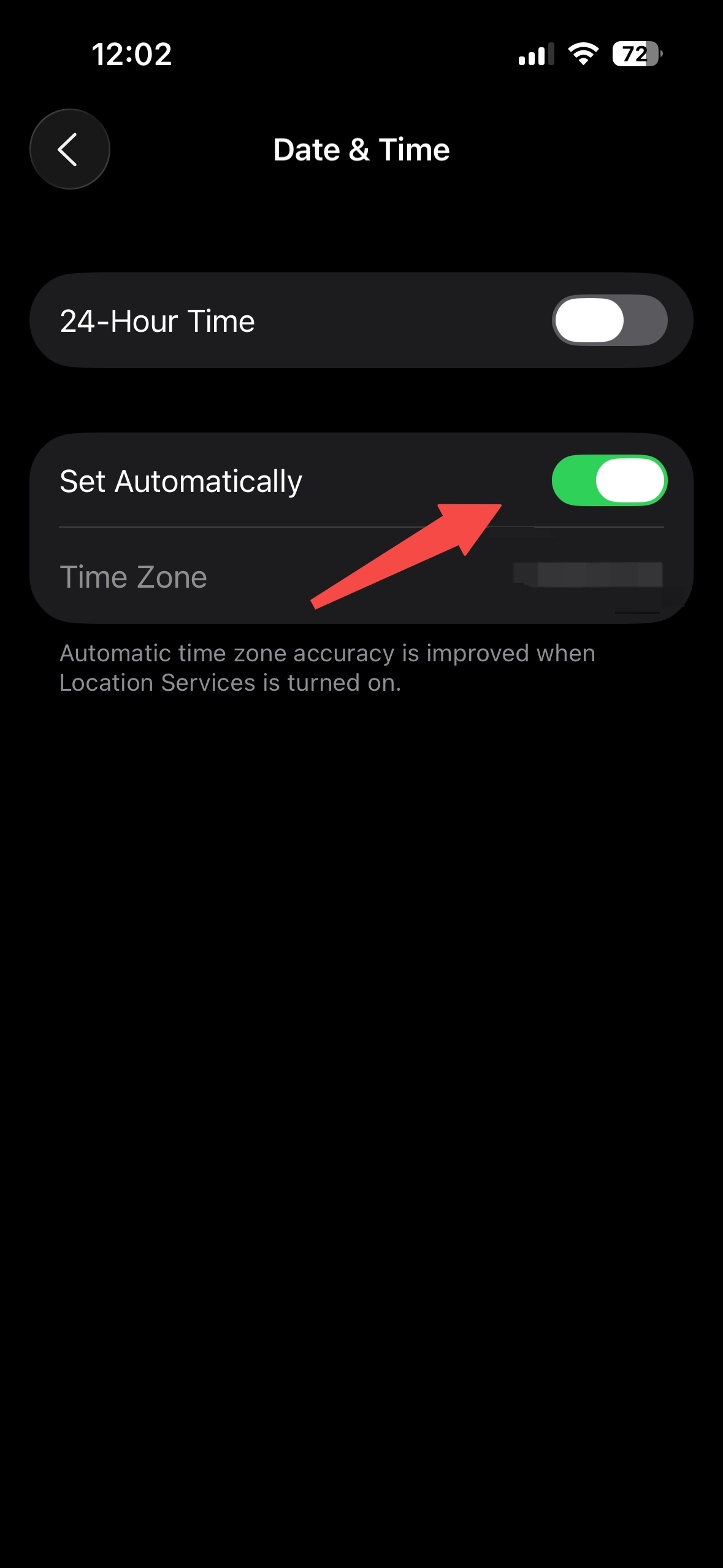
• If your initial verification code fails, try restarting and verifying again. Also, on your Apple device, go to Settings → General → Date & Time. Set updates to “Automatic.”
• Before scanning the QR code, you’ll have to give the app camera permissions.
• Enter the Google 2FA code carefully. If entered incorrectly five times in a row, Google 2FA will be locked for 2 hours.
• Every time you link and unlink the Authenticator, you’ll get a different key. Be sure to save the latest key.
3. Common Issues with Google 2FA Codes
If your code isn’t working, check the following:
- If you have Google 2FA for multiple accounts on your phone, ensure the code you’re using is the one specifically associated with your KuCoin EU account’s email.
- Google 2FA codes are only valid for 30 seconds. Make sure you’ve entered the code within this time frame.
- Your app is time-synced. Sync the time on your phone’s Google Authenticator app with Google server time so that your codes are accurate.
Syncing Google Authenticator with Google server time:
Go to Settings → General → Date & Time. Enable “24-Hour Time,” and set updates to “Automatic.”
If none of the above worked so far, try the steps outlined in the next part.
4. Troubleshooting 2FA Access Issues
4.1. Lost access to current 2FA
Solution #1: Relink Google 2FA using saved Google security key
If you’ve saved the Google key during your initial Authenticator setup, you can use it to relink the Google Authenticator on your device. Once relinked, enter the six-digit code to log in to your KuCoin EU account.
Steps:
- Delete the existing Google 2FA for your KuCoin EU account.
- Then, follow the steps in 2. Linking Google 2FA of this article to relink your Google 2FA to your KuCoin EU account.
- Once done, enter the six-digit code to log in.
Solution #2: Manually unlink Google 2FA
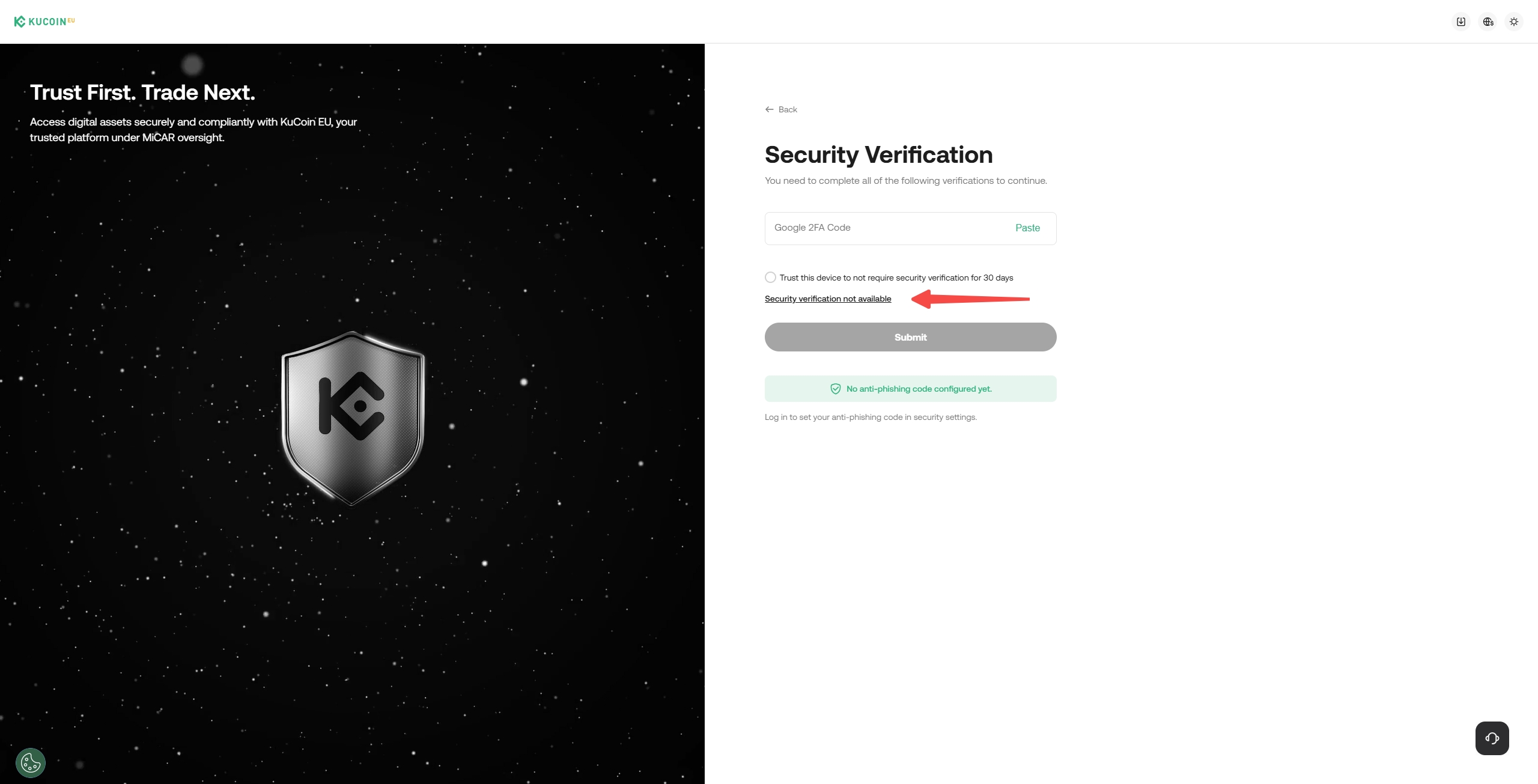
i. Select "Security verification not available" on the login page.
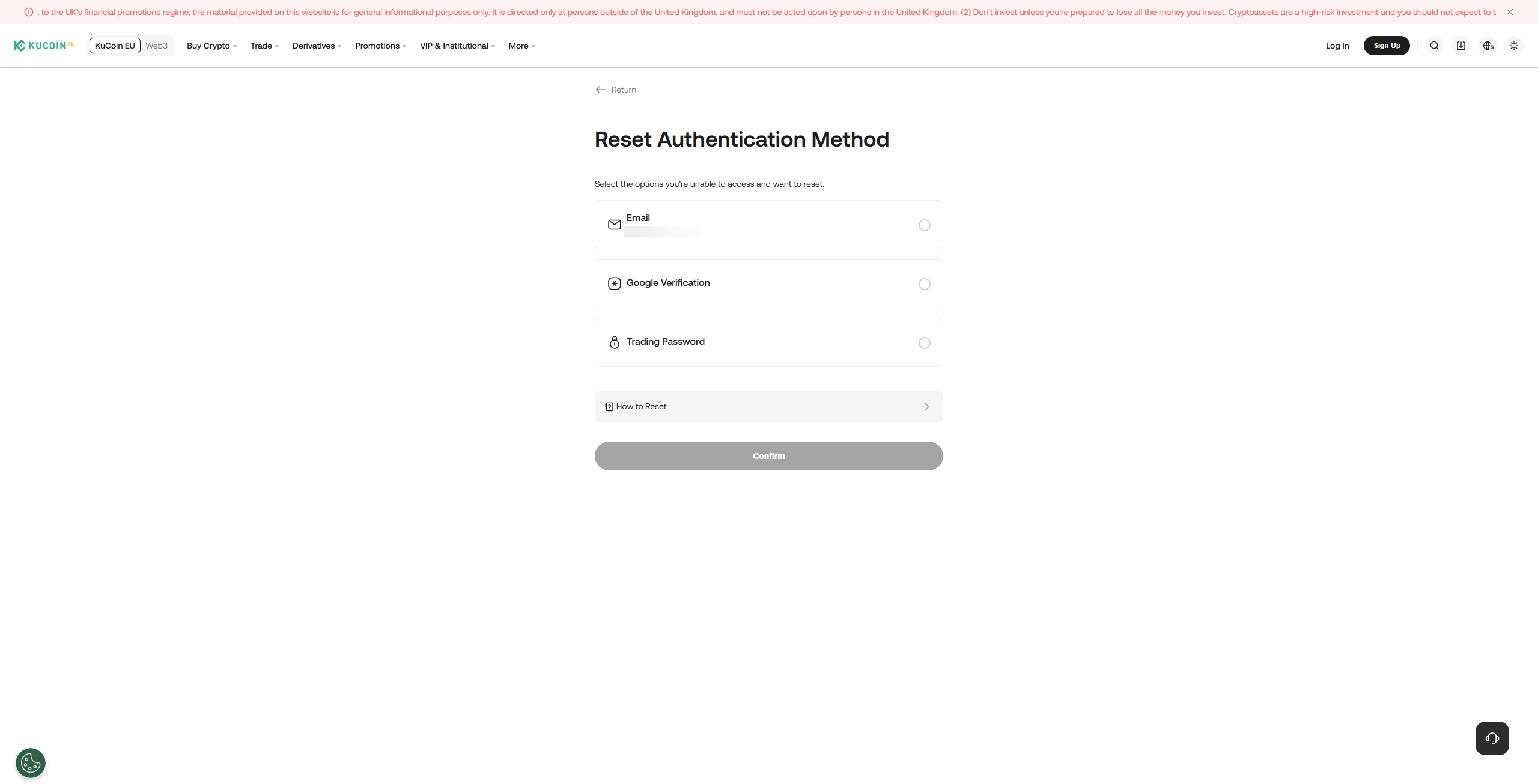
ii. Choose the Security Setting that is unavailable and click on 'Confirm'. Follow the prompt and verify other security settings (if applicable), and complete the reset process.
Note:
• Withdrawals are disabled for 24 hours after updating 2FA settings to protect your assets.
• When completing Identity Verification, upload the required document(s) while following the instructions closely, or your request may be rejected.
• The "Security verification not available" button is only found on the login page. If you’re logged in, you’ll need to log out and return to the login page.
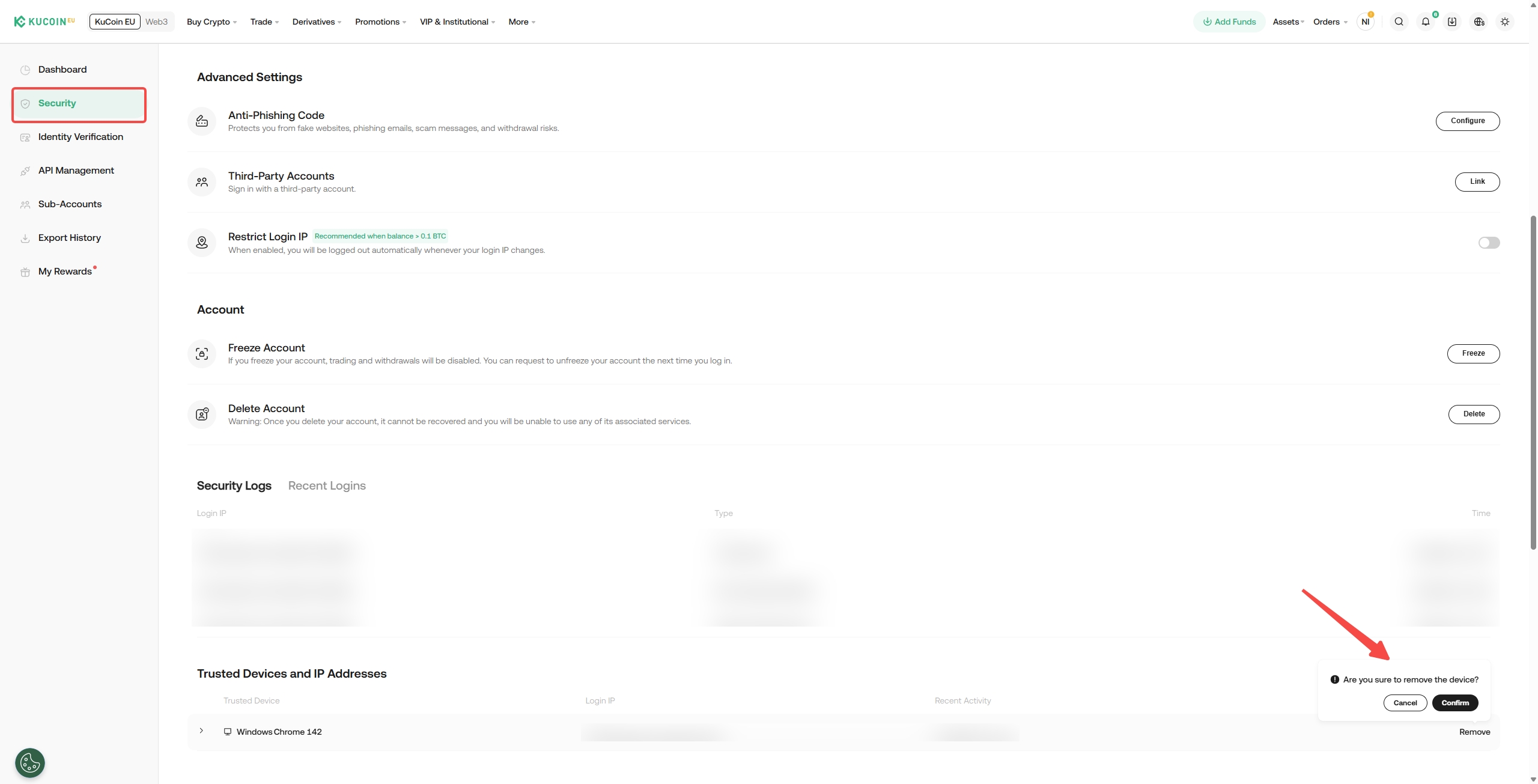
• If you previously selected "Trust this device" to bypass Google 2FA during login, navigate to "Account Security" after logging in to your KuCoin EU account. Remove the trusted device, then log out and log back in to update your security settings.
4.2. Current Google 2FA still in use, but wish to switch Authenticator to a new device
If you’ve backed up the key:
Refer to the earlier section on how to re-link your Google 2FA. Use the key to link Google Authenticator on your new phone.
If you’ve not backed up the key:
Log into your KuCoin EU account, then navigate to Account Security to change your Google 2FA.
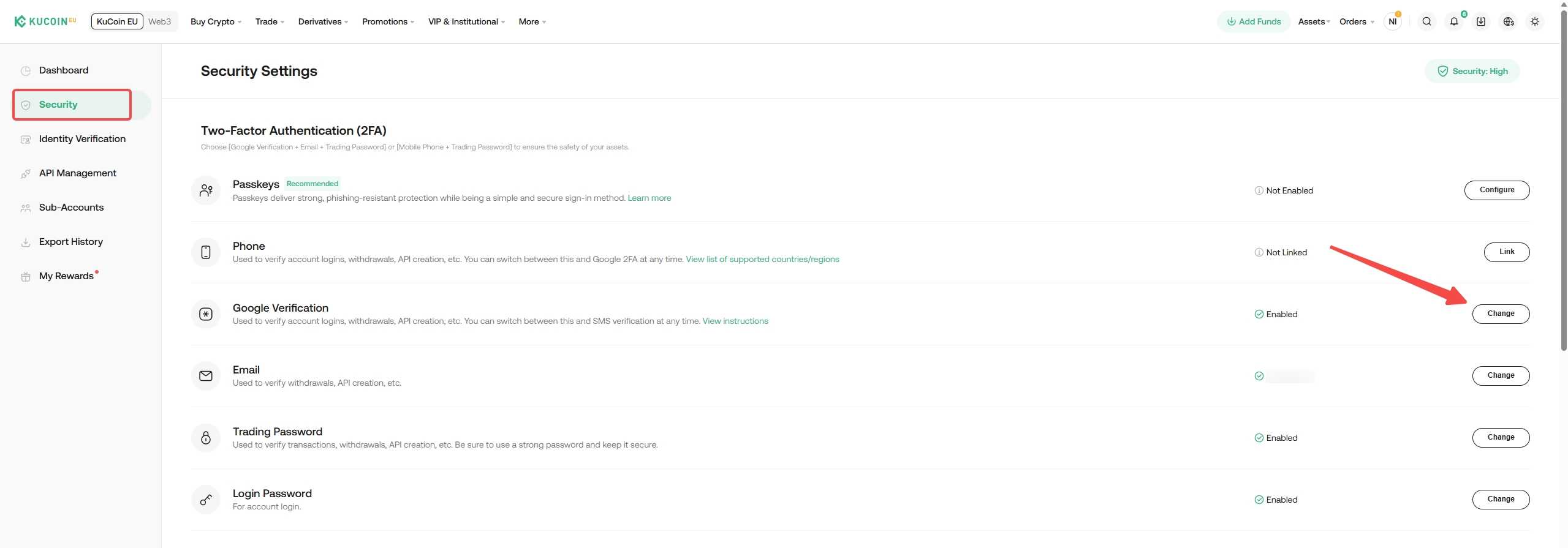
- Go to Security Settings and select Google Verification. Click on Change button.
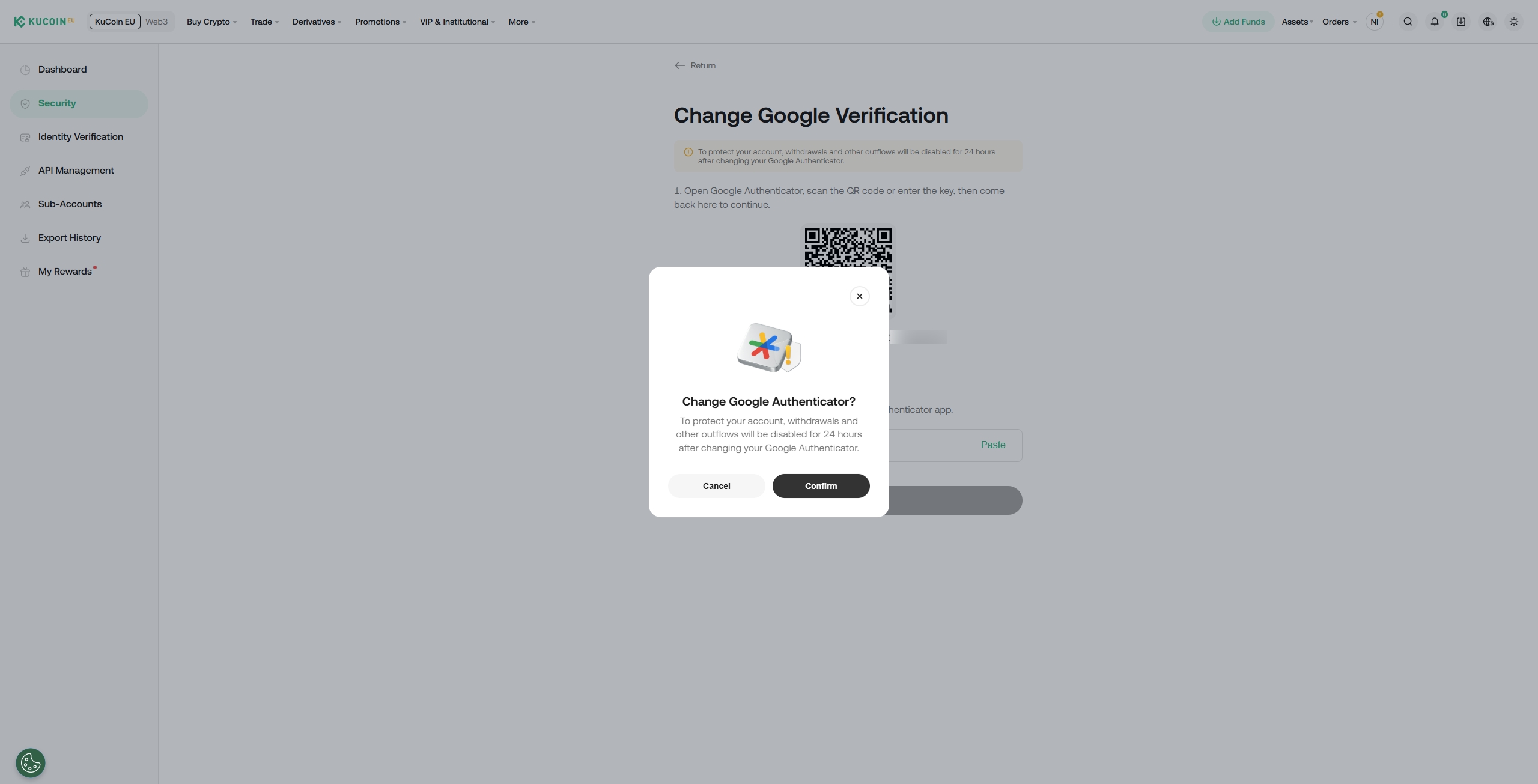
- Click on 'Confirm' and scan the QR code or enter the Google security key manually. Once linked, the app will generate a 6-digit code that changes every 30 seconds. Enter this code to complete the setup.
Note:
- If you exit the page before clicking Submit, changes to your old Google 2FA will not be saved, remaining usable.
- Withdrawals are disabled for 24 hours after updating 2FA settings to protect your assets.
- Once verified and active, the system automatically changes and links your new Google 2FA. The old Google 2FA will no longer work and should be deleted as soon as possible.
We hope this article has been helpful. If you have any other questions, please reach out to our 24/7 customer support via online chat or submit a ticket.