
Passkeys
Passkeys are a strong and effective mechanism to protect your account against phishing attacks and other threats. They’re a simple yet secure way to log in, serving as an alternative to the traditional password-based logins. With passkeys, you can log into your KuCoin EU account without entering a password. Instead, you simply use a fingerprint, facial recognition, or your device's screen lock settings (such as a PIN) to access your account. This also allows you to verify your identity when making sensitive actions, further safeguarding your account.
Important Note:
Biometric data used for fingerprint or facial recognition is stored only on your device and is never shared with KuCoin EU.
Contents
1. Pre-Condition to Set Up Passkey
2. How to Set up Passkey
3. Logging in with Passkey
4. Deleting a Passkey
5. Recovering a Passkey
6. How to reset Passkey if security settings are unavailable
1. Pre-Condition to Set Up Passkey
You can create a passkey on the following devices:
• Laptops or desktops running Windows 10, macOS Ventura, ChromeOS 109, or later
• Mobile devices running iOS 16 or later versions
• Physical security keys that support the FIDO2 protocol
Your computer or mobile device must also have a supported browser, such as:
• Chrome 109 or higher
• Safari 16 or higher
• Edge 109 or higher
• Firefox 122 or higher
To create and use a passkey, you need to enable the following features:
• Screen Lock
• Bluetooth
If you wish to use a passkey to log into another computer, the following features must be enabled:
• iCloud Keychain for iOS or macOS devices
• When you set up a passkey on an Apple device, the system will prompt you to enable iCloud Keychain (if it hasn’t been set up yet). To learn more about how to set up iCloud Keychain, click here.
Tip: To ensure a smooth experience with passkeys, always update your operating system and browser to the latest versions. Depending on your operating system and browser, you may not be able to create or use passkeys in Incognito mode.
2. How to Set up Passkey
When creating a passkey, you need to log in to your KuCoin EU account and complete the security verification.
After setting up a passkey, you will primarily use it for password-free logins. Be sure to create a passkey only on personal devices that you control. If you create a passkey on a public device, anyone who can unlock that device may be able to use the passkey to log back in to your KuCoin EU account, even after you’ve logged out.
Creating a passkey on your phone or computer:
Step 1: Visit KuCoin EU official website and log in to your KuCoin EU account.
Step 2: Hover over your profile icon located in the upper right corner and select 'Account Security'.
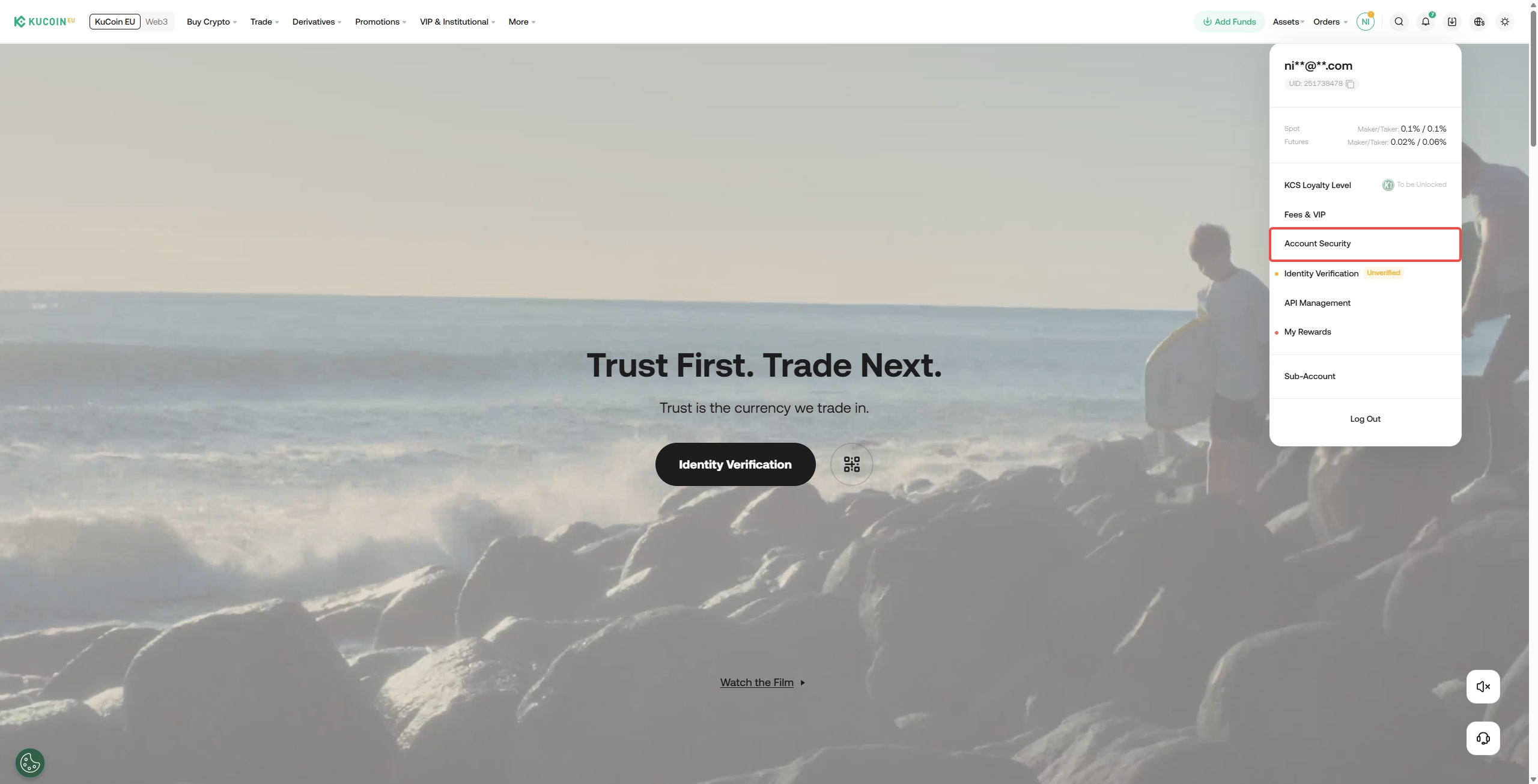
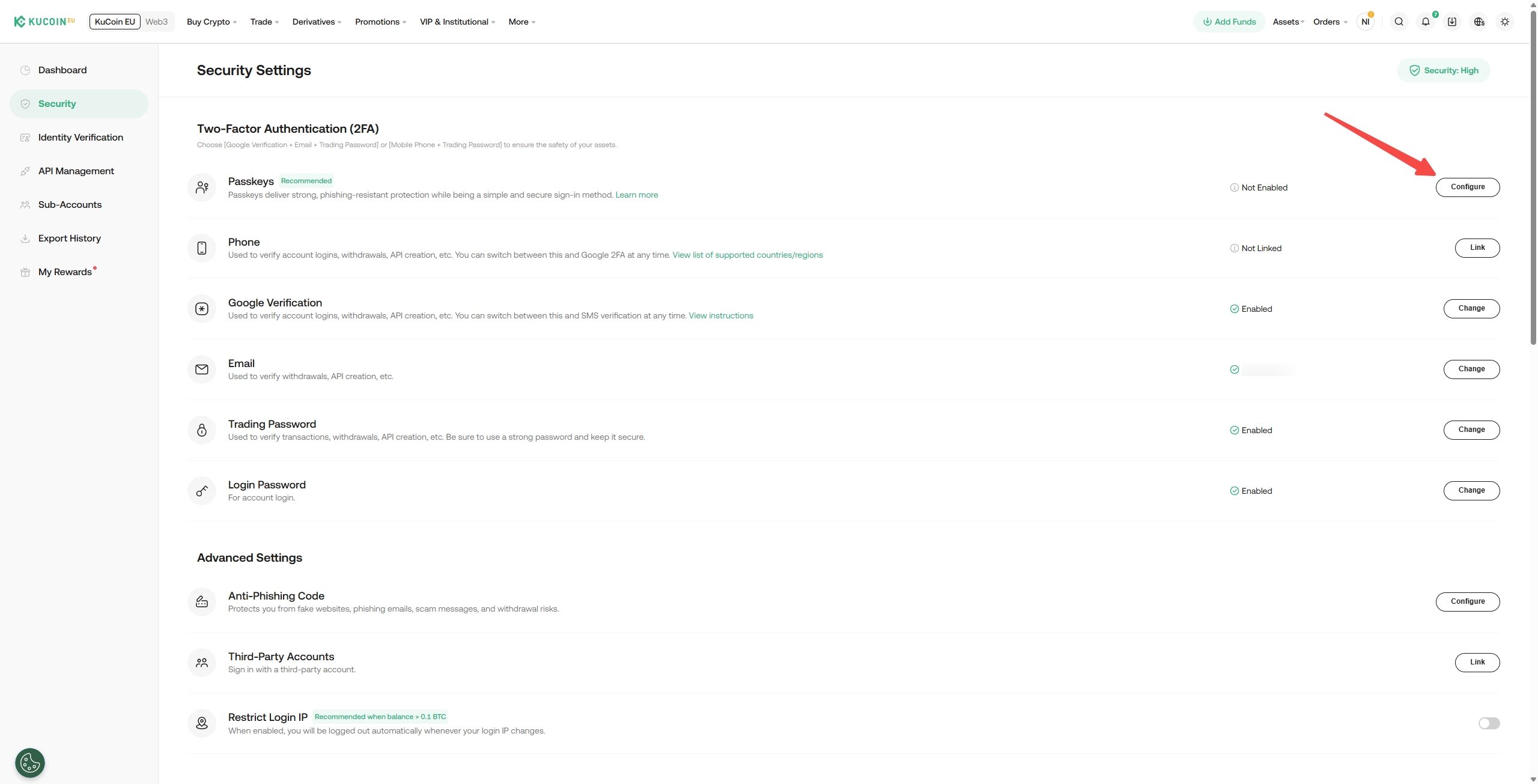
Step 3: Locate 'Passkeys' and click on 'Configure' to enter the Passkey setup page.
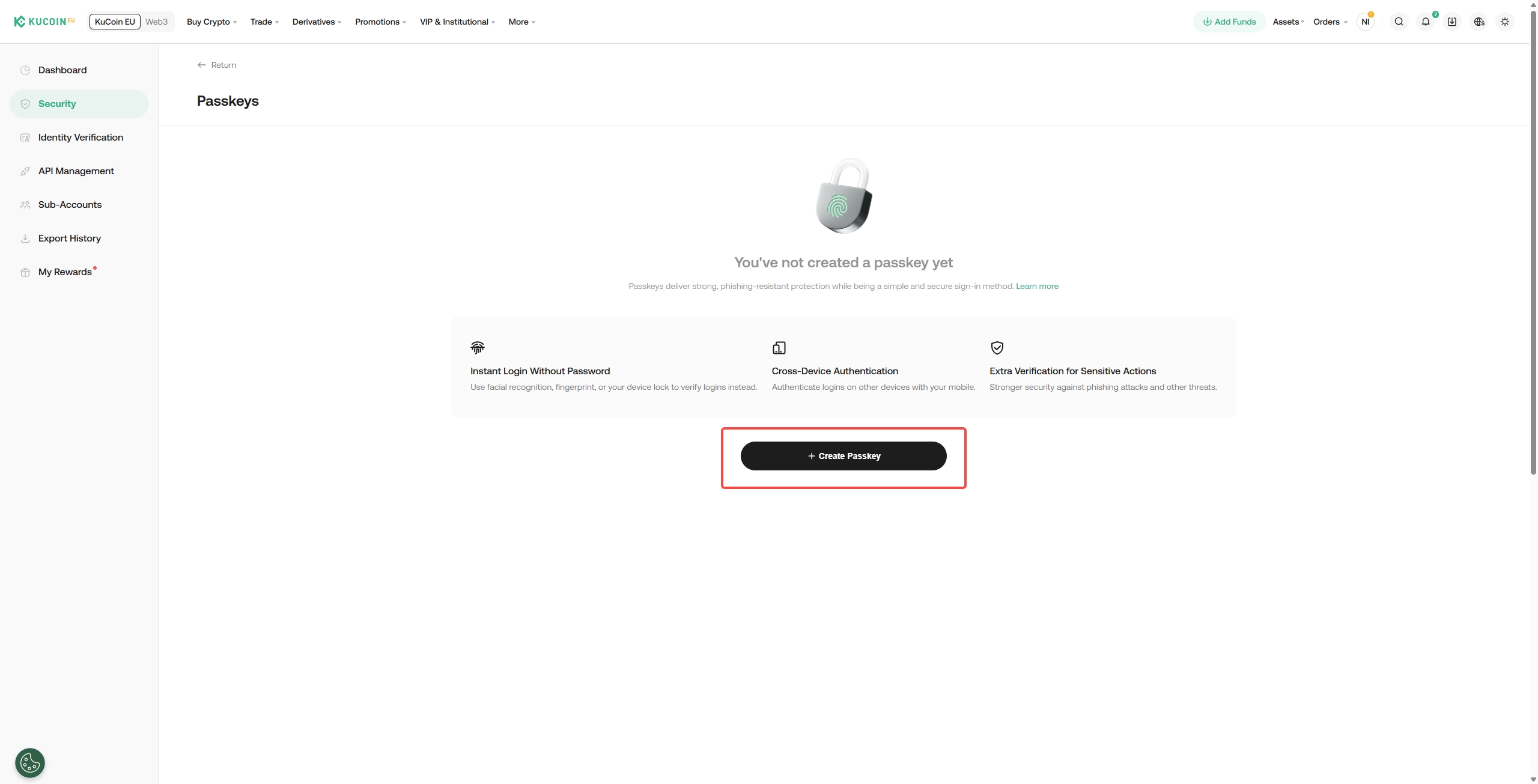
Step 4: Click on 'Create Passkey'
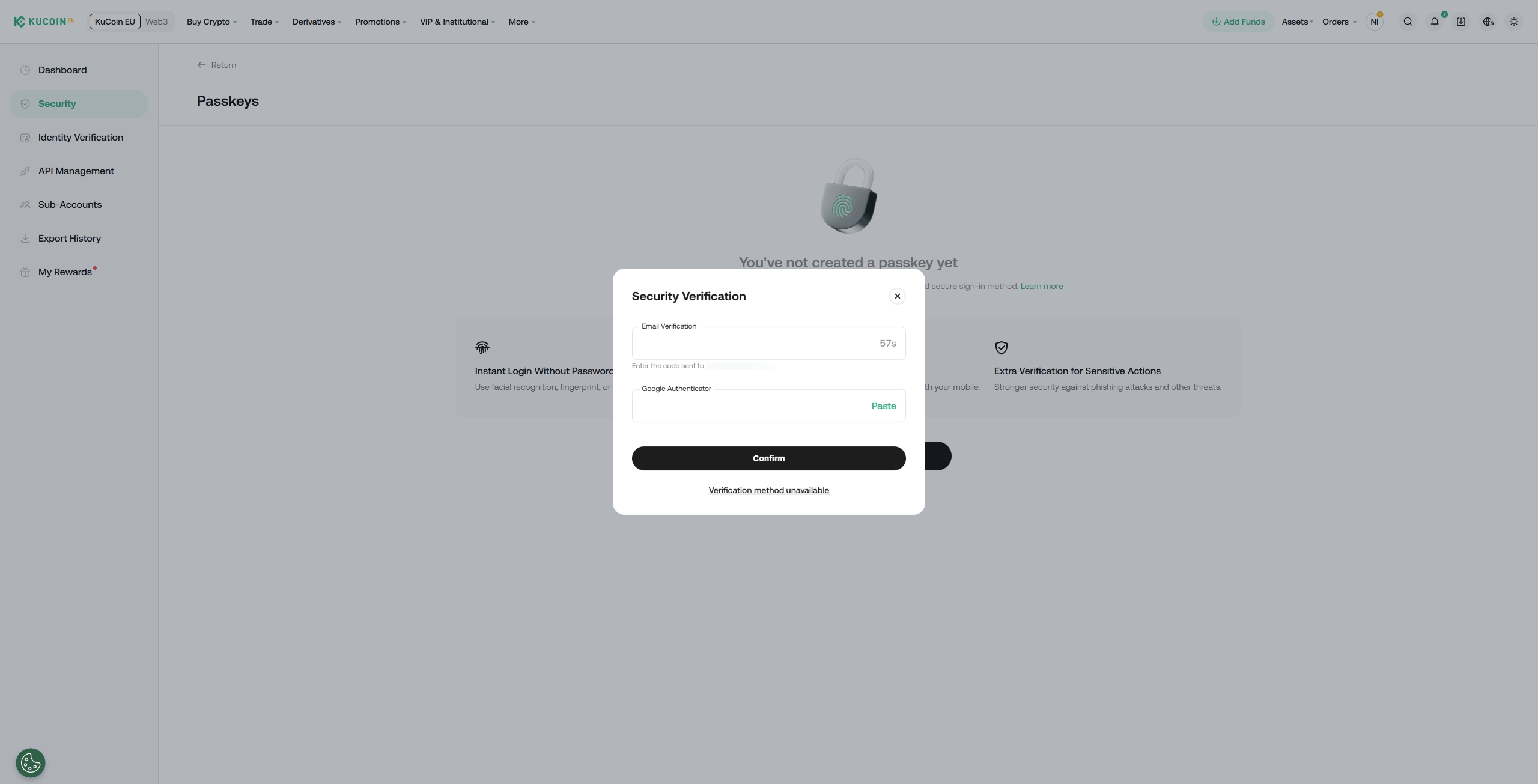
Step 5: After performing security verifications, click 'Confirm'.
Step 6: Follow the on-screen instructions to use your phone or tablet to scan the QR code to set up, or click on the "Change" button to switch to Windows Hello or other external security key creation methods.
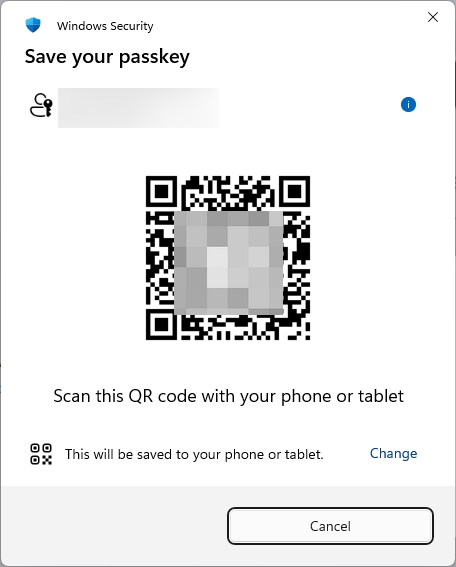
Note:
• The system will require you to unlock the device for verification. If you wish to create a passkey on multiple devices, repeat these steps on each device.
Creating a passkey on a nearby device:
Step 1: Log in to your KuCoin EU account.
Step 2: Go to: Profile → Security → Passkeys.
Step 3: Click Create Passkey and complete the security verification.
Step 4: After passing the security verification, follow the system prompts to choose “Use Another Device” and follow the on-screen instructions.
Step 5: You will be prompted to begin an identity verification process. For example, you may choose to scan a QR code or trigger a push notification to the nearby device.
Step 6: On the nearby device, follow the prompts to complete the verification process. For example, if you are using an iPhone, you may use FaceID or enter a password.
Tip:
• After creating your first passkey, you will prioritize using the passkey to log in on any device that supports passkeys.
• To protect your account, never create a passkey on a shared device.
3. Logging In with a Passkey
Once you’ve added a passkey to your account, you can securely log in to KuCoin EU without needing to enter a password or perform two-factor authentication (2FA).
After syncing a passkey on one device, it can also be used on multiple devices that utilize the same passkey provider (such as iCloud).
Some authenticators allow passkeys to be used on nearby devices. For example, you can log in to KuCoin EU on a Bluetooth-enabled laptop that doesn’t have a passkey set up. If you’ve created a passkey on your phone, you may choose to scan a QR code or trigger a push notification to the corresponding phone to complete the login securely.
Logging in with a passkey on your current device
Step 1: On the KuCoin EU login page, click Log In with Passkey.
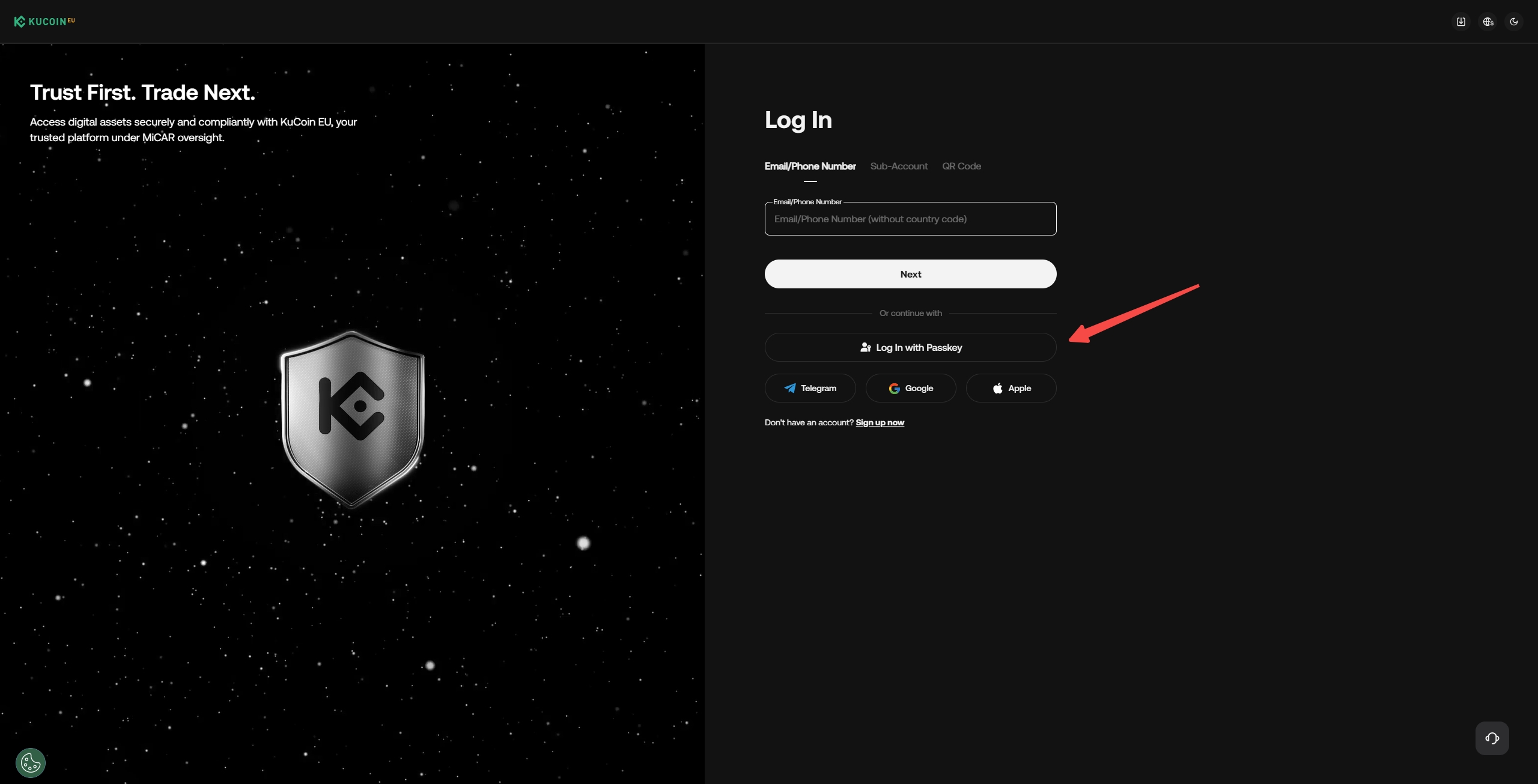
Step 2: Follow the instructions on your browser or system to select the passkey available on your device and complete the verification process. For example, when prompted, you can touch the fingerprint sensor or enter your PIN.
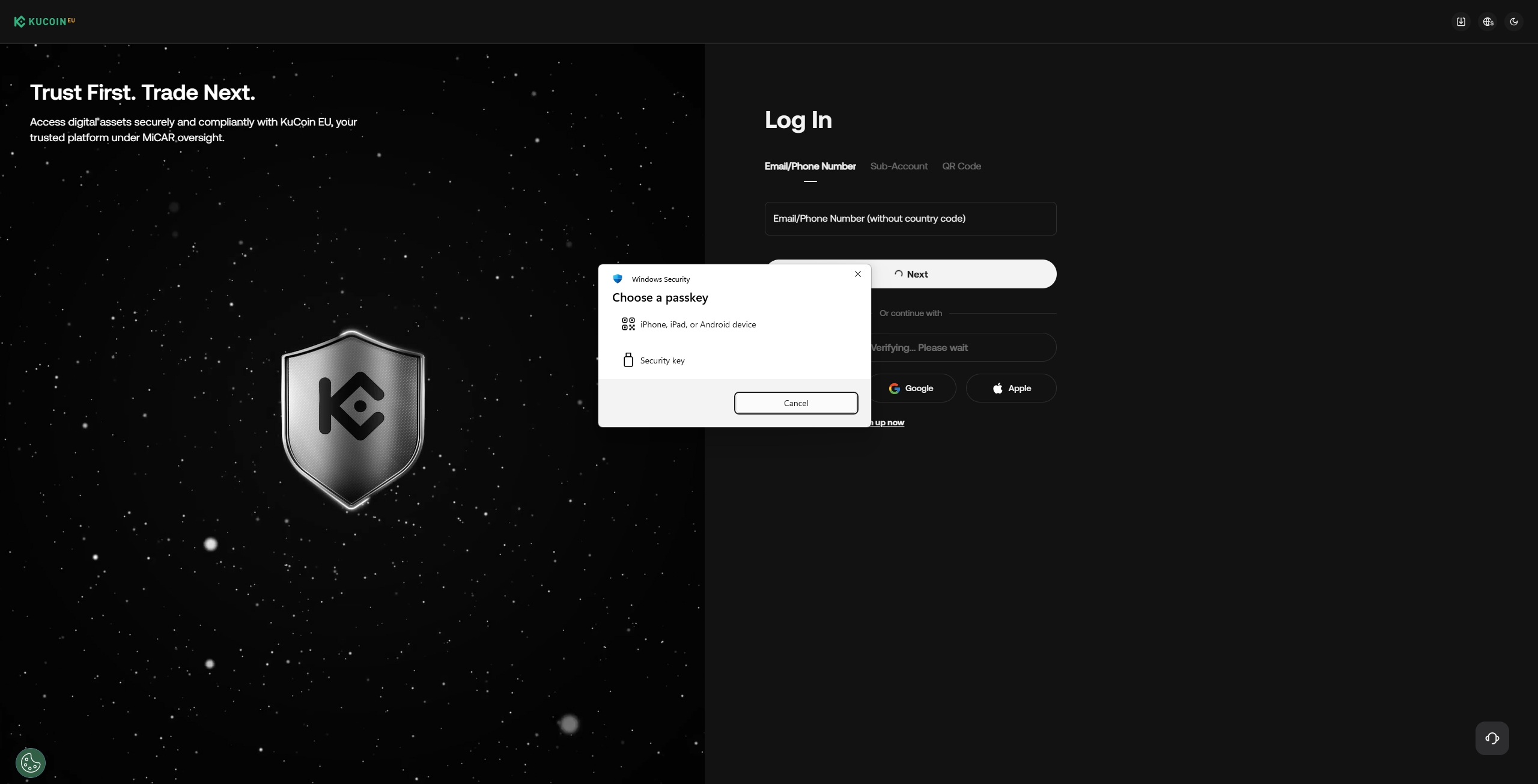
Logging in with a passkey from a nearby device
Step 1: On the KuCoin EU login page, click Log In with Passkey.
Step 2: Follow the prompts on your browser or platform to choose “Use Another Device”, and access the passkey via a nearby device (such as scanning a QR code on your phone or tablet).
Step 3: Continue following the prompts to begin the verification process. For example, you may choose to scan a QR code or trigger a push notification to the nearby device.
Step 4: On the nearby device, follow the prompts to complete the verification process and log in. For example, if you are using an iPhone, you may use FaceID or enter your password to complete verification.
4. Deleting a Passkey
If the device on which you created a passkey is lost, or if you mistakenly created a passkey on a shared device, you should immediately delete the passkey on that device so it cannot be used to access your KuCoin EU account.
Step 1: Log in to your KuCoin EU account.
Step 2: Go to: Profile → Security → Passkeys → Configure
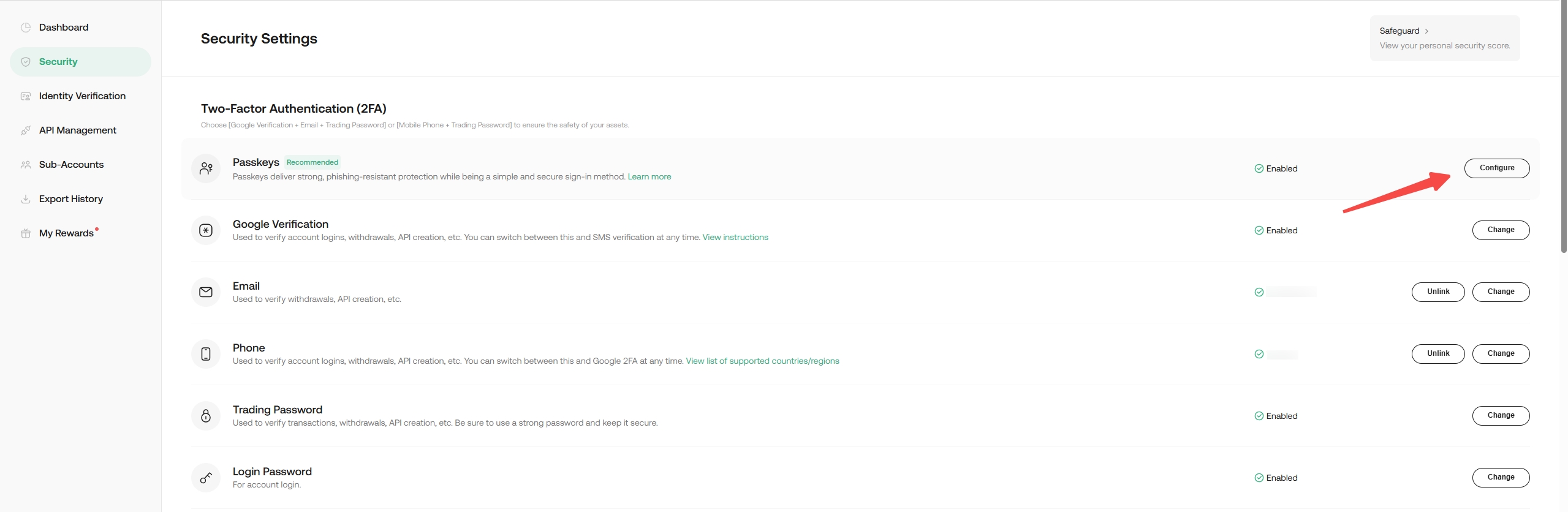
Step 3: Select the passkey you wish to remove and click Delete.
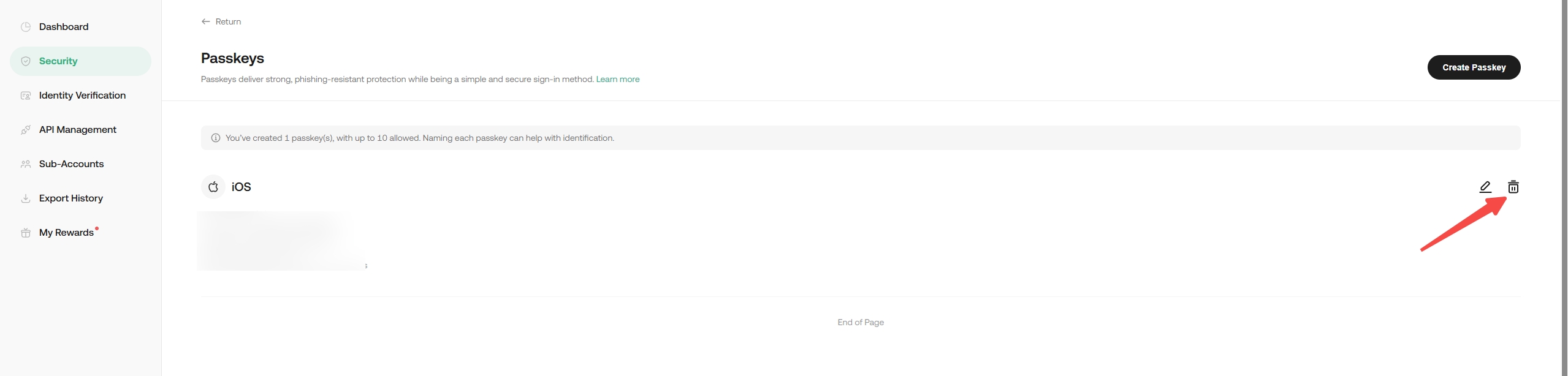
Step 4: Review the information in the Delete Confirmation pop-up, then the click Delete button. Complete the verification process as prompted to delete the passkey.
5. Recovering a Passkey
Many systems support passkey synchronization, and your keys may be backed up by the provider’s account system (iCloud, Google account, password manager, etc.). If you lose a device, you can recover the synced keys by logging in to the key provider.
In some cases, your keys may be device-bound, meaning they cannot be synced or backed up to the cloud. If you lose or erase the device, the keys therefore cannot be recovered. If you are only using device-bound keys, it’s best to register the keys on at least two different devices in case you lose access to one of them.
6. How to reset Passkey if security settings are unavailable
If you have lost access to both your login password and security settings, you may refer to this article: What Are Security Settings and How to Reset Them?
We hope this article has been helpful. If you have any other questions, please reach out to our 24/7 customer support via online chat or submit a ticket.