Phone Number
To better protect your account, link your phone number as a verification method. Having multiple security measures lowers the chances of a security breach. Examples of such setups include: Google 2FA + linked email + trading password or linked phone + trading password.
Content
1. How to Bind a Phone Number
2. How to Change your Phone Number
1. How to Link a Phone Number
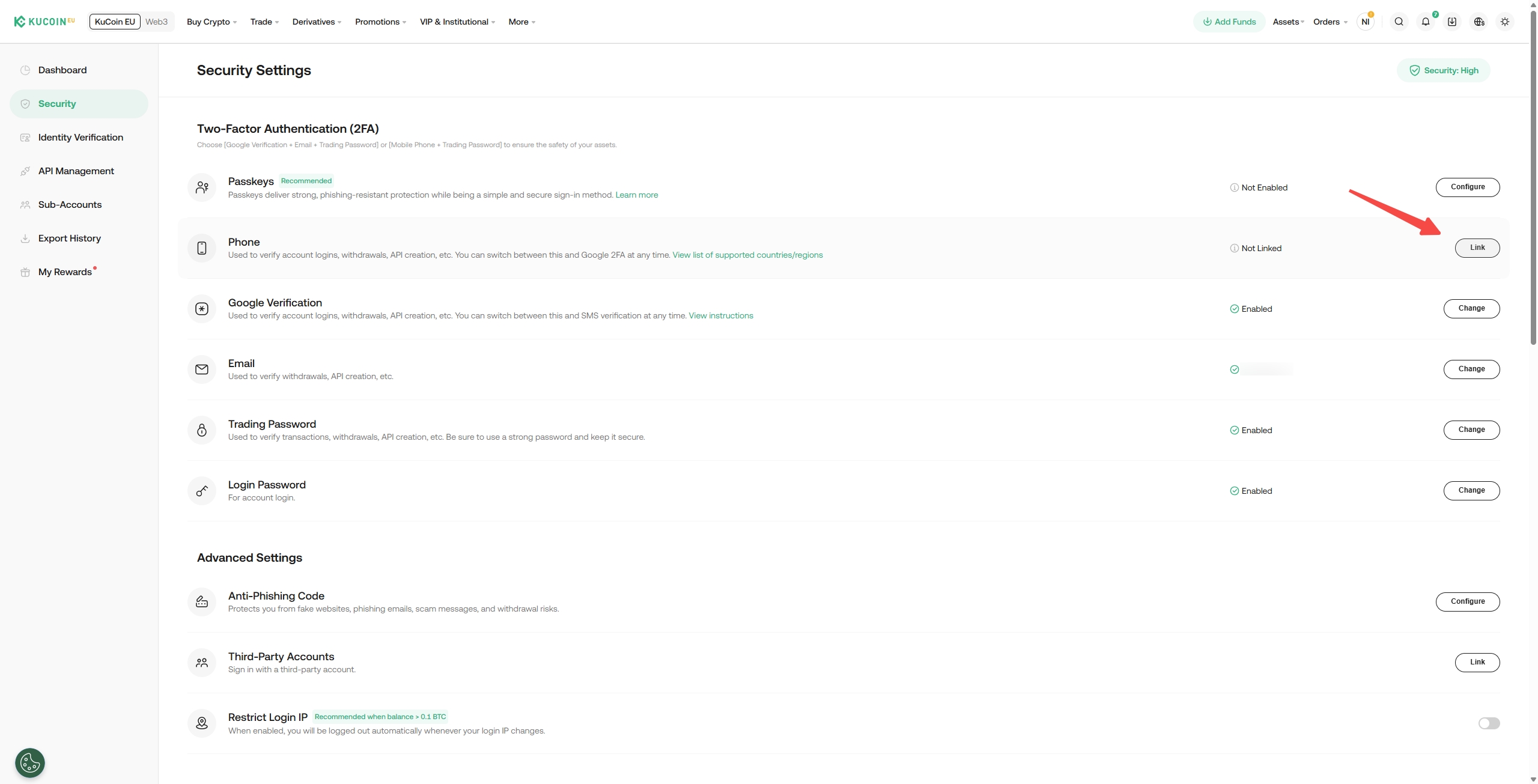
Step 1: Head over to Security Settings, locate the Phone option and click on Link.
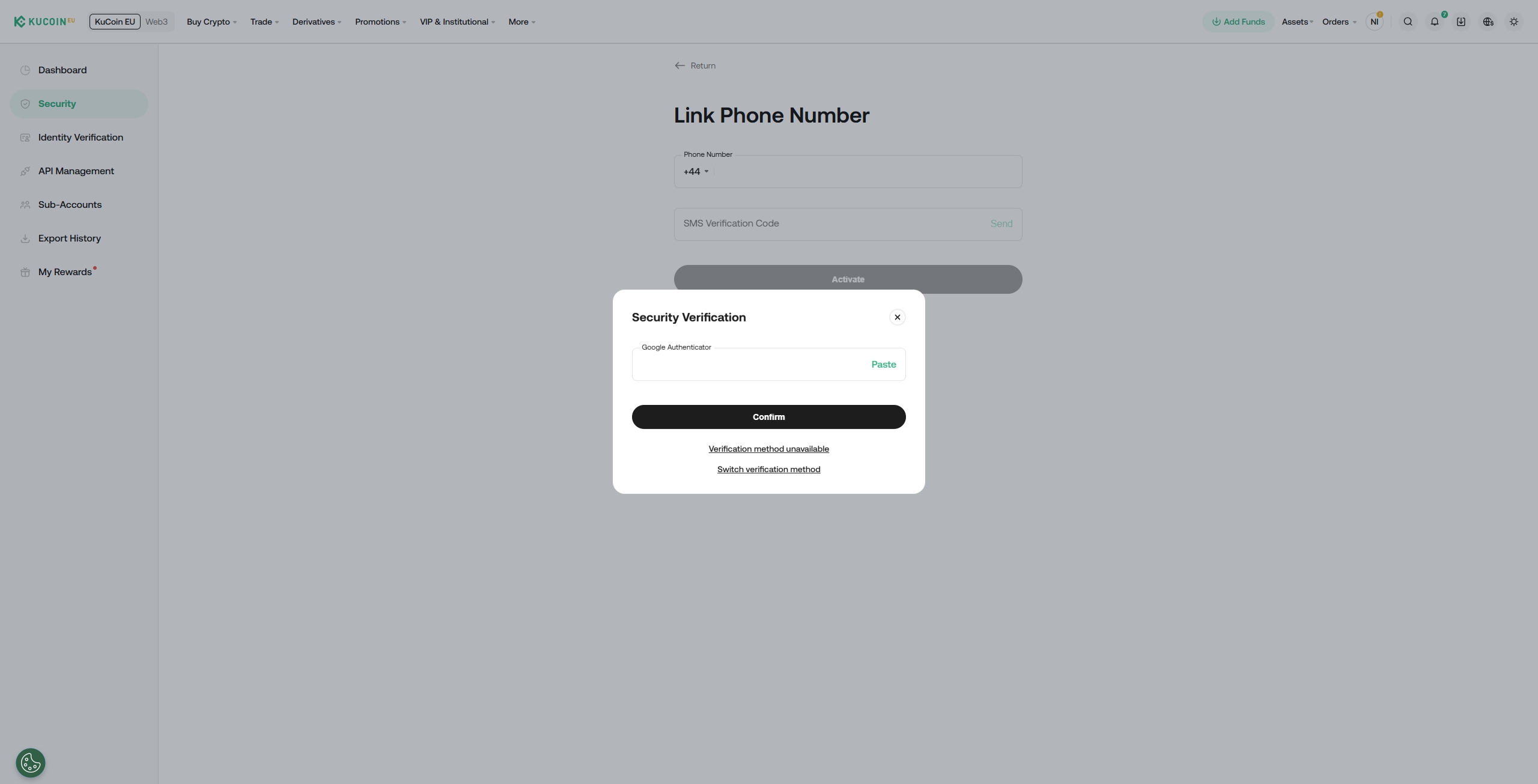
Step 2: You will be prompted to either confirm your Passkey (if applicable) or enter a verification code, which can be obtained from Google 2FA or your Email.
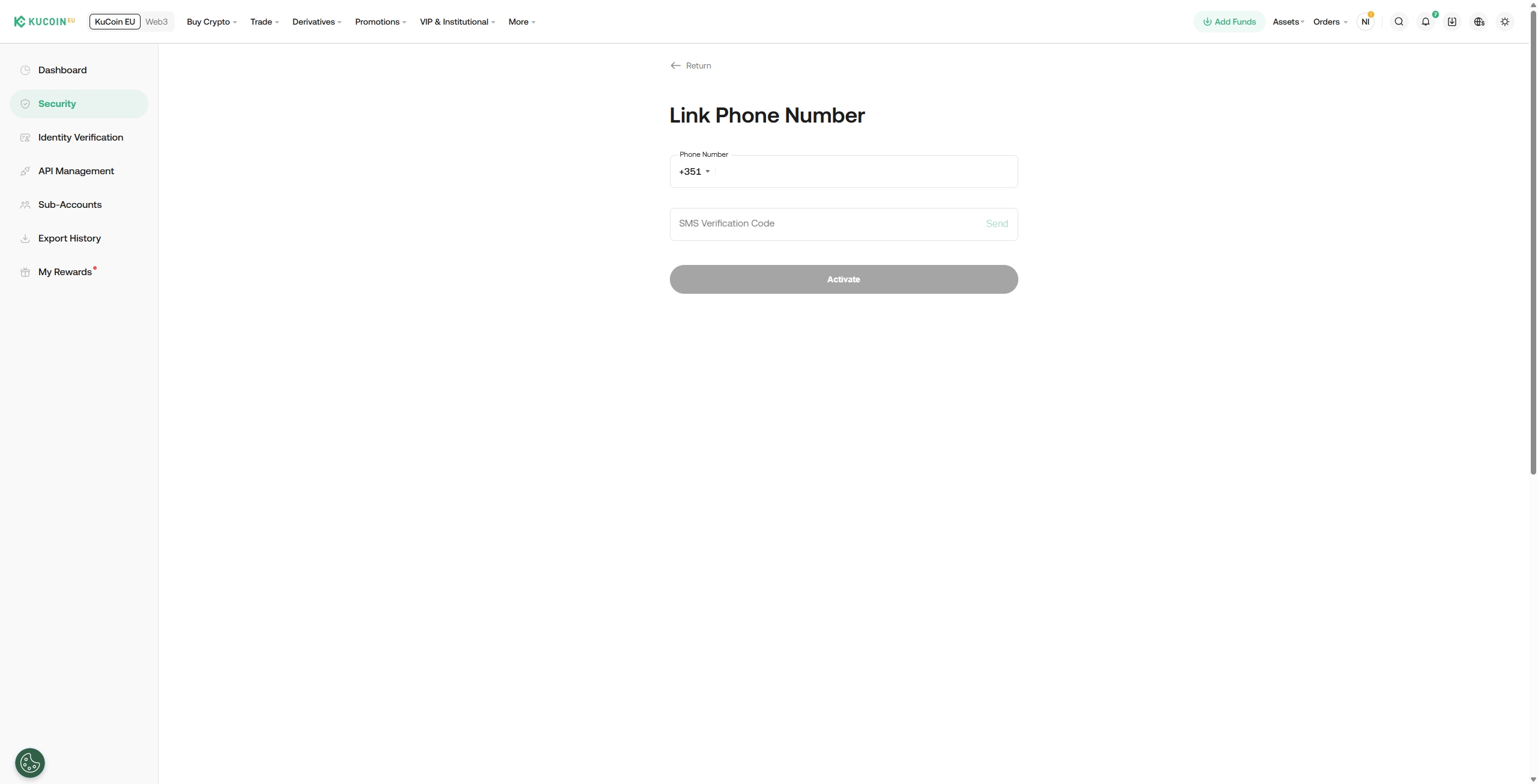
Step 3: On the next page, enter the phone number that you wish to bind and click Send. The code should then be sent to you via SMS. Enter the six-digit code and hit Activate.
Note:
- If you're prompted to enter your email verification code, remember to click the Send button to request for the email code.
- Withdrawal services will be disabled for 24 hours after binding your phone number to safeguard your assets
2. How to Change your Phone Number
Scenario 1: You can log in and still have access to your old phone, or you have access to your Google 2FA.
Step 1: Head over to Security Settings, locate the Phone option and click on Change.
Step 2: You will be prompted to either confirm your Passkey (if applicable) or enter a verification code, which can be obtained from Google 2FA or your Email.
Step 3: On the next page, enter the new phone number that you wish to bind, then click Send button. The code should then be sent to you via SMS. Enter the six-digit code and hit Submit.
Scenario 2: You are unable to receive text message updates from us on your original phone and cannot log in.
Step 1: Enter your Email Address/Phone Number and Login Password to login to your KuCoin EU account.
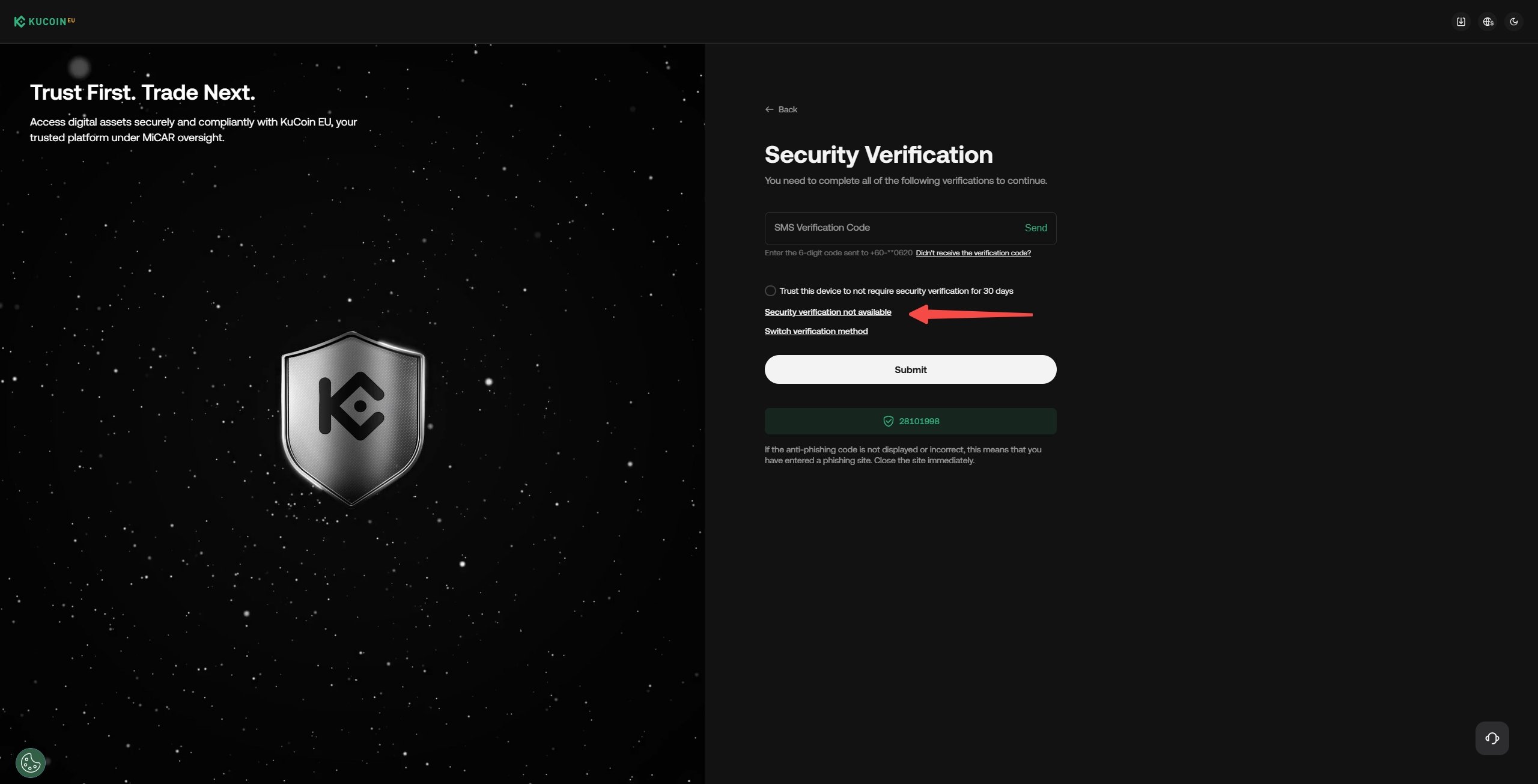
Step 2: On the Security Verification page, ensure you are on the SMS Code Verification section by checking for the input bar labeled SMS Verification Code. If you find yourself on a different verification page, such as Google 2FA Code or Email Code, click 'Switch Verification Method' and select 'Phone'.
Step 3: Click on 'Security verification not available' on the SMS Verification Code page.
Step 4: Select Phone from the list, then click Continue.
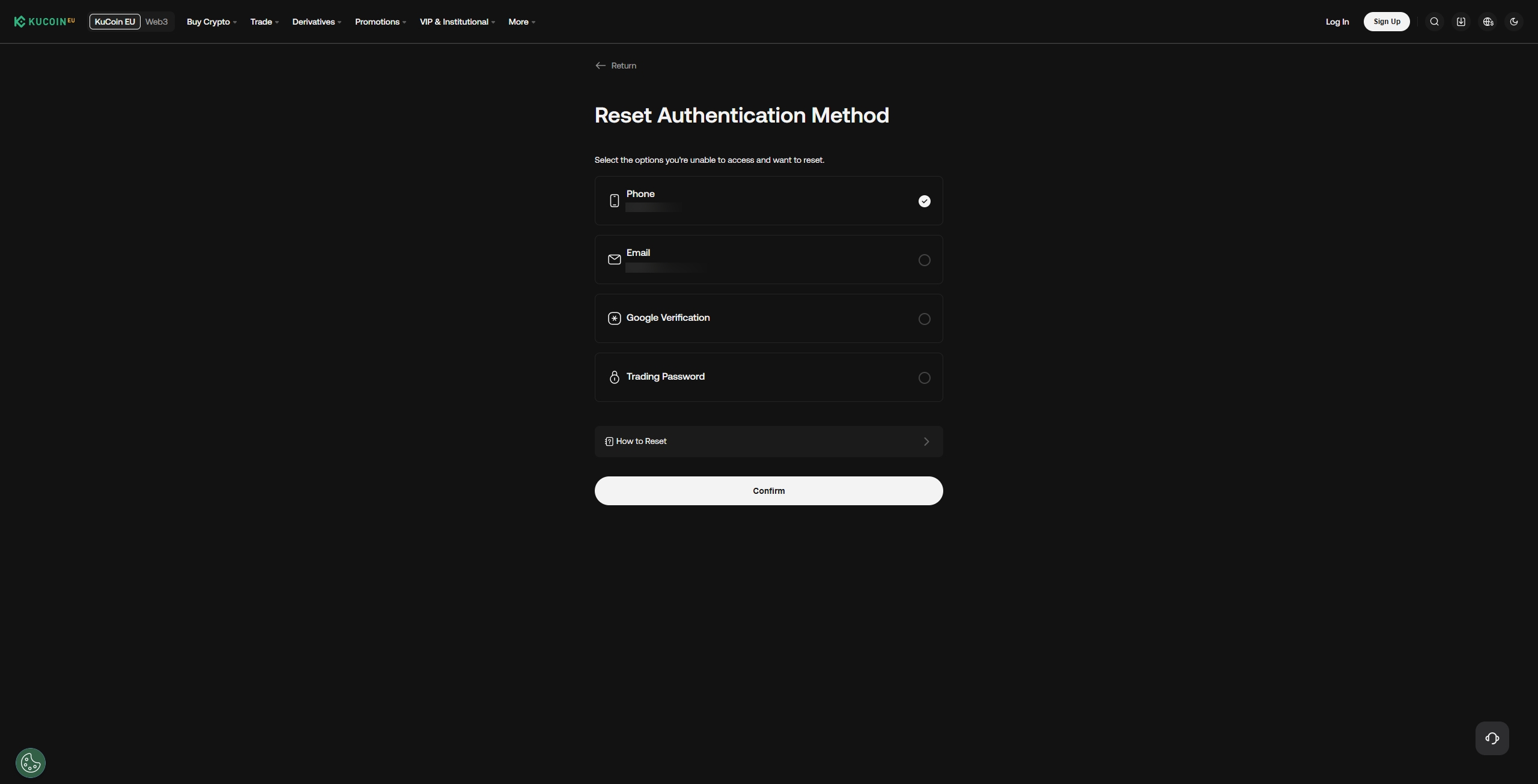
Step 5: Click on Continue, then follow the on-screen instructions to perform security verifications when prompted.
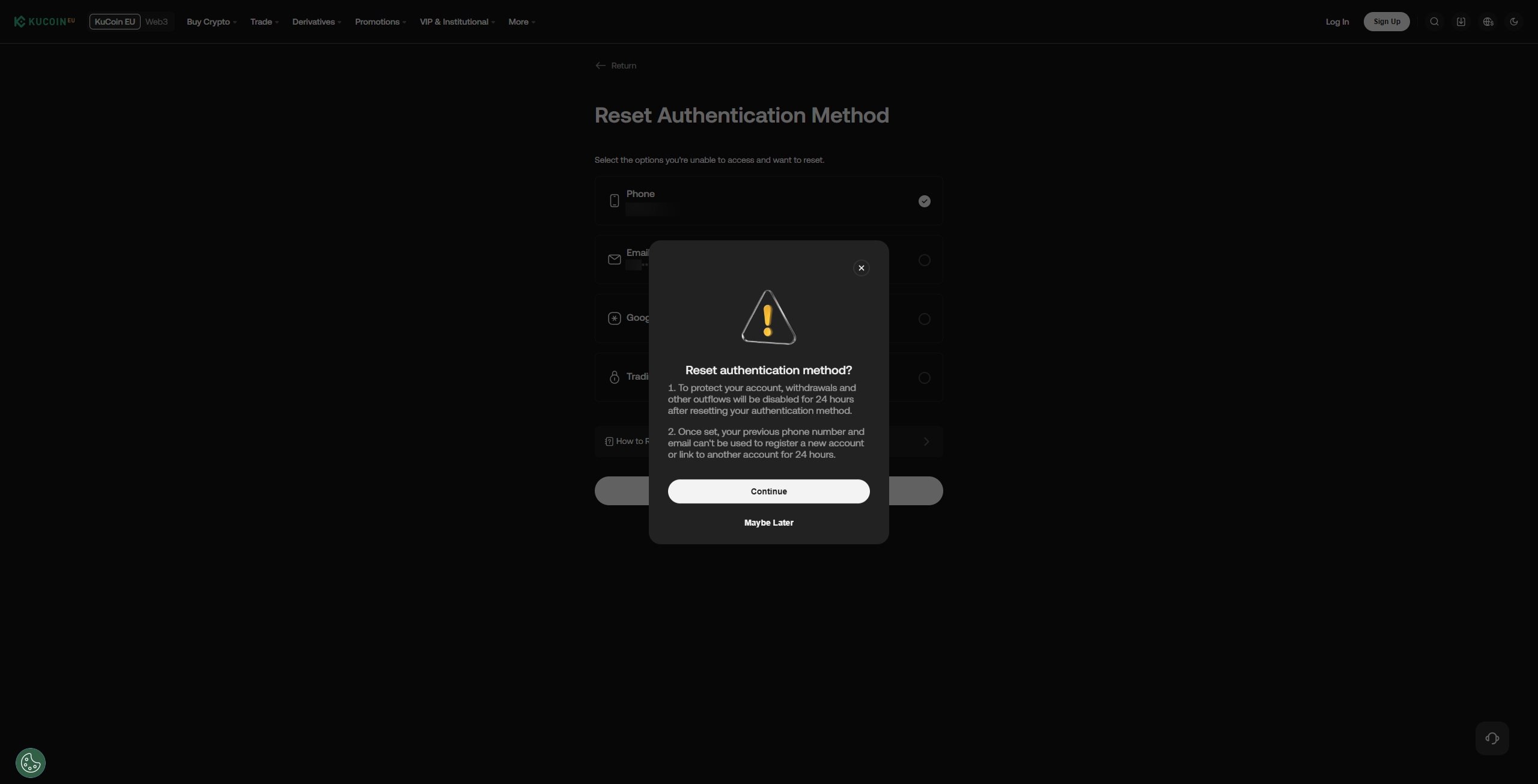
Note:
- When completing Identity Verification, upload the required document(s) while following the instructions closely, or your request to unlink your phone may fail.
- Once you’ve submitted a request, it will be processed in approximately 1–3 business days.
Scenario 3: You no longer have access to your previous phone number but do not have a new phone number to replace it with.
In such cases, please contact customer support directly, or submit a ticket for assistance.