Passkeys
Passkeys are a strong and effective mechanism to protect your account against phishing attacks and other threats. They’re a simple yet secure way to log in, serving as an alternative to the traditional password-based logins. With passkeys, you can log into your KuCoin account without entering a password. Instead, you simply use a fingerprint, facial recognition, or your device's screen lock settings (such as a PIN) to access your account. This also allows you to verify your identity when making sensitive actions, further safeguarding your account.
Important Note:
Biometric data used for fingerprint or facial recognition is stored only on your device and is never shared with KuCoin.
Table of Contents
1.Pre-Condition to Set up Passkey
You can create a passkey on the following devices:
- Laptops or desktops running Windows 10, macOS Ventura, ChromeOS 109, or later
- Mobile devices running iOS 16 or later versions
- Physical security keys that support the FIDO2 protocol
Your computer or mobile device must also have a supported browser, such as:
- Chrome 109 or higher
- Safari 16 or higher
- Edge 109 or higher
- Firefox 122 or higher
To create and use a passkey, you need to enable the following features:
- Screen Lock
- Bluetooth
If you wish to use a passkey to log into another computer, the following features must be enabled:
- iCloud Keychain for iOS or macOS devices
-
When you set up a passkey on an Apple device, the system will prompt you to enable iCloud Keychain (if it hasn’t been set up yet). To learn more about how to set up iCloud Keychain, click here.
Tip: To ensure a smooth experience with passkeys, always update your operating system and browser to the latest versions. Depending on your operating system and browser, you may not be able to create or use passkeys in Incognito mode.
2.How to Configure Passkey
When creating a passkey, you need to log in to your KuCoin account and complete the security verification.
After setting up a passkey, you will primarily use it for password-free logins. Be sure to create a passkey only on personal devices that you control. If you create a passkey on a public device, anyone who can unlock that device may be able to use the passkey to log back in to your KuCoin account, even after you’ve logged out.
2.1. Creating a passkey on your phone or computer:
Step 1: Visit KuCoin official website and log in your KuCoin account;
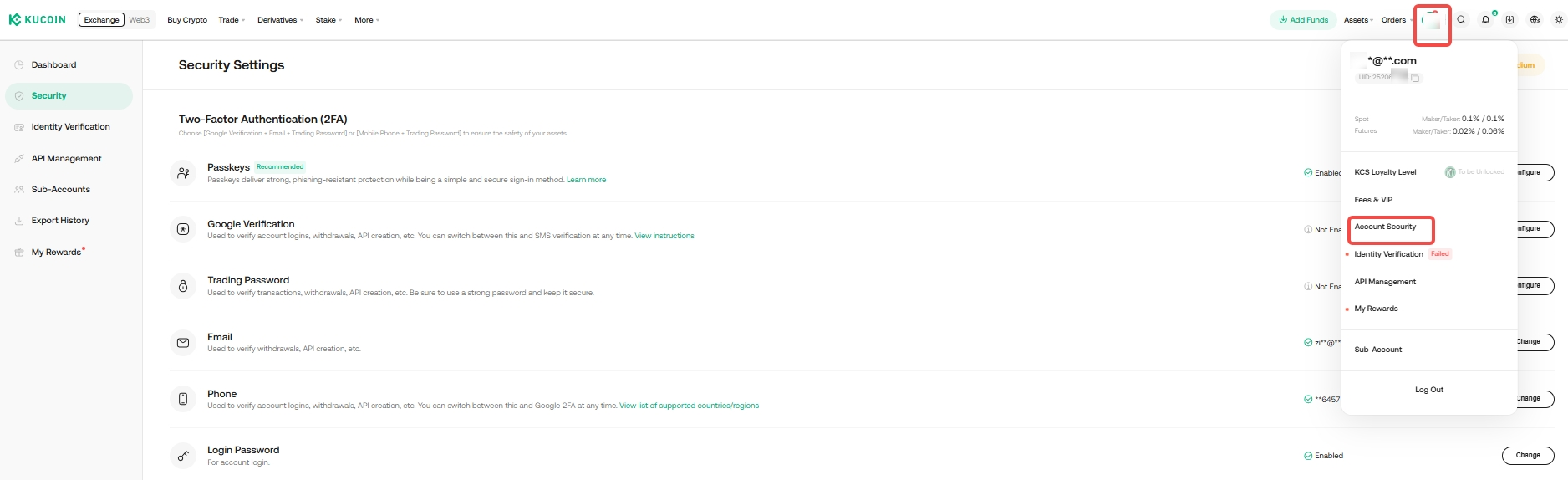
Step 2: Click the personal icon in the upper right corner to enter the "Account Security" page;
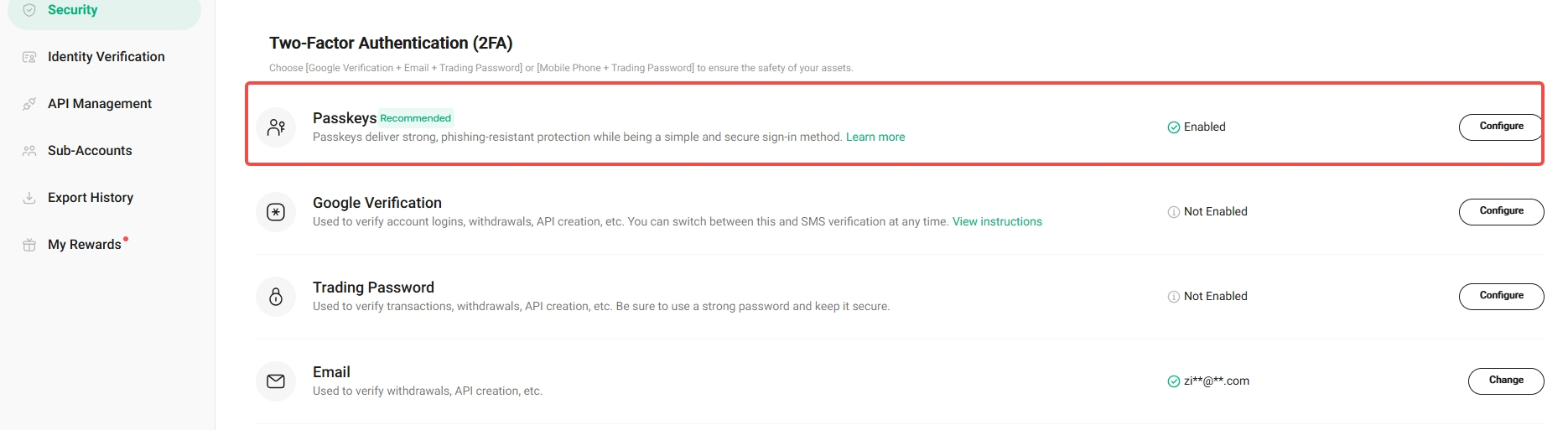
Step 3: Click the "Passkeys"-"Configure" button to enter the Passkey setting page;
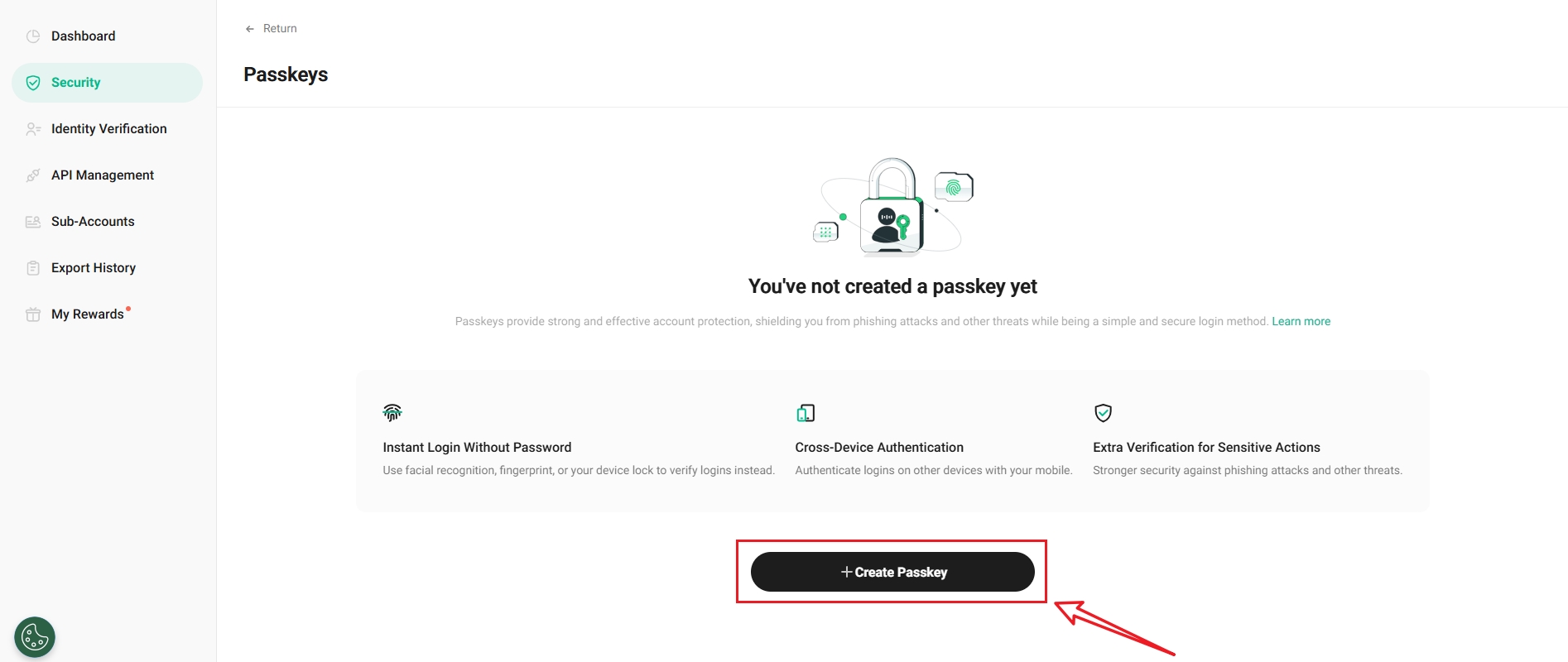
Step 4: Click the "Create Passkey" button below;
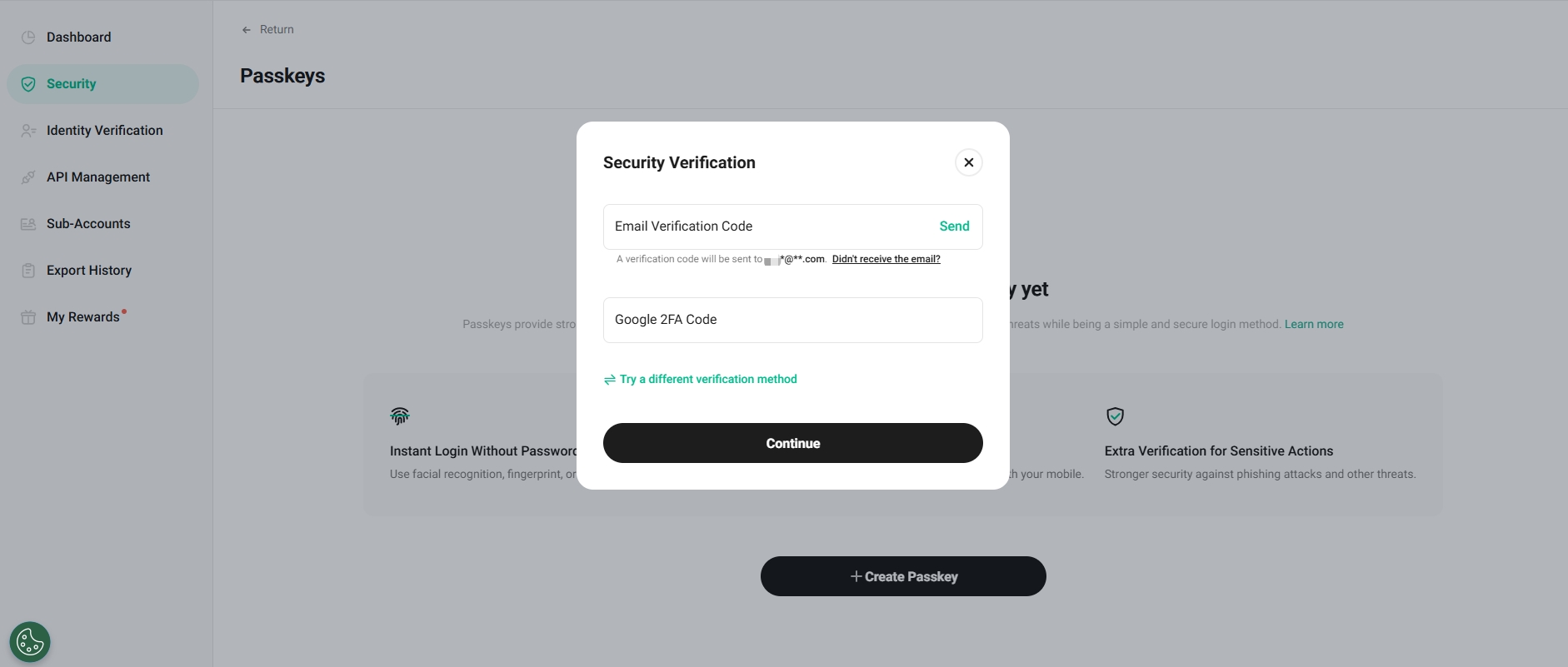
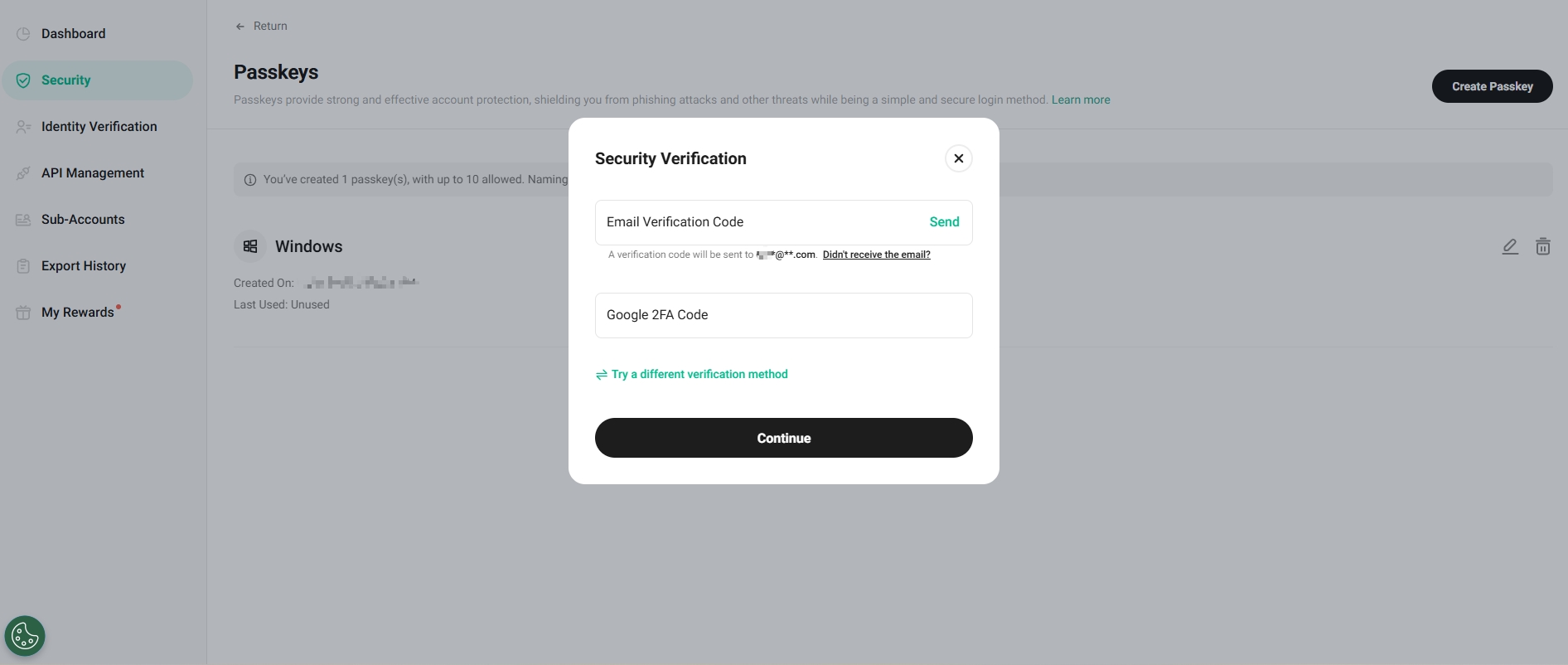
Step 5: After performing security verification, click Continue;
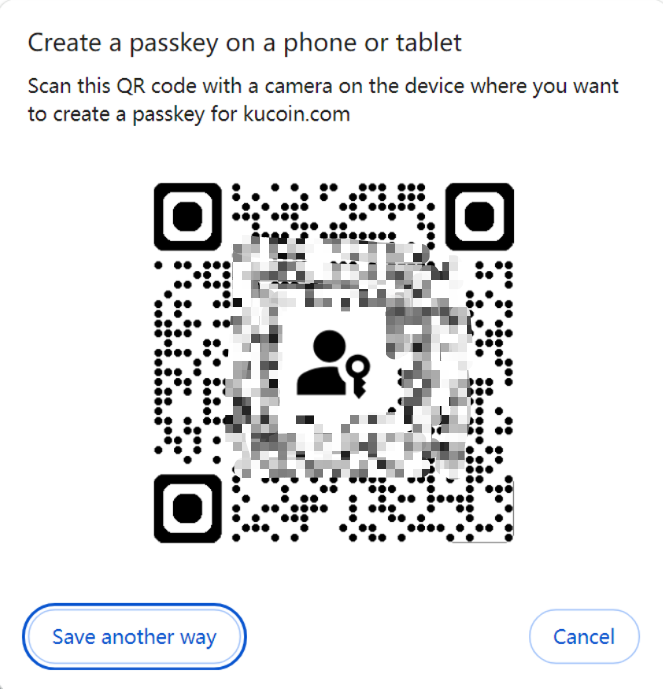
Step 6: Follow the prompts to use your phone or tablet to scan the QR code to set up, or click the "Save another way" button to switch to Windows Hello or external security key creation methods.
Note:
- The system will require you to unlock the device for verification. If you wish to create a passkey on multiple devices, repeat these steps on each device.
2.2. Creating a passkey on a nearby device:
Step 1: Log in to your KuCoin account.
Step 2: Go to: Profile → Security → Passkeys.
Step 3: Click Create Passkey and complete the security verification.
Step 4: After passing the security verification, follow the system prompts to choose “Use Another Device” and follow the on-screen instructions.
Step 5: Then you will be prompted to begin an identity verification process. For example, you may choose to scan a QR code or trigger a push notification to the nearby device.
Step 6: On the nearby device, follow the prompts to complete the verification process. For example, if you are using an iPhone, you may use FaceID or enter a password.
Tip:
- After creating your first passkey, you will prioritize using the passkey to log in on any device that supports passkeys.
- To protect your account, never create a passkey on a shared device.
3.Deleting a Passkey
If the device on which you created a passkey is lost, or if you mistakenly created a passkey on a shared device, you should immediately delete the passkey on that device so it cannot be used to access your KuCoin account.
Step 1: Log in to your KuCoin account.
Step 2: Go to: Profile → Security Security → Passkeys → Configure.
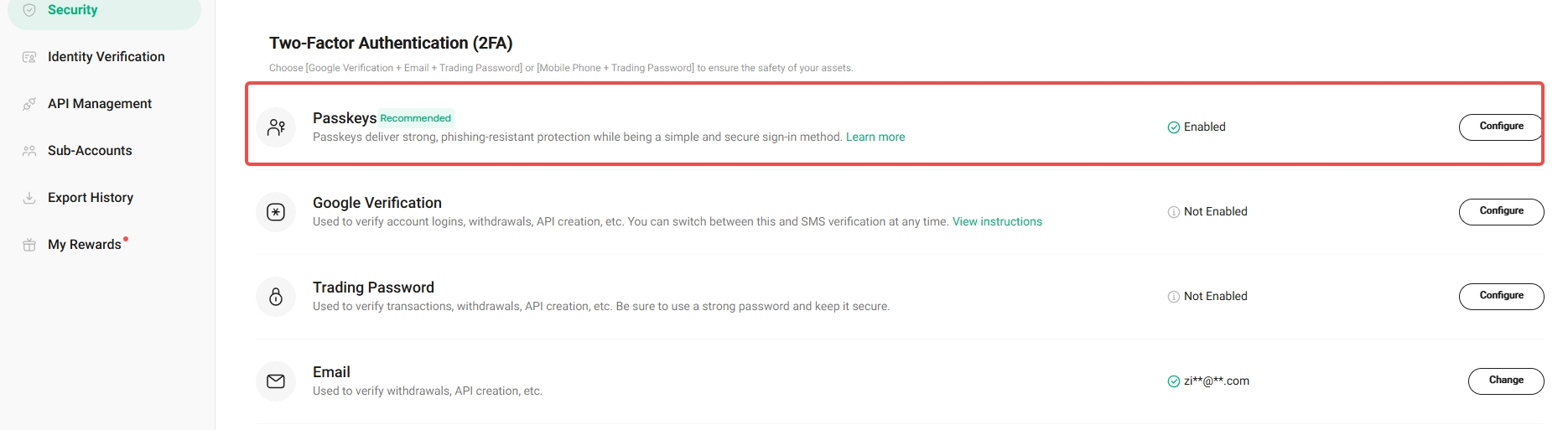
Step 3: Select the passkey you wish to remove and click Delete.
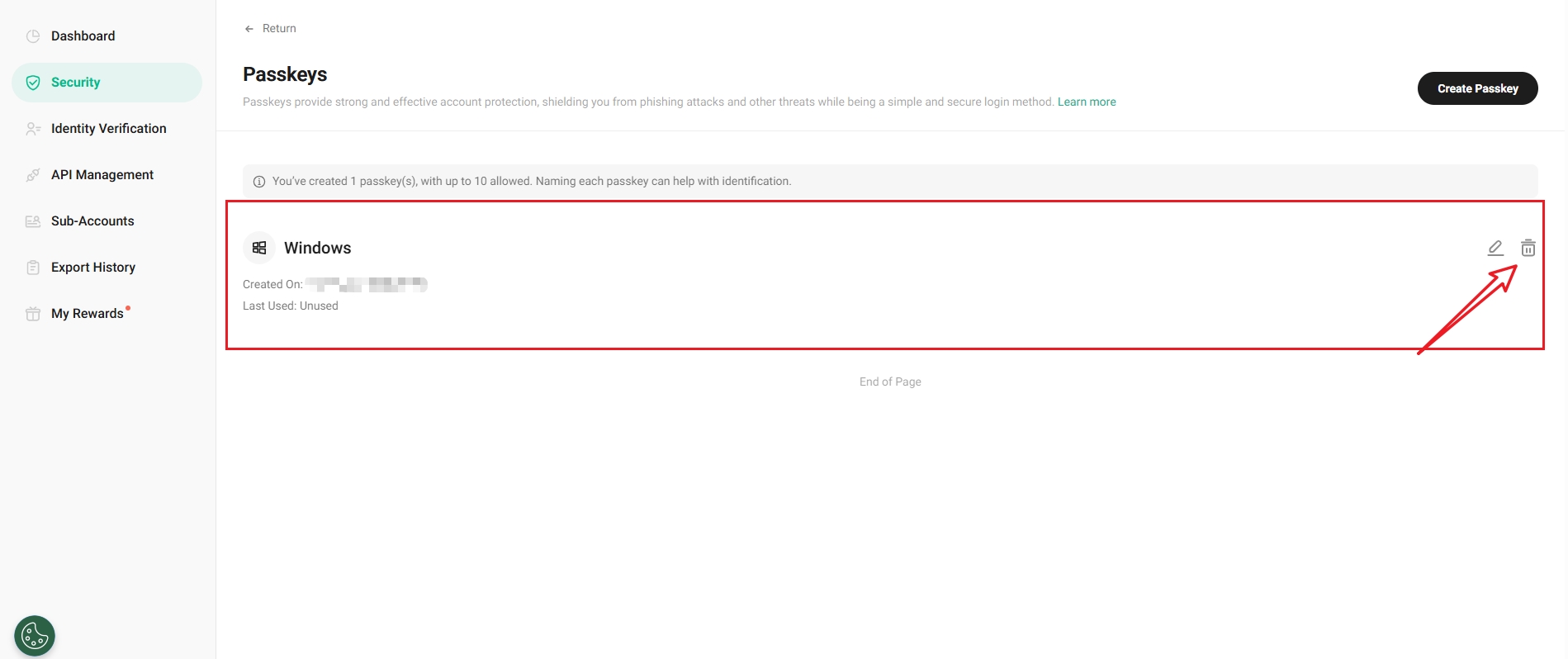
Step 4: Review the information in the Delete Confirmation pop-up, then the click Delete button. Complete the verification process as prompted to delete the passkey.
4.Recovering a Passkey
Many systems support passkey synchronization, and your keys may be backed up by the provider’s account system (iCloud, Google account, password manager, etc.). If you lose a device, you can recover the synced keys by logging in to the key provider.
In some cases, your keys may be device-bound, meaning they cannot be synced or backed up to the cloud. If you lose or erase the device, the keys therefore cannot be recovered. If you are only using device-bound keys, it’s best to register the keys on at least two different devices in case you lose access to one of them.